
Roles are essential for defining which actions each employee can perform within the system. This configuration ensures security, organization, and control by preventing unauthorized access and ensuring that each user has only the permissions necessary to perform their tasks.
Creating well-structured roles is essential for:
- Clearly distribute responsibilities;
- Maintain the integrity of information;
- Facilitate audits and ensure traceability of actions performed in the system.
Accessing the module
Click here to know how to access the New Settings module
How to create a role
In the Settings module, access the “Roles and Permissions” tab.
To create a new role, you must have the “List” and “Register” role permissions enabled. These settings are defined in the Settings > Roles and Permissions tab.
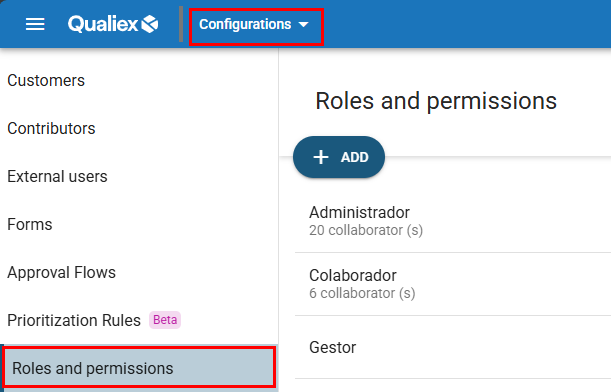
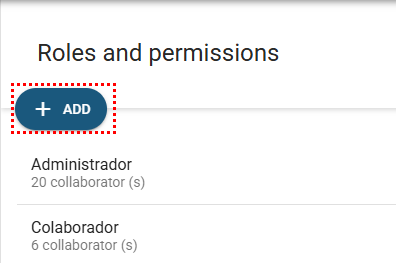
In the Roles and Permissions tab, click on
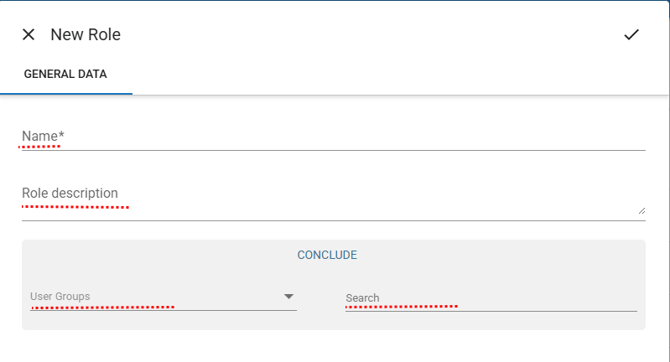
A window will be displayed for entering the information of the new role.
-
Name*: Enter the name of the role (required field).
-
Description: Add a brief description of the role’s purpose.
-
User Groups: Select a group to assign the role to all users within that group.
-
Search: Locate specific users to link to the role.
To confirm the registration, click on
After the role is registered, it will be displayed in the list within the Roles and Permissions tab.
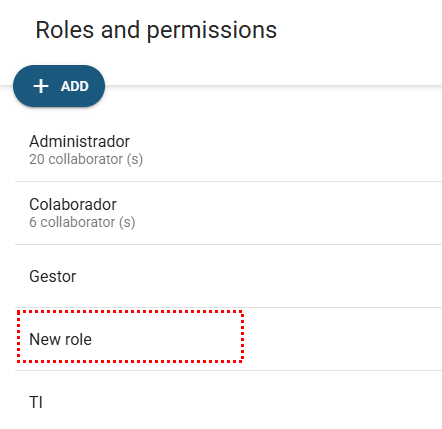
Select it and open the “Occurrences” tab to assign the permissions that the users associated with the role will have, related to the available settings:
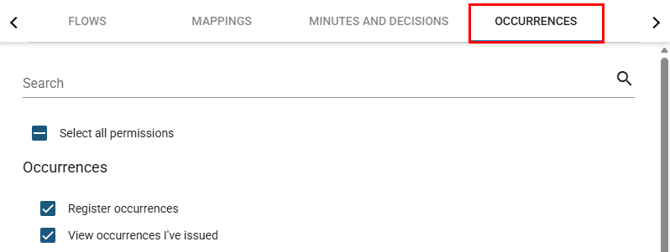
Occurences
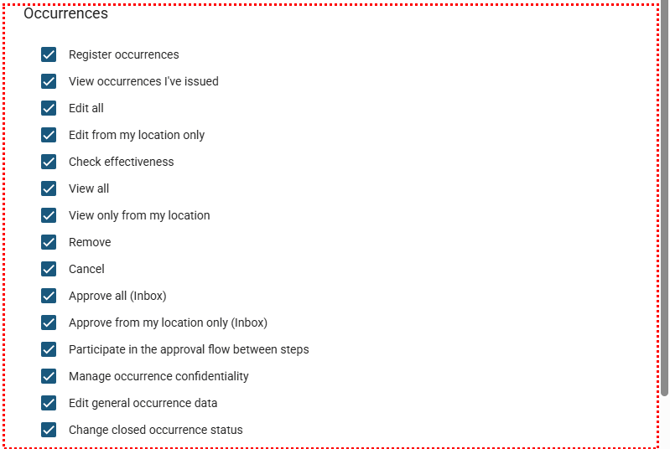
-
Register occurrences: Allows the creation of new occurrences.
-
View occurrences where I am the issuer: Allows the user to view only the occurrences they created.
-
Edit all: Allows editing of any occurrence, regardless of who created it.
-
Edit only from my location: Allows editing of occurrences linked to the user’s location.
-
Verify effectiveness: Allows performing the effectiveness verification of actions related to the occurrence.
-
View all: Allows viewing all registered occurrences.
-
View only from my location: Allows viewing occurrences from the user’s location.
-
Delete: Allows occurrences to be deleted.
-
Cancel: Allows open occurrences to be canceled.
-
Approve all (Inbox): Allows approving any occurrence in the inbox.
-
Approve only from my location (Inbox): Allows approving occurrences from the user’s location.
-
Approve multi‑stage workflow: Allows approving occurrences within workflows that include multiple steps.
-
Manage occurrence confidentiality: Allows defining whether an occurrence will be confidential.
-
Edit general occurrence data: Allows modifying the basic information of the occurrence.
-
Modify closed occurrence status: Allows reopening or modifying occurrences that have already been completed.
Actions
Here are the permissions that the role may have regarding the actions defined within the Action Plan of the treatment process.

- Edit general action data for actions where I am the owner/verifier:
Allows the user to edit the registration details of the action for which they are responsible or the verifier. These registration details correspond to the information entered in the 5W2H. -
Delete:
Allows the user to remove actions from action plans, as well as attachments added to the actions.
Settings
Here are the permissions that the role may have regarding the specific configuration options within the Occurrences module.
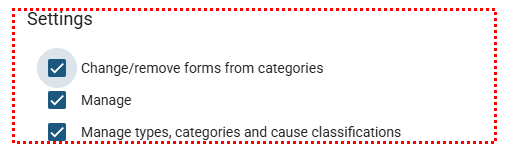
-
Modify/remove category forms:
Allows modifying or deleting forms associated with the categories. -
Manage:
Allows accessing and changing the general settings of the module. -
Manage types, categories, and cause classifications:
Allows creating, editing, or removing types, categories, and classifications related to the root causes of occurrences.
Audit Trail
The audit trail is the feature that ensures the traceability of information within the module, and here are the permissions that the role may have regarding the audit trail.
The audit trail is the feature that ensures the traceability of information within the module, and here are the permissions that the role may have regarding the audit trail.
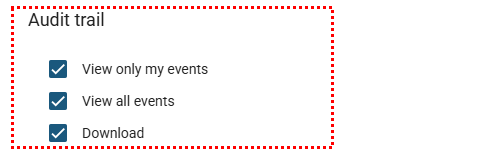
-
View only my modified events:
Allows the user to view only the changes they performed within the module. -
View all events from all users:
Allows the user to view all changes made in the module by any user in the organization. -
Download:
Allows exporting the module’s change logs in .pdf, .xlsx, and .csv file formats.
After selecting the options, click  to save the permissions.
to save the permissions.