---
title: Report of Overdue for Occurrence Action Plans
description: Qualiex | Knowledge Base
---
[Skip to content](https://qualiex.forlogic.net/en/report-of-overdue-for-occurrence-action-plans#main-content)

Open main navigation
Close main navigation
How can we help you?
- There are no suggestions because the search field is empty.
1. [Qualiex | Knowledge Base](https://qualiex.forlogic.net/en?hsLang=en)
2. [Occurences](https://qualiex.forlogic.net/en/occurences?hsLang=en)
3. [Reports](https://qualiex.forlogic.net/en/occurences?hsLang=en#reports)
# Report of Overdue for Occurrence Action Plans
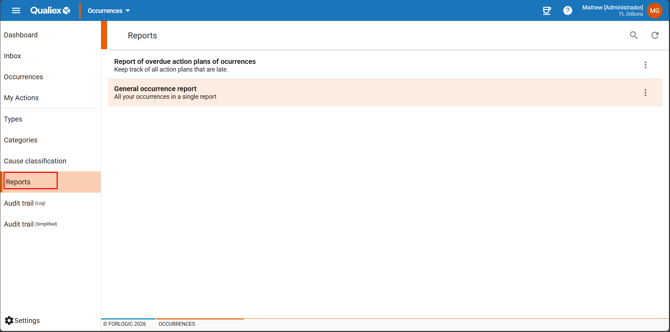
In the Occurrences module, you can access the **Report of overdue action plans of occurrences** through the **Reports** tab.
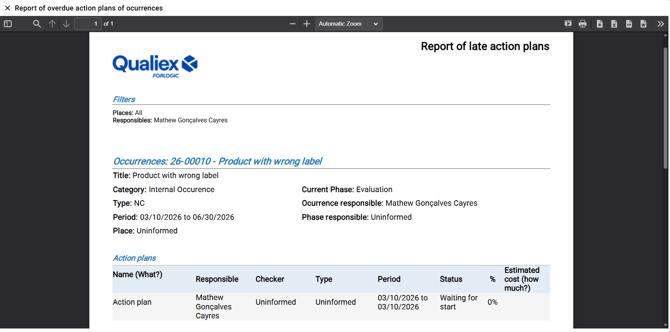
With this report, you can view all actions that are overdue within the action plans associated with each occurrence.
### 1. Access the Module
Click here to learn how to access the **Occurrences** module in Qualiex.
### 2. Locate the Reports tab.
### **Report Filters**
To make it easier to view the report, you can define filters as criteria to refine the information displayed.
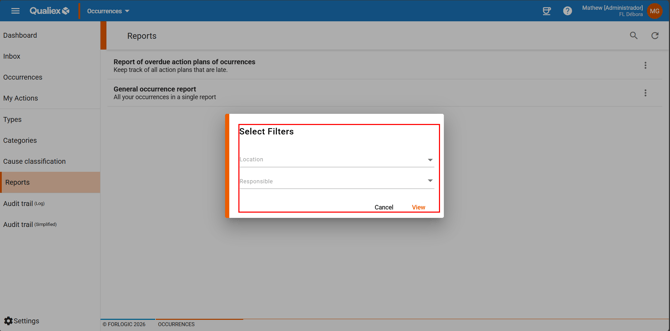
#### **You can filter by Locations, selecting one or multiple locations.**
The listed locations will correspond to those registered in the Qualiex settings.
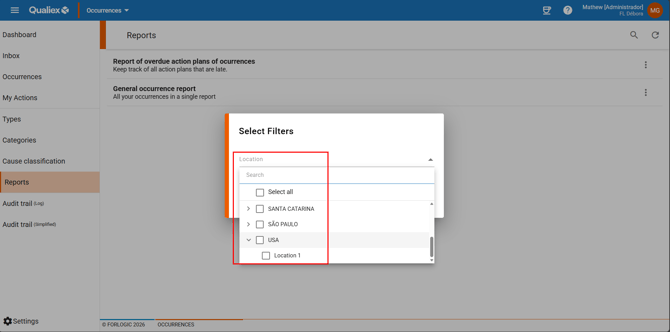
See how to register a Location here.
#### You can also filter by action responsible.
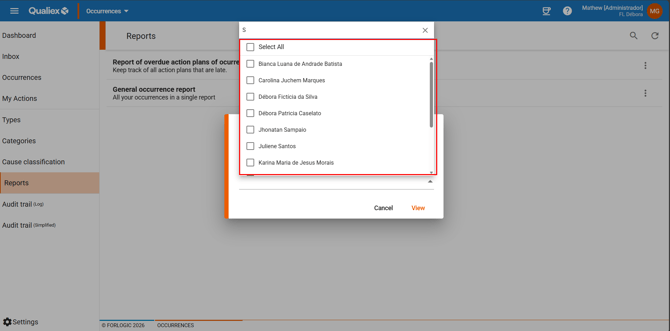
After selecting the desired filters, simply click “**View**” to generate the report.
When generating a report with the selected filters, you will see the following view of Report of late action plans of occurrences.
### **3. Report Options Bar**
#### **In the options bar (top section), you can:**
**Navigate between pages:** You can move through the pages without leaving the current screen.
Click the **page navigation button**  and select the page you want to view.
**Search for words or phrases:** By clicking the **search button ** , you can type a word or phrase and navigate through all matches found in the report.
**Move to the next or previous page:** You can also navigate using the **next/previous page arrows ** or by entering the page number directly.
**Zoom in or out:** Use the **zoom controls**  to decrease or increase the display size of the report.
**Use presentation mode or print the report:** Click the **presentation mode button ** to view the report full‑screen, or the **print button**  to print it.
**Export the report in different formats:** You can export the full report in multiple extensions:
- ** PDF**
- ** XLSX**
- ** CSV**
- ** DOCX**
For additional export options — such as exporting with or without formatting, changing report orientation, and more — simply click the **export settings button ** .
---
#### **Traceability Information**
At the bottom of each page of the report, you will find traceability details, including:
- total page count
- your company name
- date and time the report was viewed
- the site where it was generated
In the lower‑right corner, you will also see the **Forlogic logo**.
These elements confirm that the report was generated by a computerized system.

- [Occurences](https://qualiex.forlogic.net/en/occurences?hsLang=en#main-content)
- [Treating an occurence guide](https://qualiex.forlogic.net/en/occurences?hsLang=en#treating-an-occurence-guide)
- [Register Occurence](https://qualiex.forlogic.net/en/occurences?hsLang=en#register-occurence)
- [Inbox](https://qualiex.forlogic.net/en/occurences?hsLang=en#inbox)
- [Cause analysis](https://qualiex.forlogic.net/en/occurences?hsLang=en#cause-analysis)
- [Action plan elaboration and execution](https://qualiex.forlogic.net/en/occurences?hsLang=en#action-plan-elaboration-and-execution)
- [Effectiveness check](https://qualiex.forlogic.net/en/occurences?hsLang=en#effectiveness-check)
- [Standardization and disclosure](https://qualiex.forlogic.net/en/occurences?hsLang=en#standardization-and-disclosure)
- [Overview](https://qualiex.forlogic.net/en/occurences?hsLang=en#overview)
- [General information](https://qualiex.forlogic.net/en/occurences?hsLang=en#general-information)
- [My Actions](https://qualiex.forlogic.net/en/occurences?hsLang=en#my-actions)
- [Cause classification](https://qualiex.forlogic.net/en/occurences?hsLang=en#cause-classification)
- [Occurences Categories](https://qualiex.forlogic.net/en/occurences?hsLang=en#occurences-categories)
- [Types of occurrences](https://qualiex.forlogic.net/en/occurences?hsLang=en#types-of-occurrences)
- [Module Configurations](https://qualiex.forlogic.net/en/occurences?hsLang=en#module-configurations)
- [Reports](https://qualiex.forlogic.net/en/occurences?hsLang=en#reports)
[](https://qualiex.com/)
[mailto:contato@forlogic.net](mailto:contato@forlogic.net)
Copyright © 2026