
What are the AI features in Qualiex?
Qualiex now includes Artificial Intelligence (AI) capabilities that support users in the main stages of handling quality occurrences:
- Reviewing the occurrence description,
- Analyzing the root causes of the issue, and
- Suggesting action plans.
These features were designed to make the quality management process more efficient, comprehensive, and intelligent, providing direct support to the user based on the information recorded in the occurrence.
The features can be individually enabled by the administrator (Sysadmin) in the menu Settings > Units > Artificial Intelligence.
⚙️ How to enable the AI features
The activation of the AI features is done in the Artificial Intelligence tab within the unit settings.
- Go to Settings > Units.
- Select the desired unit.
- Click on the Artificial Intelligence tab.
- In the Occurrences section, enable the desired options:
- ✅ Review occurrence description with AI
- ✅ Generate Ishikawa diagram with AI
- ✅ Suggest action plan with AI
🧠 1. Review occurrence descriptions with AI
What it does
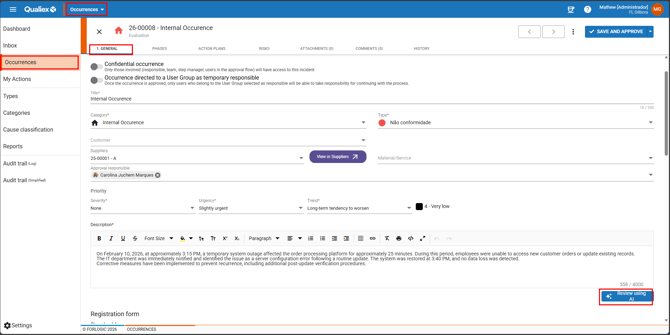
The Review with AI feature helps you make the occurrence description clearer and more complete.
When you click the button, the AI analyzes the text and generates automatic guiding questions that help the user improve the information recorded in the occurrence.
How to use
- Open the Occurrences module.
- Open the desired occurrence.
- Go to the 1. General tab, or create a new occurrence.
- Click Review with AI, located just below the description field.
What happens
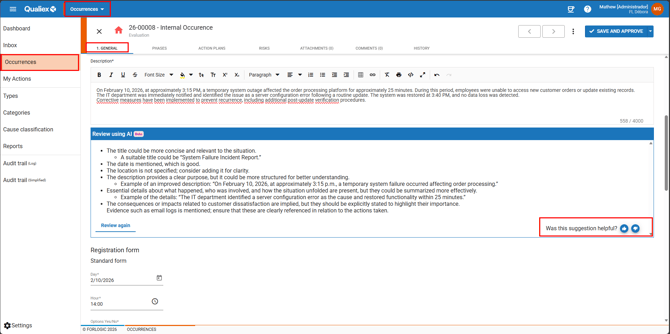
The AI displays a suggestion box with automatically generated questions, for example:
- Where did the issue occur?
- Who was involved?
- What were the consequences?
These questions help the user provide a more complete and detailed description.
Below the suggestions, the following question will be shown:
“Was this review helpful?” 👍 👎
These icons record your feedback, helping improve the AI model.
Rules
Available only to users with permission to create and edit occurrences.
🧩 2. Generate Ishikawa Diagrams with AI
What it does
The Ishikawa Diagram (also known as the cause-and-effect diagram) is used to identify the root causes of a problem.
With AI, the system automatically generates the diagram based on the information recorded in the occurrence, saving time and improving the quality of the root cause analysis.
How to use
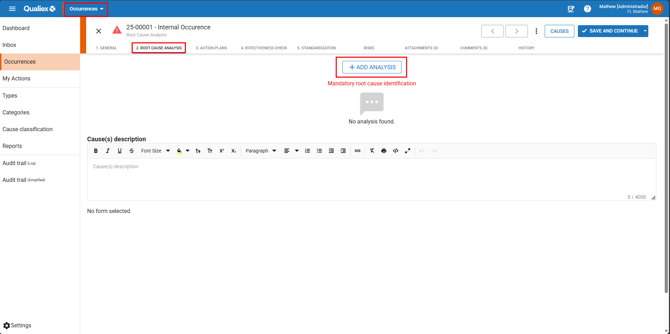
- Open the Occurrences module.
- Go to the Cause Analysis stage.
- Click Add Analysis.
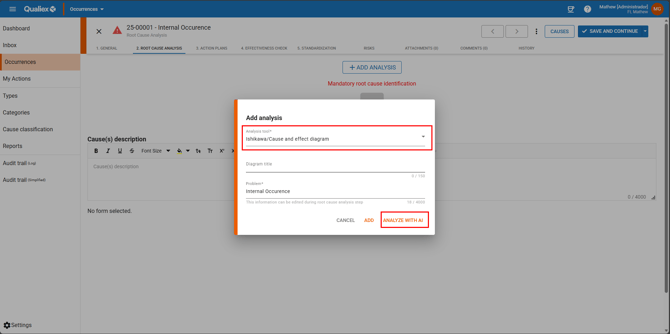
Select Ishikawa Diagram / Cause and Effect.
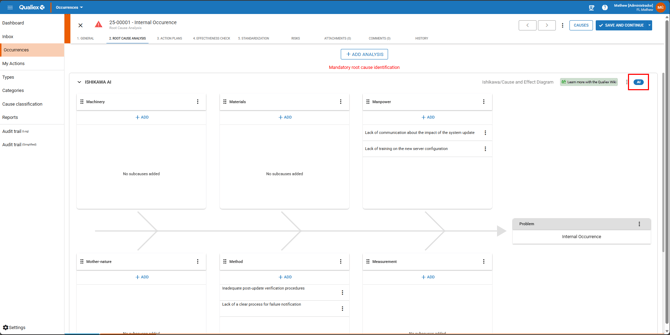
Click the Add with AI button.
What happens
The AI analyzes the information from the occurrence (title, category, type, description, supplier, material, etc.) and automatically generates the complete diagram.
The diagram is identified with the “AI” tag.
It behaves in the same way as a manually created diagram.
Rules
Only users with permission to add cause analysis can use this feature.
💡 3. Suggest Action Plans with AI
What it does
The Suggest Action Plan with AI feature automatically generates suggestions for corrective and preventive actions based on the information recorded in the occurrence.
This helps the user build more effective and more specific action plans.
How to use
- Open the Occurrences module.
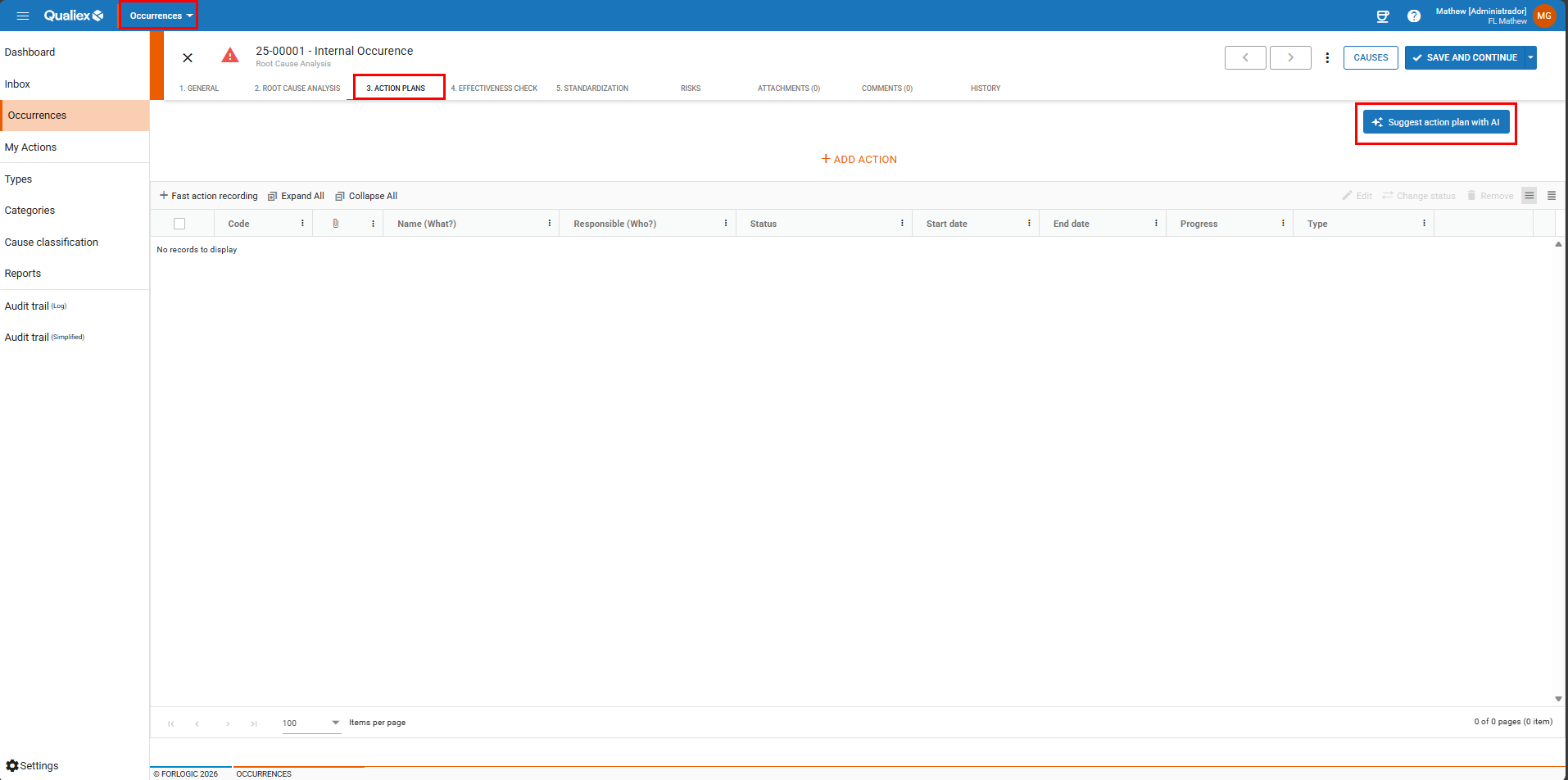
- Go to the 3. Action Plans tab.
- Click the Suggest Action Plan with AI button located in the upper‑right corner.
What happens
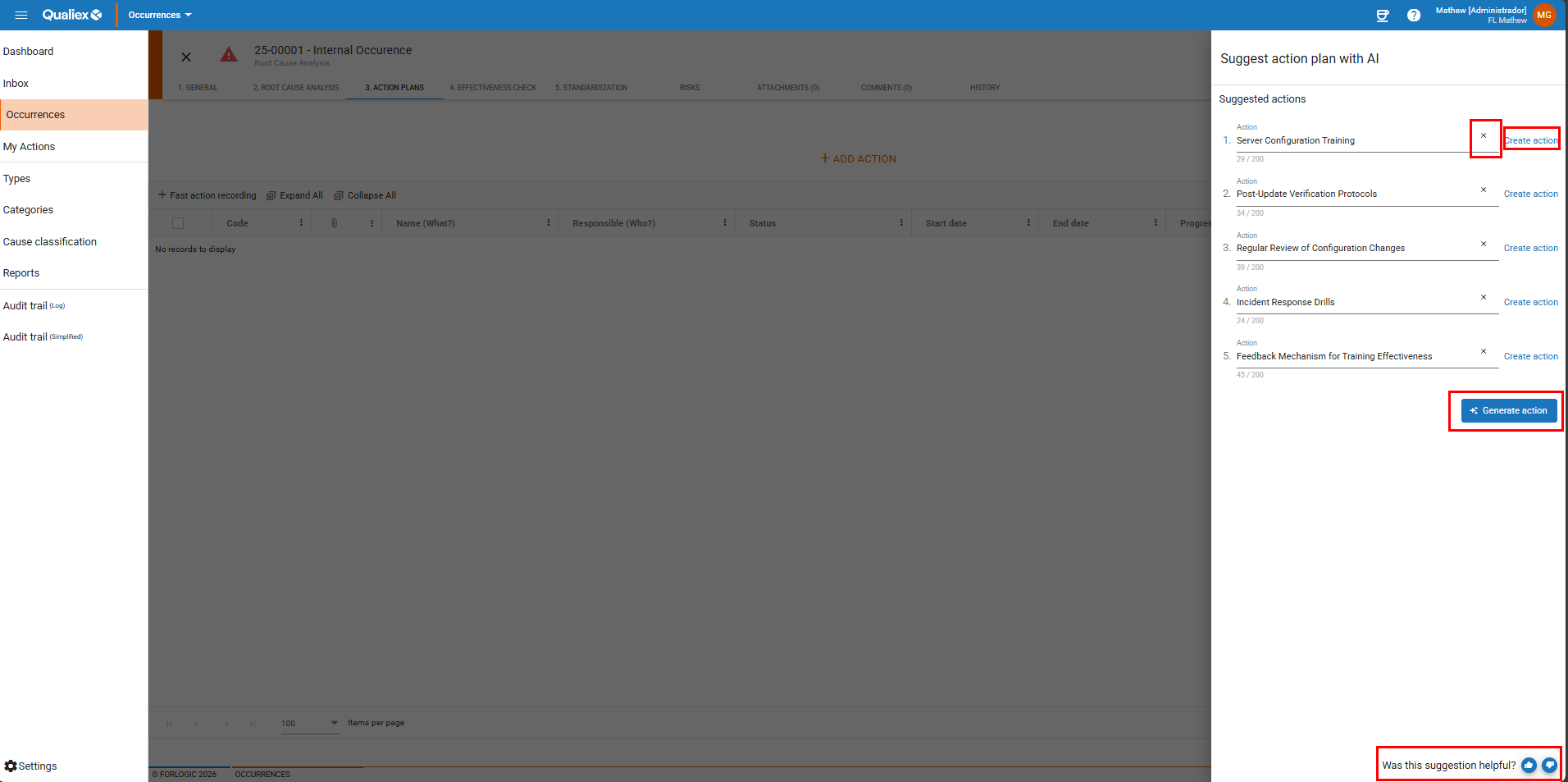
The system will open a side panel called “Suggest Action Plan with AI.”
The AI will present action suggestions, each containing:
- 📝 Action name
- 🔘 Create Action button (to add it to the list)
- ❌ Delete icon (to remove unwanted suggestions)
If there is not enough data, the following message will be displayed:
“No suggestions could be generated with the current information.”
Below the suggestions, the question appears:
“Was this suggestion helpful?” 👍 👎
The feedback is recorded internally to improve the AI model.
Rules
-
Only users with permission to create action plans can use this feature.
-
After the suggestions are generated, the button changes to “View Suggested Actions.”
-
If the occurrence is modified (title, description, or cause), the suggestions are automatically updated.
💬 Tip: use the AI feedback
Whenever you see the question “Was this review/suggestion helpful?”, click 👍 or 👎.
These interactions help the Forlogic team train the AI to generate increasingly accurate and relevant results.
🎯 Conclusion
The Artificial Intelligence features in the Occurrences module were developed to support users in every stage of the process:
- Reviewing descriptions,
- Analyzing causes, and
- Suggesting action plans.
With these features, you gain greater agility, improved information quality, and increased efficiency in resolving occurrences.