
1. Access the module
2. Locating the occurrence
 and select “View.”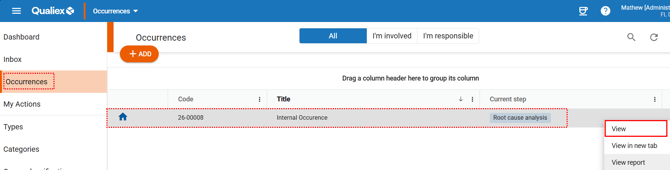
3. Adding the cause‑analysis tool
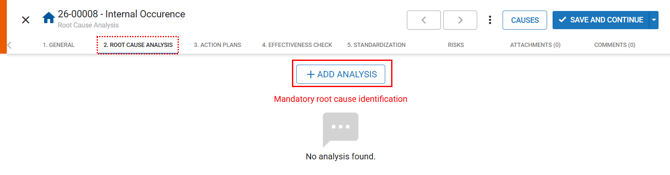
-
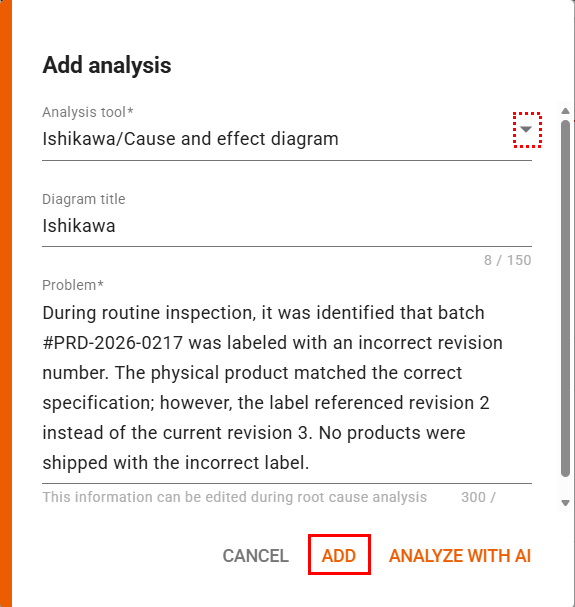
Analysis Tool (required): you can choose between Ishikawa Diagram, Tree Diagram, or 5 Whys.
To select the tool, click , then choose “Ishikawa Diagram / Cause and Effect.”
-
Title (optional): you may define a title for the tool.
-
Problem (required): this field will automatically be filled with the occurrence title, but you may complement or completely modify it.
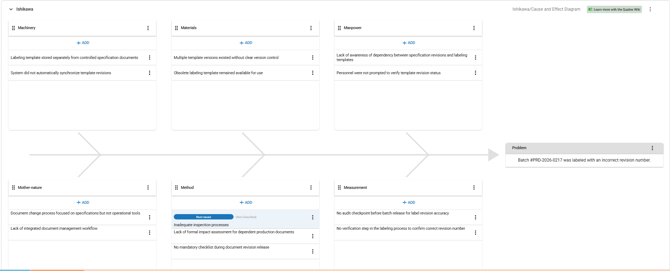
With the tool added, you will see the “fishbone” structure, which is composed of the following categories:
- Machine
- Materials
- Manpower
- Environment
- Method
- Measurement
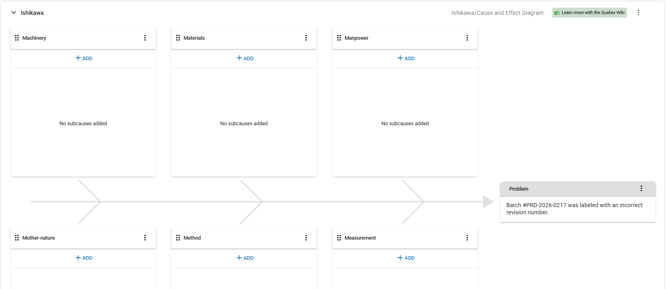
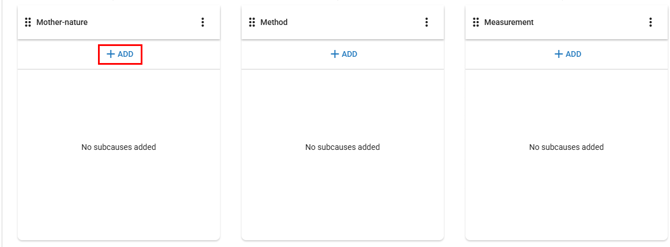
Select the desired category to add a sub‑cause, and click “Add.”
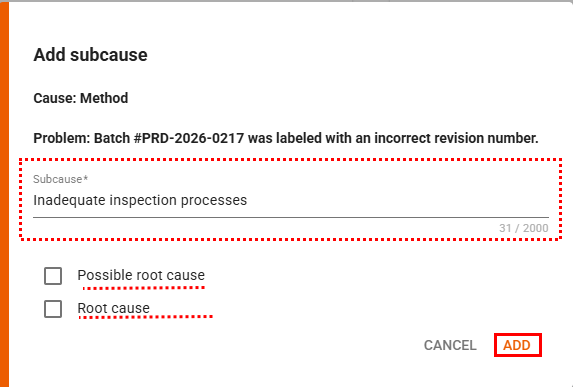
- Cause: the category where the sub‑cause is being added.
- Problem: this field is automatically filled with the problem defined when the analysis tool was added.
- Sub‑cause: a text field used to describe one of the sub‑causes identified for the selected category (e.g., Machine).
- Possible root cause: if, during the analysis, this sub‑cause is considered a potential root cause, you can mark it as a Possible root cause.
- Root cause: if the analysis confirms that this sub‑cause is indeed the root cause, you can enable this field.
Once the categories are filled in, the diagram is complete.
More tool options
You can edit the diagram, the problem, and the sub‑causes that have been added.

- Click
 to collapse or expand the tool view.
 - In the tool’s context menu
 , the following options are available:
-
Edit: Change the name of the tool.
-
-
-
Remove: Delete the diagram.
-
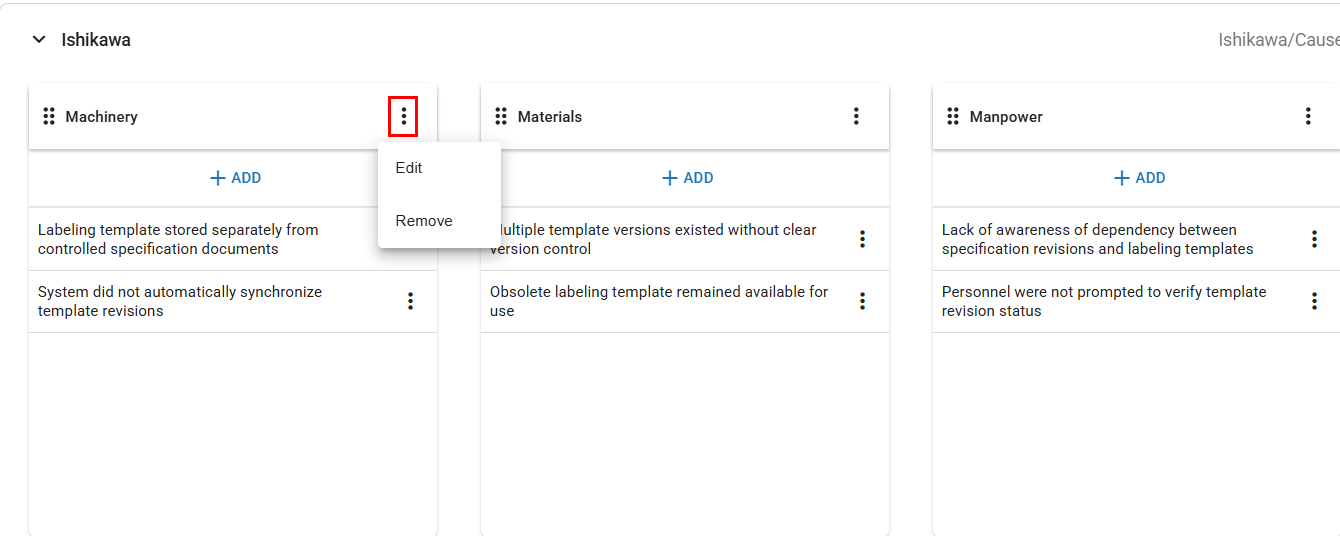
- In the category’s context menu , the following options are available:
-
Edit: Modify the name of the category.
-
Remove: Delete the corresponding category.
-
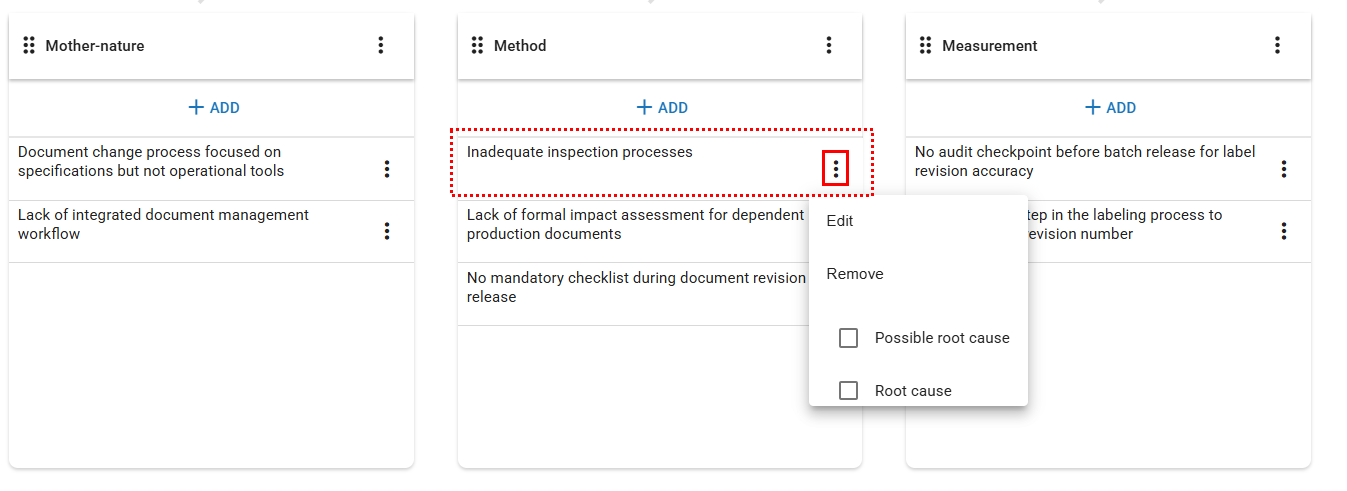
- In the sub‑cause’s context menu , the following options are available:
-
Edit: Modify the identified sub‑cause.
-
Remove: Delete the corresponding sub‑cause.
-
Mark as possible root cause.
-
Mark as root cause.
-
Having difficulty using the Ishikawa methodology? Click here to learn more.(placeholder)