
What can be done in the General Report?
Apply custom filters
Select criteria such as issuer, occurrence responsible, status, category, occurrence type, dates (issuance, start, completion, etc.), and even late occurrences.
Group data
Organize information by different parameters (such as approval responsible, category, or status), making it easier to identify patterns and trends.
View all occurrences or a subset
If no filters are applied, the system displays all occurrences visible to the user. When filters are applied, the report shows only the selected information.
Export and share
Reports can be printed or exported in multiple formats (PDF, Excel, Word, and CSV), enabling external analysis and easy sharing with teams or management.
Benefits of the General Report
- Clarity and transparency: Facilitates monitoring of all occurrences recorded in the system.
- Deadline control: Highlights overdue occurrences, supporting effective monitoring of corrective and preventive actions.
- Faster analysis: Filters and grouping options allow quick and targeted information retrieval.
- Decision-making support: Provides objective data to help managers identify bottlenecks, measure performance, and plan improvements.
- Flexible use: Suitable for everything from a general overview to in-depth analysis of a specific department or individual employee.
1. Access the module
2. Locating the General Report
 of the General Occurrences Report and select “View”.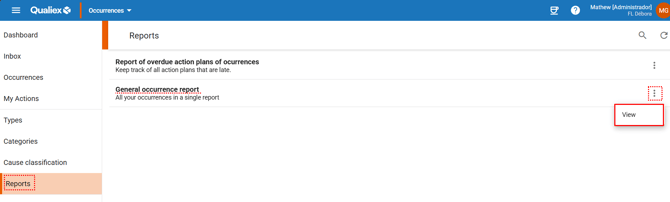
3. Filter options
When clicking “View”, the filter selection screen will be displayed, allowing filters to be applied to refine the report results.
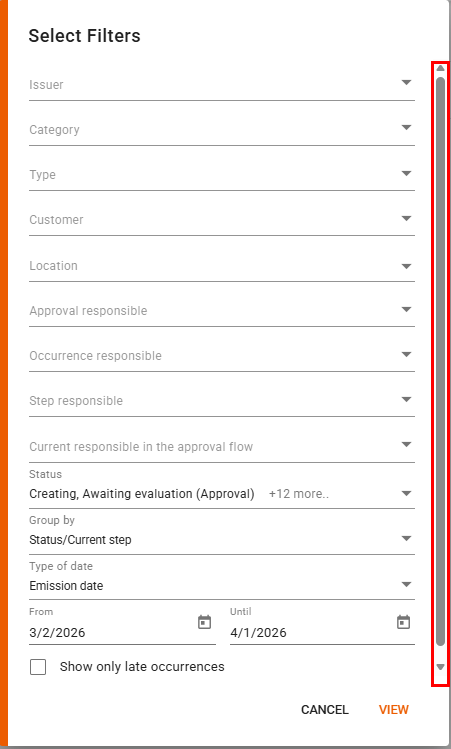
- Issuer: Filter by the employee who registered the occurrence.
- Category: Filter by the occurrence category.
- Type: Filter by the type of occurrence.
- Customer: Filter by the customer linked to the occurrence.
- Location: Filter by the occurrence location.
- Approval responsible: Filter by the employee who approved the occurrence (only users with permission to approve occurrences will be displayed).
- Occurrence responsible: Filter by the employee who is the overall responsible for the occurrence.
- Step responsible: Filter by the employee who is responsible for the current stage of the occurrence.
-
Current approver in the approval workflow: Filter by the employee who is responsible for the current approval stage, provided that this is the active stage of the occurrence.
Example: the approver responsible for the current root cause analysis approval stage. -
Status: Filter by the current stage of the occurrence. By default, all “open” occurrence statuses are selected.
-
Group by: Allows you to choose how occurrences will be grouped in the report. Available options include Status/Current stage, Issuer, Category, Type, Customer, Location, Approval responsible, Occurrence responsible, and Current stage owner.
By default, “Status/Current step” is selected. -
Select date type: Allows you to define which date type will be used for filtering. By default, “Issue date” is selected. Available options are:
- Issue date: Date the occurrence was registered.
- Start date: Start date of the treatment, defined by the approver during the evaluation stage.
- Completion due date: Estimated date for completion of the treatment.
- Completed on: Actual date the treatment was completed.
-
Date filter “From / To”: Define the time period of the information to be displayed in the report. This filter is directly affected by the selected date type.
By default, the system displays data for the last 30 days relative to the current date. -
Show only late occurrences: When this option is enabled, the report will display only occurrences whose completion deadline has already been exceeded, making it easier to identify and monitor pending or critical actions that require immediate attention.
4. Opening the report
After applying the required filters, click “View”.
The report will be generated and will display the following information:
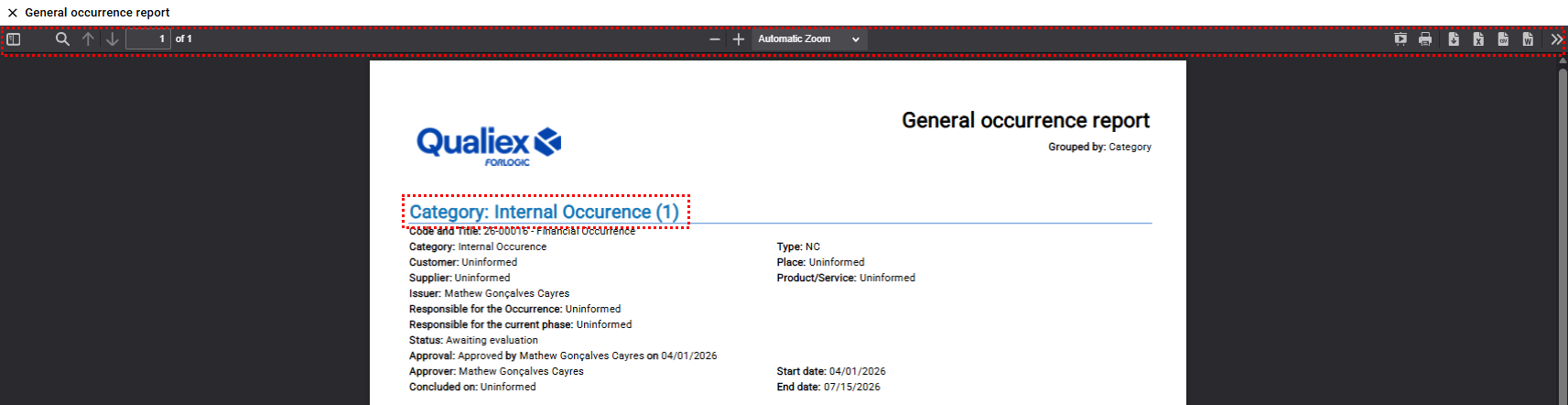
In the options bar (top section), you can:
Navigate between pages: You can move through the pages without leaving the current screen.
Click the page navigation button  and select the page you want to view.
Search for words or phrases: By clicking the search button  , you can type a word or phrase and navigate through all matches found in the report.
Move to the next or previous page: You can also navigate using the next/previous page arrows  or by entering the page number directly.
Zoom in or out: Use the zoom controls  to decrease or increase the display size of the report.
Use presentation mode or print the report: Click the presentation mode button  to view the report full‑screen, or the print button
  to print it.
Export the report in different formats: You can export the full report in multiple extensions:
 PDF
PDF XLSX
XLSX CSV
CSV DOCX
DOCX
For additional export options — such as exporting with or without formatting, changing report orientation, and more — simply click the export settings button  .
.
Traceability Information
At the bottom of each page of the report, you will find traceability details, including:
- total page count
- your company name
- date and time the report was viewed
- the site where it was generated
In the lower‑right corner, you will also see the Forlogic logo.
These elements confirm that the report was generated by a computerized system.
