---
title: How to Use the Advanced Filter to Locate an Occurrence?
description: How to Use the Advanced Filter to Locate an Occurrence?
---
[Skip to content](https://qualiex.forlogic.net/en/how-to-use-the-advanced-filter-to-locate-an-occurrence#main-content)

Open main navigation
Close main navigation
How can we help you?
- There are no suggestions because the search field is empty.
1. [Qualiex | Knowledge Base](https://qualiex.forlogic.net/en?hsLang=en)
2. [Occurences](https://qualiex.forlogic.net/en/occurences?hsLang=en)
3. [General information](https://qualiex.forlogic.net/en/occurences?hsLang=en#general-information)
# How to Use the Advanced Filter to Locate an Occurrence?
The **Occurrences** module is the tool dedicated to recording, monitoring, and managing all occurrences identified within the organization. Over time, the volume of information tends to increase, making advanced filters essential. These filters were created specifically to simplify search and prioritization, allowing you to select multiple fields and criteria according to your needs.
### Accessing the Module
Click here to learn how to access the **Plans** module in Qualiex.
### How to Use the Filter
To locate an occurrence, use the search field or the **advanced filter**, both available in the upper‑right corner of the screen.
The general filter is practical in certain situations, but when accuracy is needed, it is recommended to use the **advanced filter**, as the general filter searches across all contexts at once.
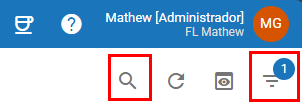
The number on the icon represents how much filters are applied. In this case, one filter is applied.
For example, if the word **“product”** appears both in the occurrence title and in a category, the general filter will return both records, as shown in the image below.
With the **advanced filter**, this type of coincidence does not occur, because it considers **only the fields explicitly selected** for the search.

If the user has the **“View All”** permission, applying the filter will display all occurrences registered in the Unit.
If they do not have this permission, they will only be able to see the occurrences in which they are involved.
This is defined under **Configurations > Roles and Permissions**.
When selecting the **filter option **, the list is automatically updated.
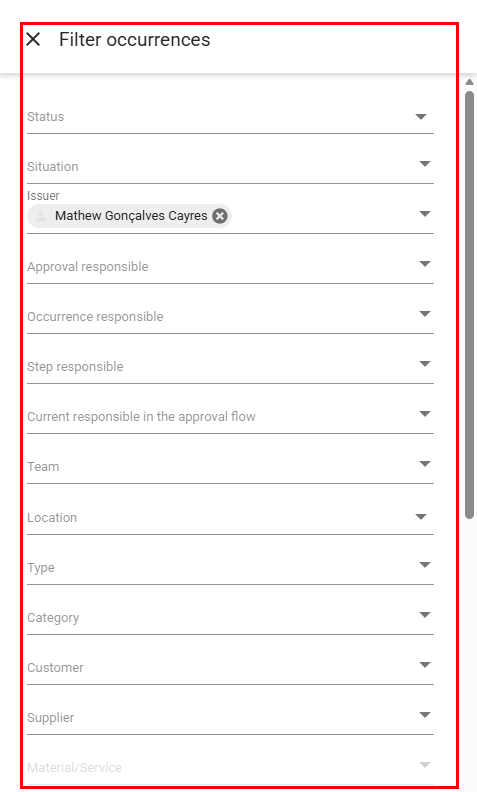
If you choose the **advanced filter**, this feature will be enabled to further refine your search — simply click the **advanced filter button**.
### **Advanced Filter**
Using advanced filters allows you to further refine the selection of information displayed. By configuring specific filters for each field, searches become more detailed and aligned with your needs, making it easier to focus on the data that is truly relevant.
You can combine multiple advanced filters simultaneously or use a single filter, depending on the goal of your analysis.
Click here to learn how to remove and add columns in the Occurrences module.
### **Status**
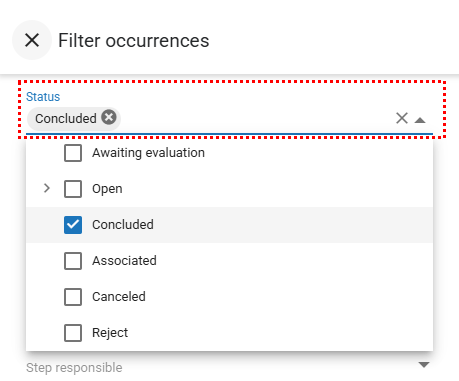
In the **Status** option, you can filter occurrences according to their current status:**awaiting evaluation, open, completed, associated, canceled, or rejected**.
Simply select the statuses you want to display in the list and, if desired, remove those that are not relevant to your analysis at the moment.
After adjusting the filters according to your needs, click **“Filter”** to execute the search.
In the example below, we searched only for **completed occurrences**.

When you want to remove all applied filters, click **“Clear.”**
This command removes all criteria defined in the filter at once, making it easier to reset your search.
The same procedure applies to the other filter options.
### **Situation**
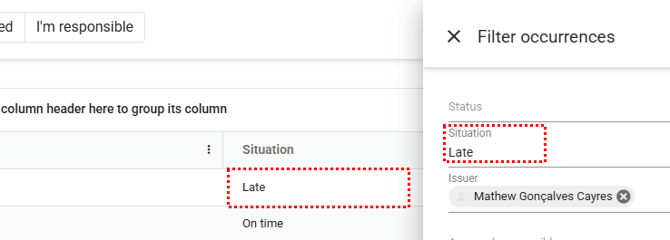
The **Situation** indicates the stage the occurrence is currently in:
- **On time:**
The occurrence is active, and the deadline for resolution has not yet been exceeded.
This indicates that the monitoring is proceeding as planned.
- **Late:**
The occurrence is still open, but the established deadline has already passed.
This status signals the need for quick action to avoid greater impacts.
- **Closed on time:**
The occurrence was fully resolved before or exactly on the established deadline, demonstrating efficient management and adherence to timelines.
- **Late closing:**
The occurrence was resolved, but after the deadline.
This indicates that some challenge or unexpected event occurred during the process, serving as an alert for future improvements.
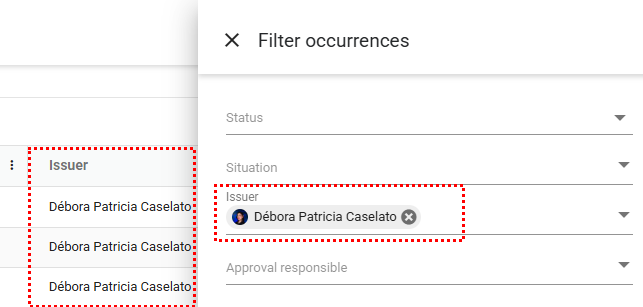
### **Issuer**
Select the user(s) who issued the occurrences you want to view.
After defining the desired filters, click **“Filter”** to display the results.
### **Approval responsible**
Select the user(s) who approved the occurrences you want to view.
After configuring the filters, click **“Filter”** to display the results.

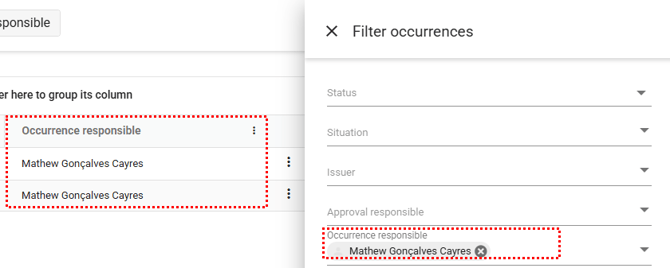
### **Occurrence responsible**
Select the user(s) responsible for the occurrences you want to list.
After configuring the filters according to your needs, click **“Filter”** to view the results
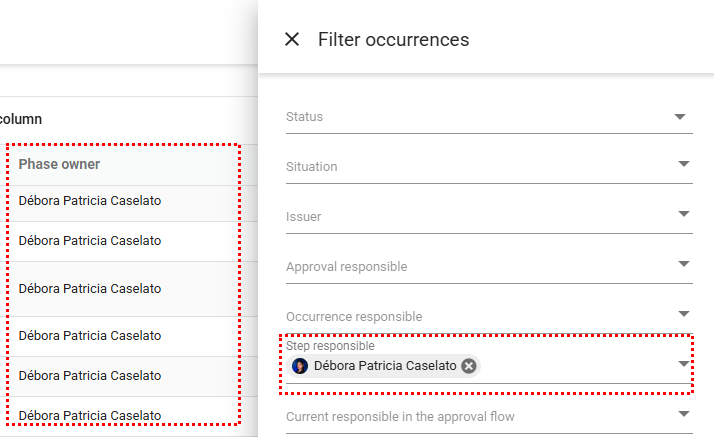
### **Step Responsible**
Select the user(s) responsible for the current step of the occurrences you want to view.
After configuring the filters according to your needs, click **“Filter”** to display the search results.
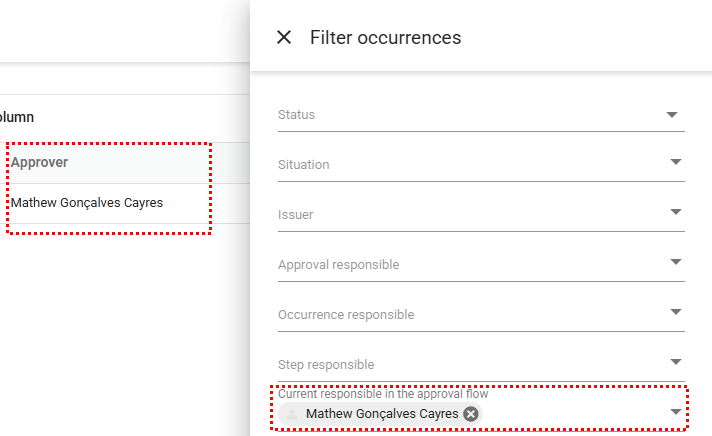
### **Current Responsible in the Approval flow**
Select the user(s) responsible for the current step of the approval workflow for the occurrences you want to list.
After configuring the filters according to your needs, click **“Filter”** to view the results.
### **Team**
Select the user(s) you want to define as the team responsible for the occurrences.
After configuring the filters as needed, click **“Filter.”**
Only the occurrences in which the selected collaborator(s) were added as part of the responsible team will be displayed.
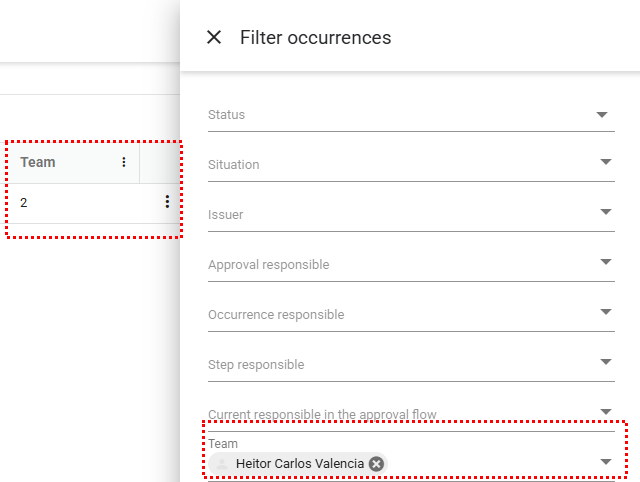
This field will display the number of users defined as the team for the occurrence, represented by the total number of assigned users.
### **Location**
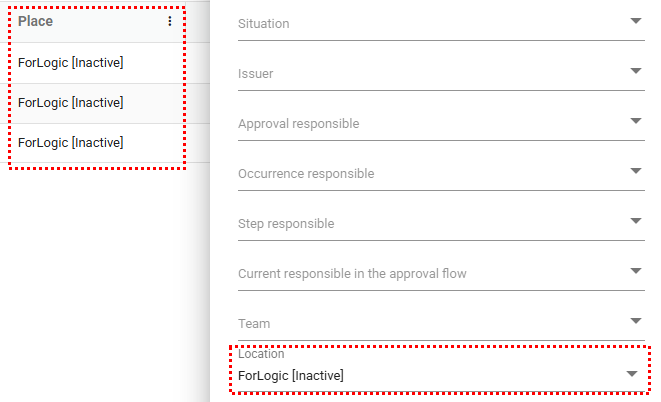
Select the **Location(s)** related to the occurrences you want to view.
After defining the filters, click **“Filter”** to display the results.
### **Type**
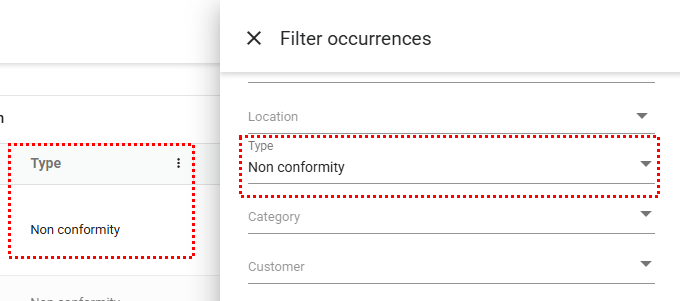
Select the **Type(s)** related to the occurrences you want to view.
After defining the desired filters, click **“Filter”** to execute the search.
### **Category**
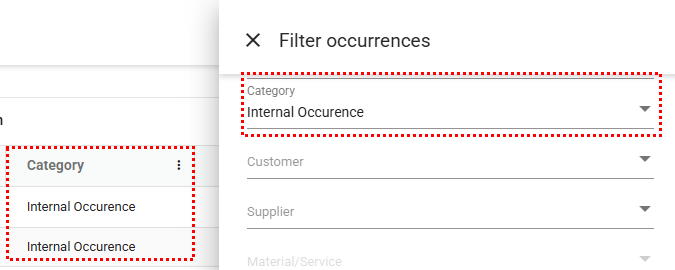
Select the **Category(ies)** related to the occurrences you want to view.
After defining the necessary filters, click **“Filter”** to perform the search.
### **Customer**
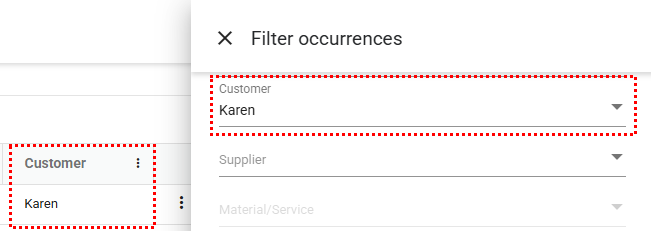
Select the customer(s) related to the occurrences.
After configuring the filters as needed, click **“Filter.”**
Only the occurrences linked to the selected customer(s) will be displayed.
### **Supplier**
Select the **Supplier(s)** related to the occurrences you want to view.
After adjusting the necessary filters, click **“Filter”** to perform the search.
If your company does not have the **Suppliers module** enabled, this option will be unavailable.
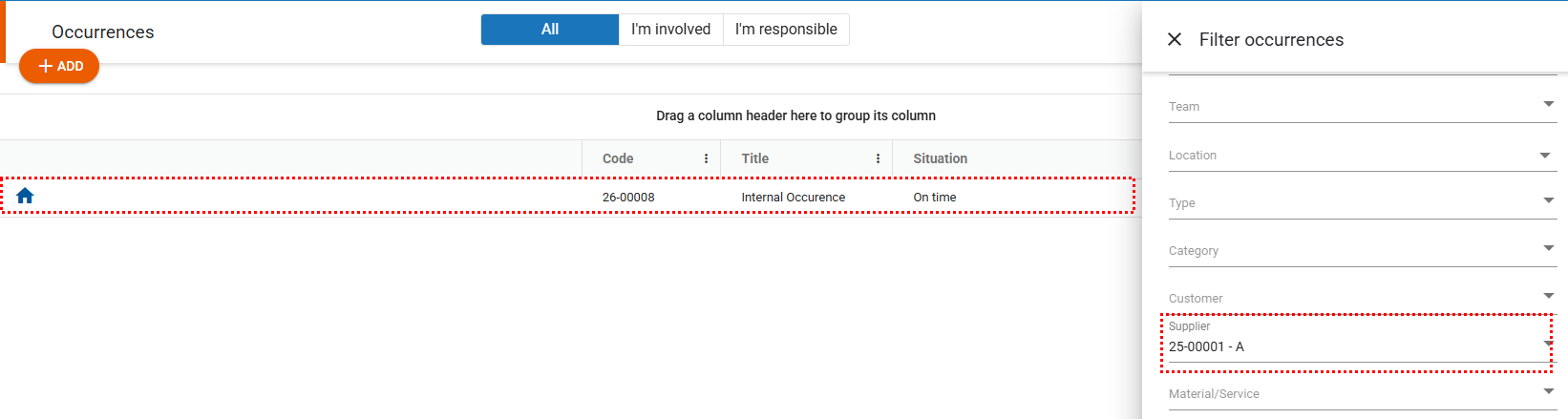
This field will be available only when the **Suppliers module** is enabled for the unit, as part of an additional subscription.
### **Material/Service**
This filter will only be available after the **Supplier** field is filled in, as the selection of materials and services is linked to the chosen supplier.
First, select the Supplier(s), and then choose the material(s) and/or service(s) related to the occurrences.

### **Emission Date**
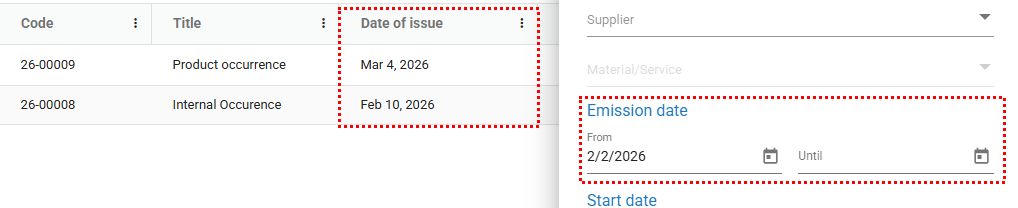
Filters occurrences according to the issuance period, considering the date on which they were registered.
To use this filter, enter the desired start date and end date in the corresponding field.
### **Start Date**
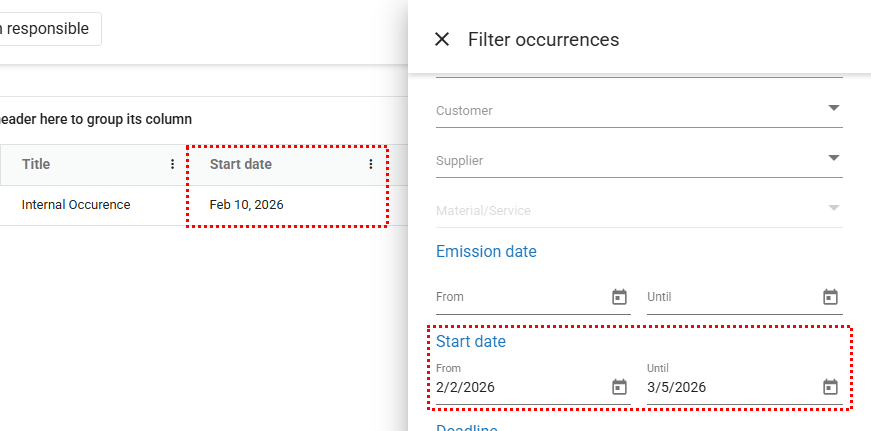
Displays in the list the period in which the treatment of the occurrence was initiated, as defined at the time of approval.
Enter the start date and end date of this period to filter the results.
### **Deadline**
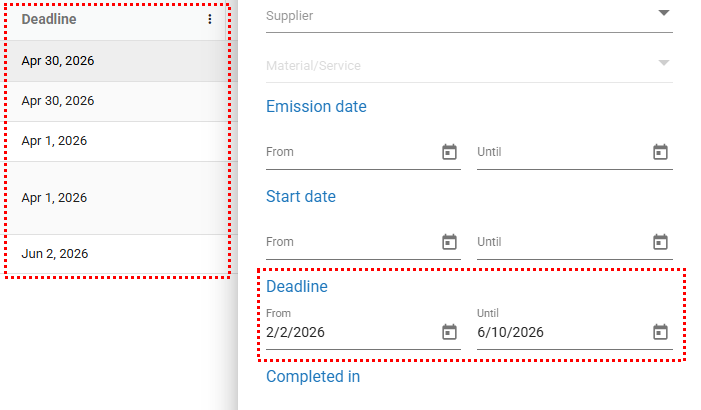
Allows you to filter occurrences whose completion deadline falls within the selected date range.
The completion deadline represents the total number of days required to finish all steps of the occurrence.
To use this filter, both the **start date** and **end date** of the desired period must be entered.
### **Completed In**
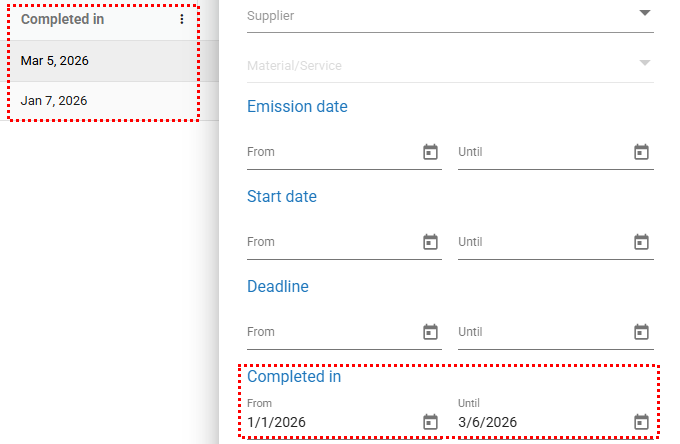
Displays the occurrences whose completion date falls within the defined range.
The completion deadline represents the total number of days required to complete all steps of the occurrence.
To apply this filter, it is necessary to provide both the **start date** and **end date** of the desired period.
### **Show only occurrences with incidences**
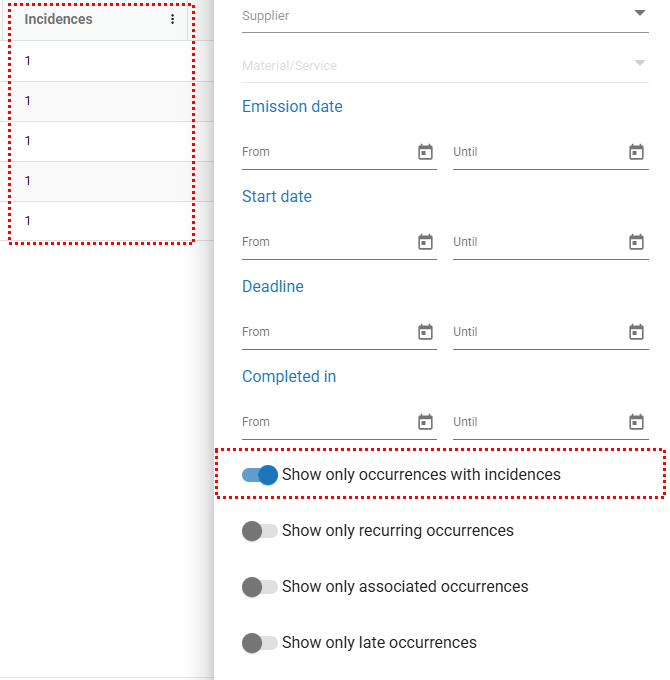
Enable this option to display only the occurrences that contain at least one incident.
### **Show only recurring occurrences**
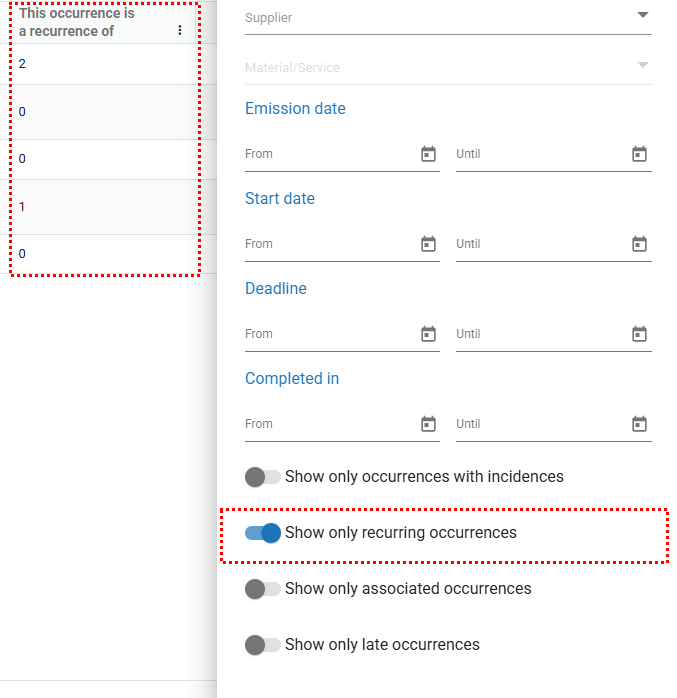
Enable this option to display only the occurrences marked as recurrent, meaning those identified as repetitions of a previous occurrence.
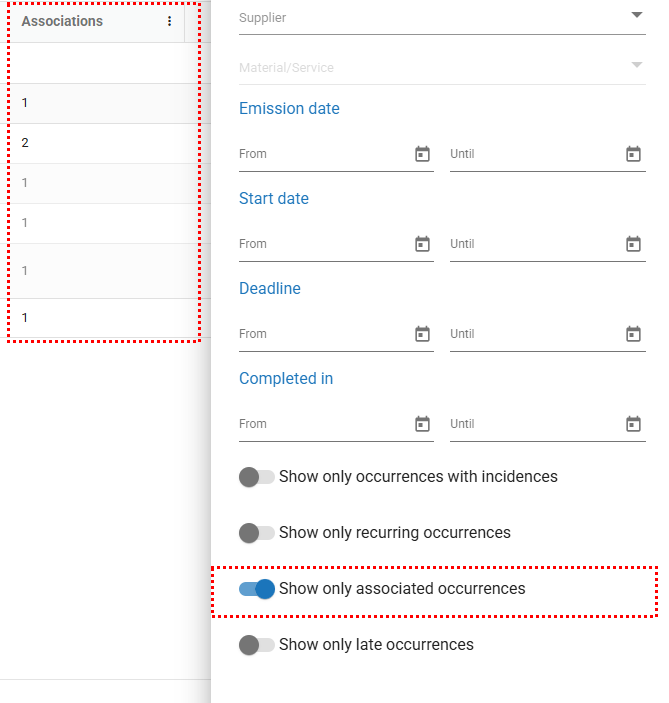
### **Show only associated occurrences**
Enable this option to display only the occurrences that are associated with other occurrences.
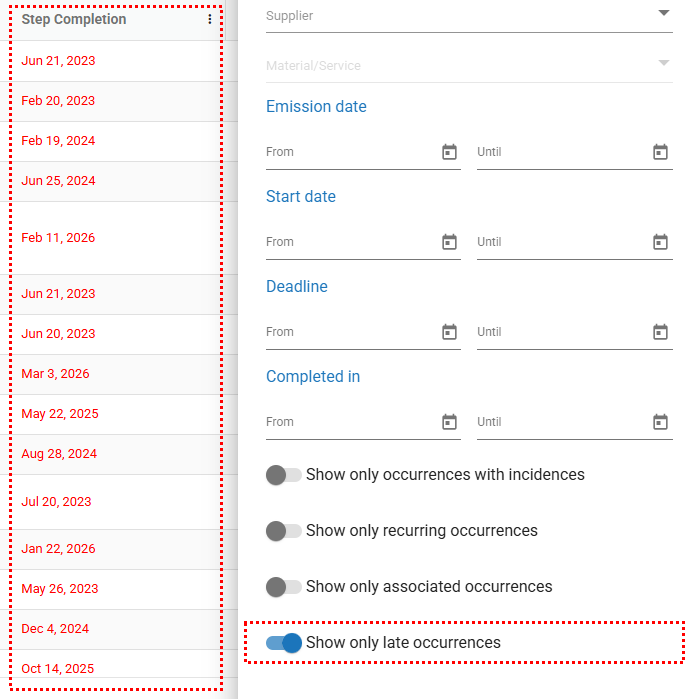
### **Show only late occurrences**
Enable this option to display only the occurrences that are past their deadline, whether related to the completion of a specific step or the closure of the occurrence as a whole.
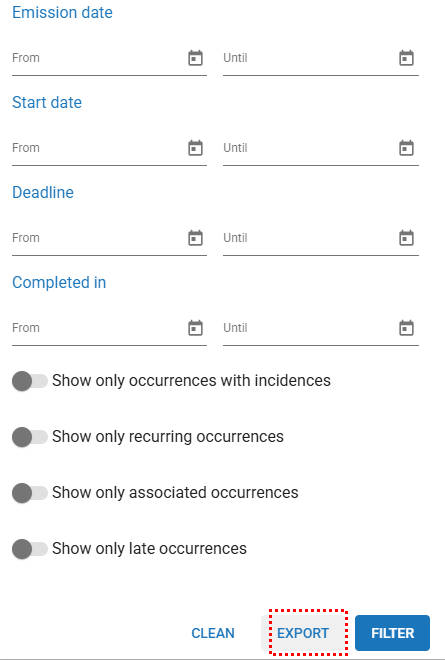
### **Exporting information returned from the advanced filter**
By clicking **“Export”**, you generate a file containing the information filtered according to the criteria defined in the advanced filters.
Only the data from the columns that are currently enabled at the time of export will be included.
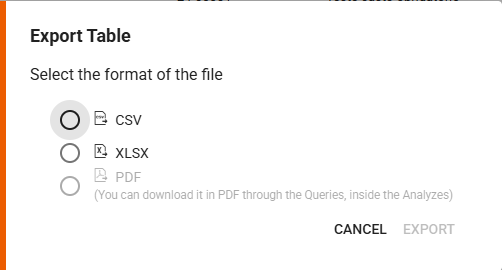
After selecting the file format to be exported — either **CSV** or **XLSX** — complete the process by clicking **“Export.”**
- [Occurences](https://qualiex.forlogic.net/en/occurences?hsLang=en#main-content)
- [Treating an occurence guide](https://qualiex.forlogic.net/en/occurences?hsLang=en#treating-an-occurence-guide)
- [Register Occurence](https://qualiex.forlogic.net/en/occurences?hsLang=en#register-occurence)
- [Inbox](https://qualiex.forlogic.net/en/occurences?hsLang=en#inbox)
- [Cause analysis](https://qualiex.forlogic.net/en/occurences?hsLang=en#cause-analysis)
- [Action plan elaboration and execution](https://qualiex.forlogic.net/en/occurences?hsLang=en#action-plan-elaboration-and-execution)
- [Effectiveness check](https://qualiex.forlogic.net/en/occurences?hsLang=en#effectiveness-check)
- [Standardization and disclosure](https://qualiex.forlogic.net/en/occurences?hsLang=en#standardization-and-disclosure)
- [Overview](https://qualiex.forlogic.net/en/occurences?hsLang=en#overview)
- [General information](https://qualiex.forlogic.net/en/occurences?hsLang=en#general-information)
- [My Actions](https://qualiex.forlogic.net/en/occurences?hsLang=en#my-actions)
- [Cause classification](https://qualiex.forlogic.net/en/occurences?hsLang=en#cause-classification)
- [Occurences Categories](https://qualiex.forlogic.net/en/occurences?hsLang=en#occurences-categories)
- [Types of occurrences](https://qualiex.forlogic.net/en/occurences?hsLang=en#types-of-occurrences)
- [Module Configurations](https://qualiex.forlogic.net/en/occurences?hsLang=en#module-configurations)
- [Reports](https://qualiex.forlogic.net/en/occurences?hsLang=en#reports)
[](https://qualiex.com/)
[mailto:contato@forlogic.net](mailto:contato@forlogic.net)
Copyright © 2026