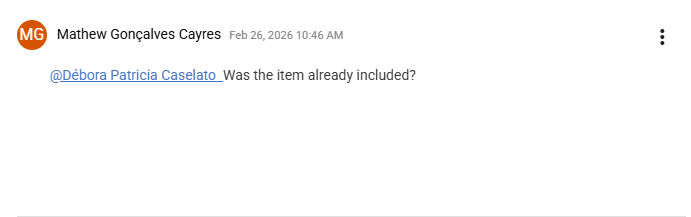
1. Access the module
Click here to learn how to access the Occurrences module in Qualiex.
2. Locating the occurrence
Click the Occurrences tab, locate the desired occurrence, then right‑click it or open the context menu and select “View.”
To view the occurrence, you must be responsible for one of the stages or be part of the involved team.
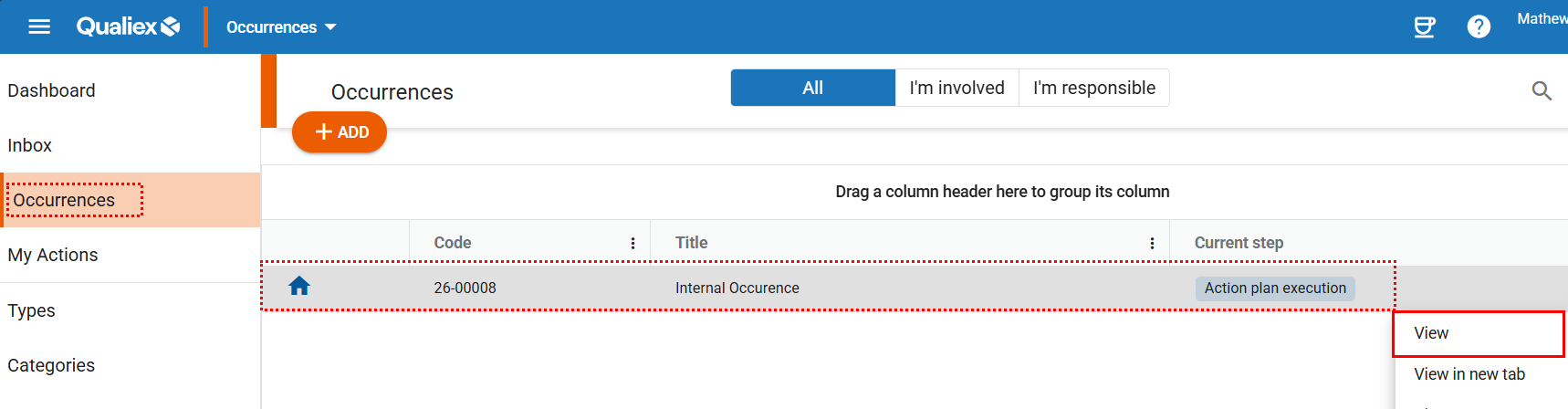
When you click View, the system will open the stage that displays the information for the current step: “Action Plan Execution.”
The system will then display a screen containing all the actions that must be executed as part of the treatment.
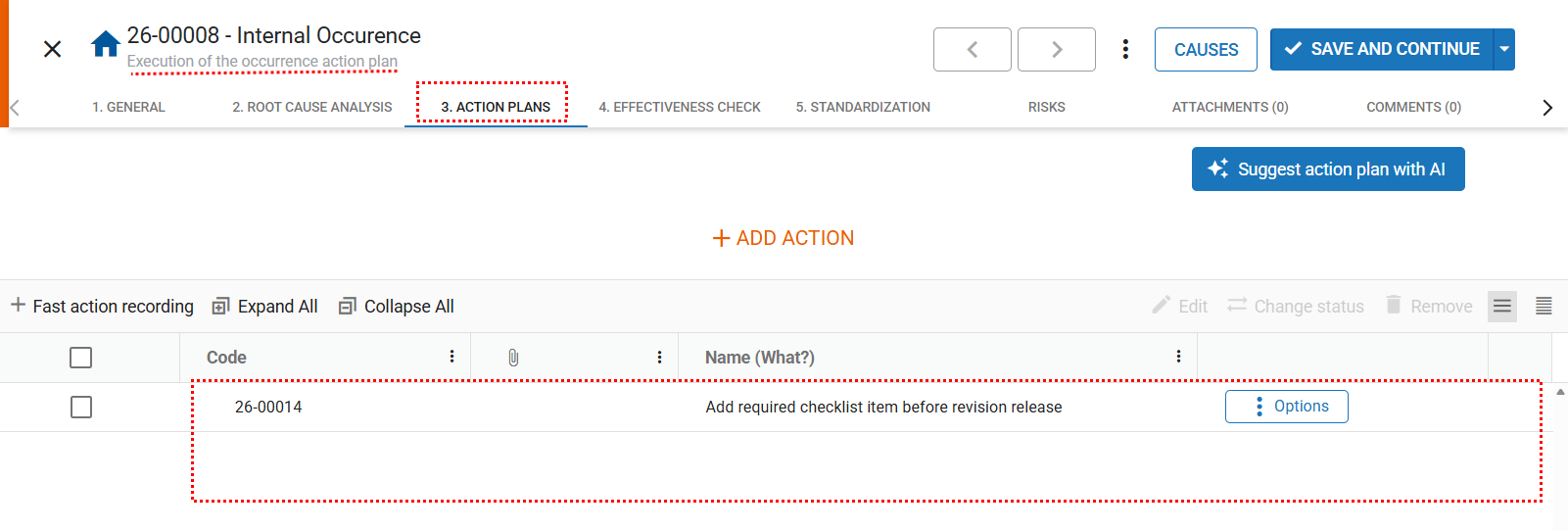
Use the scroll bar at the bottom of the screen to view all information related to the actions.
3. Sending a comment
To improve communication among users regarding the action, it is possible to register comments.
Double‑click the action to open the screen containing its general information.
Then locate the Comments tab in the upper‑right corner.
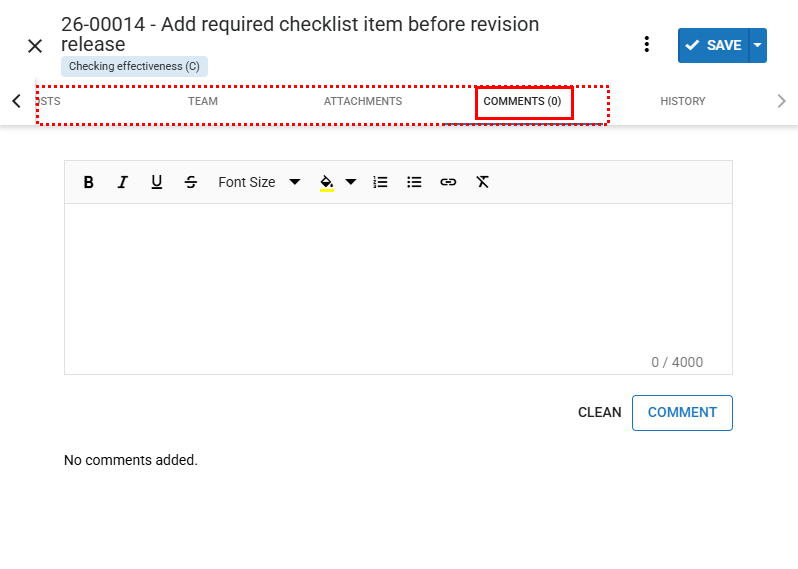
In the Comments tab, you can leave messages for other collaborators, who will be notified to view them within the system.
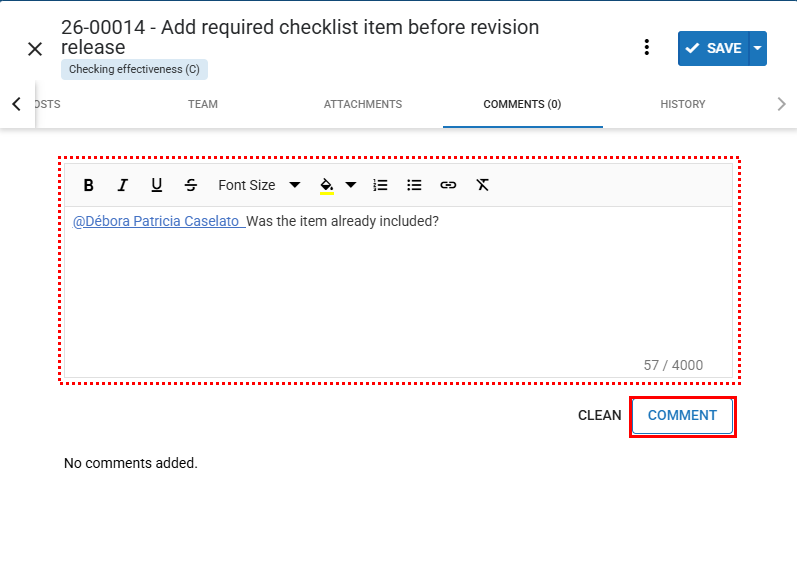
Fill in the field with the desired text, and if you prefer, use “@” to select the collaborator who should be notified by email about this comment.
Then click “Comment.”
The registered comment will appear below: