1. Access the module
2. Locating the occurrence
 and select “View.”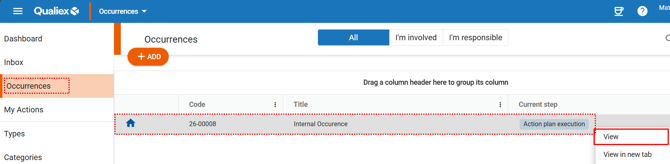
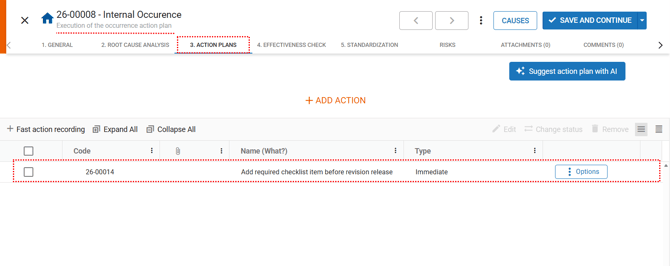
3. Reporting action progress
-
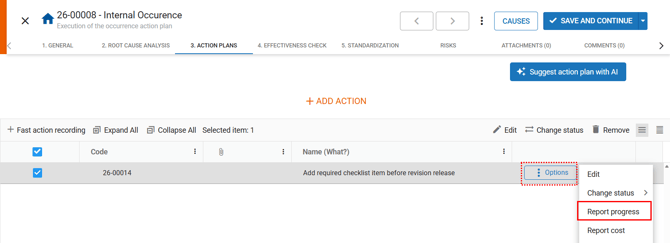
Locate the action you are responsible for and click
 , or right‑click the desired action.
Then select the option “Report progress.”
When the progress report opens, you can navigate between the information tabs by clicking

 , and you will have access to information such as: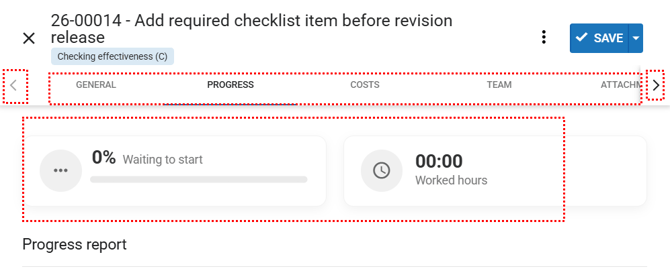
General: description of the action (5W2H)
Costs: used to report the cost of executing the action, if applicable
Team: used to inform which collaborators are involved in the action (the team will be able to view the action and the occurrence)
Attachments: if there are additional pieces of evidence (such as photos, documents, videos, etc.), you must upload them as attachments
Comments: you may add instructions or comments for others to view
History: everything done in the action will be recorded and available for review
Percentage completed: based on the progress report (there is no sum of previous entries — only the last one is considered)
Hours worked: based on the progress report (there is no sum of previous entries — only the last one is considered)
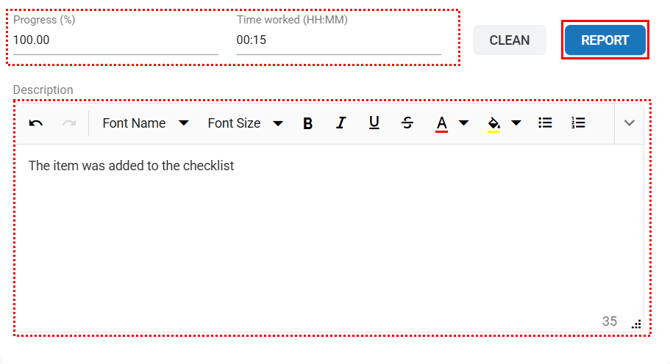
Time worked (in hours): Used to record the amount of time spent executing the action.
2355 will be recorded as 23:55.
-
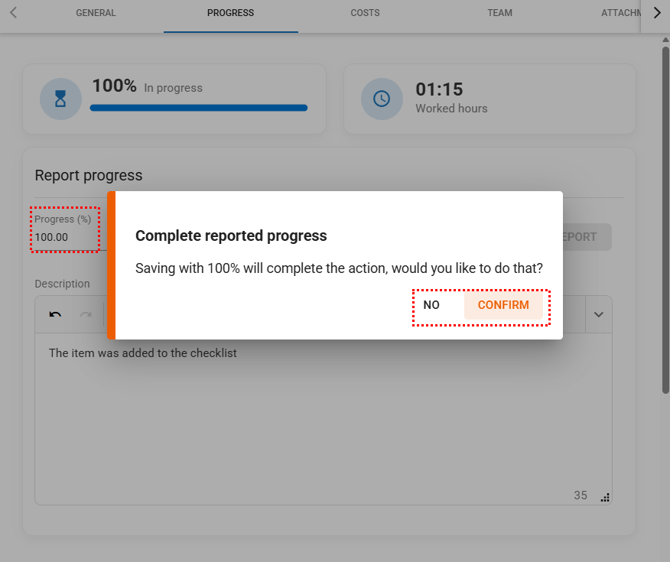
Progress (%): Used to inform the percentage of action completion.
-
Description: Provide detailed information about what has been done up to the moment of the progress report.
After completing the description, click “Report” to record the progress.
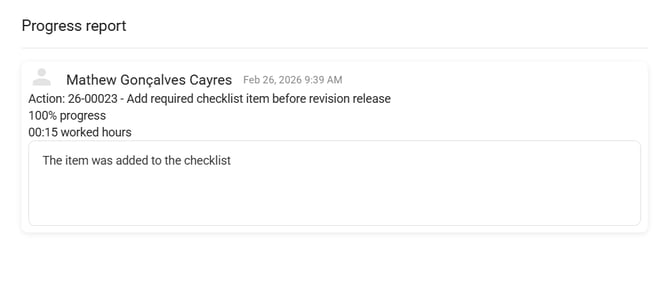
All registered progress entries will appear immediately below the description field.
4. Sending the action to the effectiveness verifier
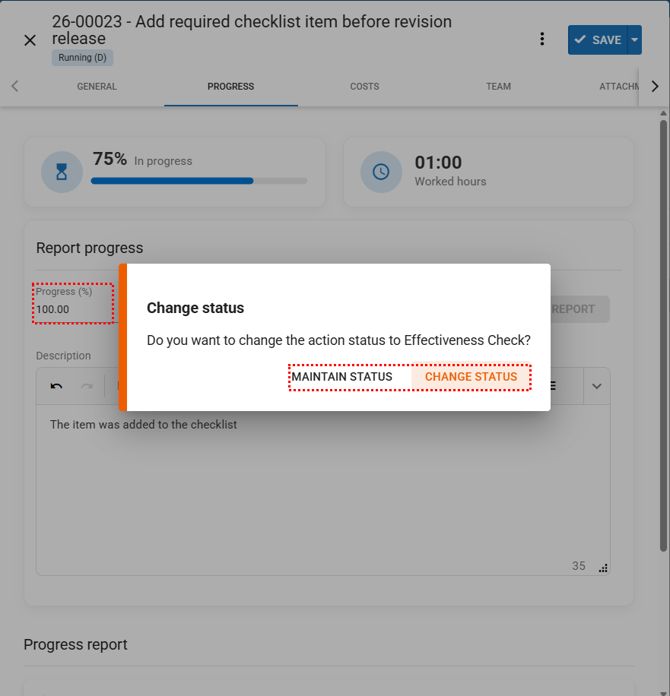
When reporting 100% progress on an action that has an assigned effectiveness checker, the system will ask whether you would like to change the status to “Effectiveness check.”
If you click “Keep status”
The action will remain under your responsibility, and you will need to manually change the status later.
If you click “Change status”
Responsibility for the action will be transferred to the effectiveness checker, and you will not need to adjust the status manually.
5. Completing the action through the progress report
When reporting 100% progress on an action that does NOT have an assigned effectiveness verifier, the system will ask whether you would like to change the status to “Completed.”
If you click “NO”
The action will remain in progress under your responsibility.
If you click “YES”
The action will be marked as completed.