
1. Access the module
Click here to learn how to access the Occurrences module in Qualiex.
2. Locating the occurrence
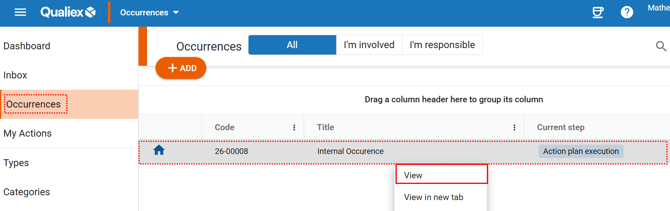
Click the Occurrences tab, locate the desired occurrence, then right‑click it or open the context menu  and select “View.”
and select “View.”To view the occurrence, you must be responsible for one of the stages or be part of the involved team.
When you click View, the system will open the stage that displays the information for the current step: “Execution of the occurrence action plan.”
The system will then display a screen containing all the actions that must be executed as part of the treatment.
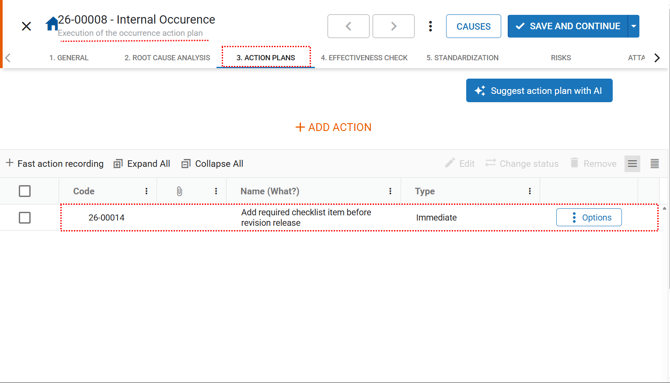
Use the scroll bar at the bottom of the screen to view all information related to the actions.
3. Reporting the action cost
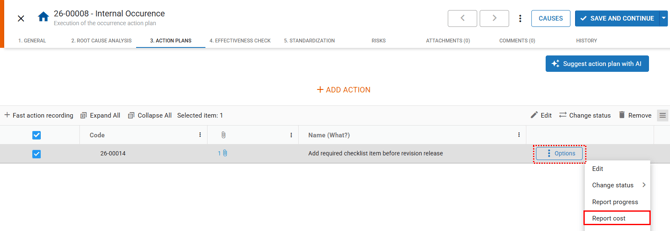
Locate the action you are responsible for and click , or right‑click the desired action.
Then select the option “Report cost.”
When the progress report opens, you can navigate between the information tabs by clicking 
 , and you will have access to details such as:
, and you will have access to details such as: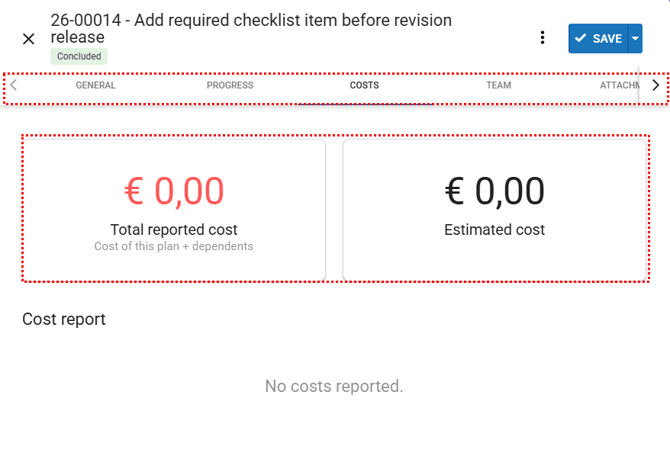
- General: description of the action (5W2H)
- Costs: used to report the cost of executing the action, if applicable
- Team: used to indicate which collaborators are involved in the action (the team can view the action and the occurrence)
- Attachments: if there are additional pieces of evidence (such as photos, documents, videos, etc.), you must upload them here
- Comments: you can leave instructions or notes for other users to view
- History: everything performed on the action is recorded and available for review
- Total reported cost: calculated based on all progress report entries (sum of all cost records)
- Estimated cost: based on the value defined during the action's initial registration
Use the scroll bar on the right side to view the remaining information.
Below, you will find the fields for reporting the cost:
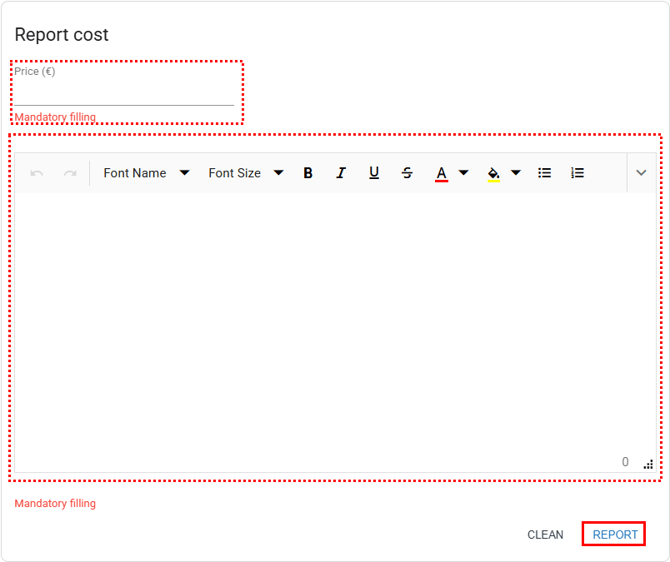
Price: used to record the amount of money invested in executing the action.
Description: used to detail how the cost was incurred up to the moment of the report.
After completing the description, click “Report” to register the cost entry.
All registered cost reports will appear directly below the description field.
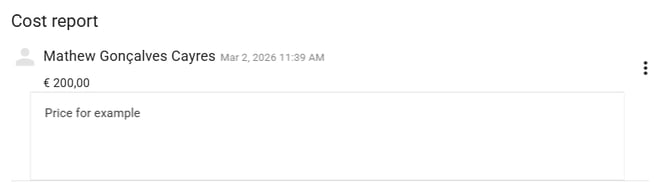
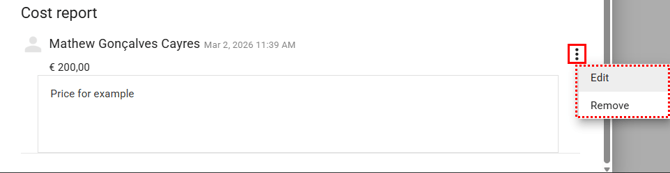
To edit or remove the report, click the context menu  .
.
.
All information and changes are recorded in the history.