---
title: How to Register an Occurrence Category in Qualiex?
description: How to Register an Occurrence Category in Qualiex?
---
[Skip to content](https://qualiex.forlogic.net/en/how-to-register-an-occurrence-category-in-qualiex#main-content)

Open main navigation
Close main navigation
How can we help you?
- There are no suggestions because the search field is empty.
1. [Qualiex | Knowledge Base](https://qualiex.forlogic.net/en?hsLang=en)
2. [Occurences](https://qualiex.forlogic.net/en/occurences?hsLang=en)
3. [Occurences Categories](https://qualiex.forlogic.net/en/occurences?hsLang=en#occurences-categories)
# How to Register an Occurrence Category in Qualiex?
Before creating a category, it is essential to understand what it is and what it is used for. **Click here to learn more.**
The **Category** of an occurrence indicates the origin of a specific event. By categorizing an occurrence, we can organize, group, and address each situation more accurately. This helps maintain consistency in handling similar events, reducing the likelihood of recurrence.
In addition, the category defines the steps and the workflow that the occurrence will follow until its resolution, ensuring greater clarity and efficiency in the process.
### 1. Access the Module
Click here to learn how to access the **Occurrences** module in Qualiex.
### 2. Creating the Category
Click the **“Categories”** tab, then click the **add button**, as shown in the image below.
To register a category, the user must have the **“Manage types, categories, and cause classifications”** permission, defined under **Configurations > Roles and Permissions**.
Click here to learn how to configure permissions for the Occurrences module.
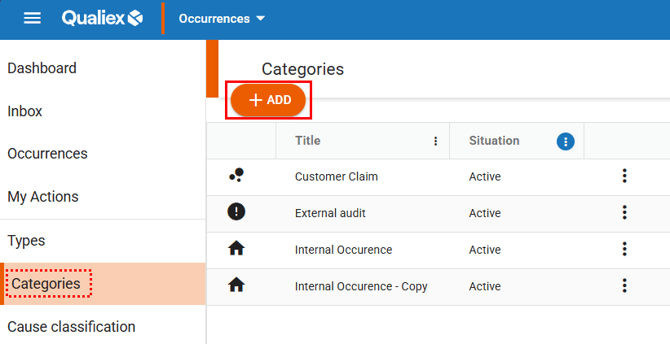
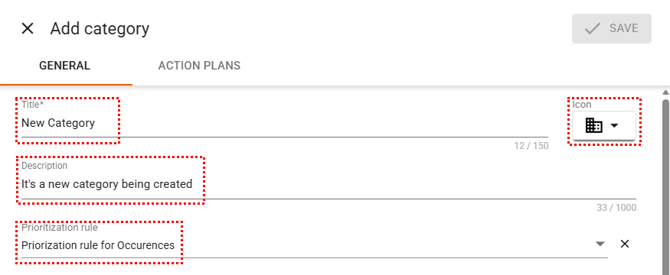
A registration screen for the category will open, where you must define the following:
- **Title (mandatory):** Enter the name of the category to be registered (limit of 150 characters).
- **Description (optional):** Here you can define the characteristics of the category (limit of 1000 characters).
- **Icon (optional):** Select an icon to represent the category; it helps with visual identification (if none is selected, the category will not have an icon).
- **Prioritization Rule (optional):** An option that automatically prioritizes the handling of the occurrence according to predefined criteria based on your company’s needs. **Click here to learn more about this feature.**
****
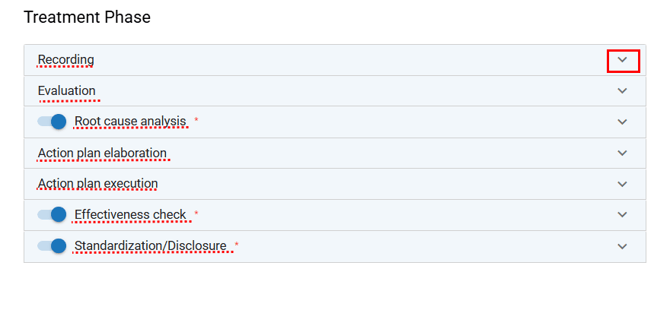
- **Treatment Steps:** By clicking the icon, the configuration for each step will open.
The **PDCA cycle(placeholder)** is used for the treatment process, and you can apply certain customizations.
### **3. Configuring the Treatment Steps**
#### **Registration**
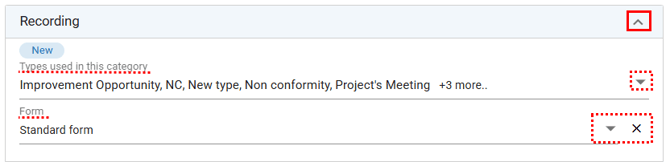
For the **Registration** step of the occurrence, you can define which types are linked to the category being created and which additional form may be used.
Click the icon  to expand and configure the settings for this step.
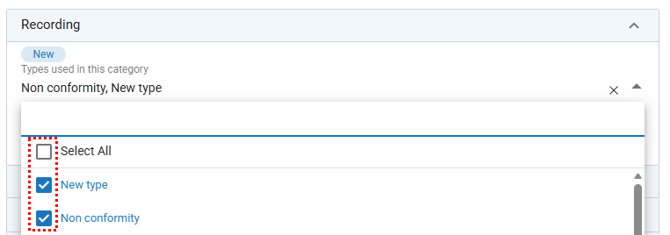
**Types that can be used in this category (mandatory):**
When registering a new occurrence and selecting the category, the **“Type”** field (also in the new occurrence form) will display only the types linked in this configuration. Selecting at least one type — or multiple types — is mandatory. All types are automatically selected by default, and you may deselect those that are not suitable for the category.
To do this, click the field’s icon  and uncheck the desired **Type**.
You may also click the **“X”** to deselect all types at once.
See how to register occurrence types.
**Form (optional):**
A form is a set of pre‑registered, customized fields that can be used when filling out new occurrences.
To select a form, click the icon  in the field and choose the desired form.
You may also click the **“X”** to remove the selected form.
See how to register forms to use in the Occurrences module.
**Evaluation**
The **Evaluation** step is the approval/screening phase, where it is verified whether the occurrence complies with the process, whether the minimum required data is filled out, and whether it can proceed to the next treatment stages.
For the **Evaluation** step of the occurrence, it is possible to define:
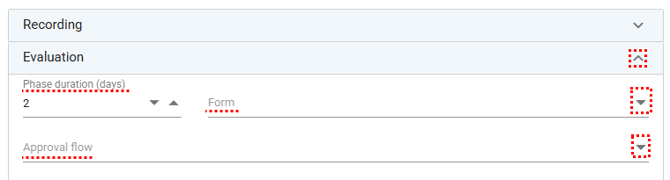
**Deadline for the Step (mandatory):** Number of days (according to the configured settings) for the step to be completed.
Once the deadlines for each step of the category are defined, these deadlines are added together, resulting in the final deadline of the occurrence.
In other words: **each step’s deadline is cumulative, and it is not possible to handle deadlines in parallel between steps.**
It is important to consider the settings applied in **“Working Days,” under Occurrences Settings**
- **Form (optional):** A form is a set of pre‑registered, customized fields that can be used to fill out the **Evaluation** step (optional).
To select a form, click the icon  in the field and choose the desired form.
You may also click the **“X”** to remove the selected form.
- **Approval Workflow (optional):** When an approval workflow is associated with a step within a category, this validation becomes mandatory to continue the treatment.
Thus, when an occurrence linked to this category is registered:
- - If the step is **approved**, the process continues normally to the next phase.
- If the step is **rejected**, it is necessary to return and correct the previous step before proceeding.
This feature ensures greater control, traceability, and compliance in the handling of occurrences.
To select a workflow, click the icon  in the field and choose the desired workflow.
You may also click the **“X”** to remove the selected workflow.
See how to register approval workflows to use in the Occurrences module.(placeholder)
#### **Cause Analysis, Effectiveness Verification, and Standardization/Communication**
After the occurrence is registered and evaluated, the next phase is **Cause Analysis**, to understand why the problem occurred—identifying the root cause rather than just the symptoms.
The **Effectiveness Check** step takes place after corrective actions have been implemented. It is necessary to assess whether the actions truly solved the problem and whether the risk of recurrence has been reduced.
**Standardization/Communication** occurs once the solution has proven effective. At this stage, the solution must be documented, standardized, and communicated to the entire team so it becomes part of routine practice.
For these steps, it is also necessary to define:
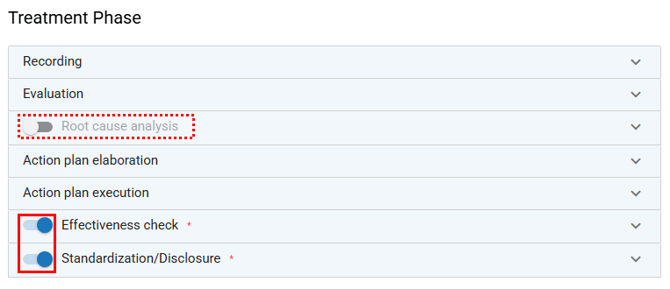
### For these steps, you must define:
- **Step deadline (mandatory);**
- **Form (optional);**
- **Approval workflow (optional);**
- **Activate or deactivate the step:**
For some categories, it is not necessary to follow the entire PDCA cycle, so it is possible to deactivate the **Cause Analysis**, **Effectiveness Check**, and **Standardization/Communication** steps.
To disable or enable a step, click the button  when a step is disabled, it will be skipped during the treatment process.
---
#### **Action Plan — Development and Execution**
For these steps, it is necessary to define:
- **Step deadline (mandatory);**
- **Approval flow (optional).**
---
#### **Completing the Registration**
After filling in all mandatory fields, you will be able to finalize the registration. Click .
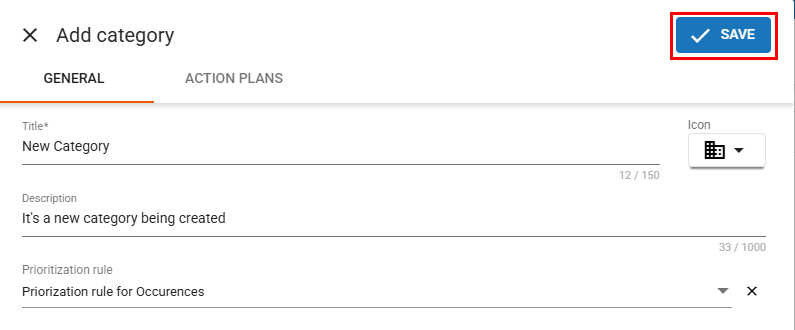
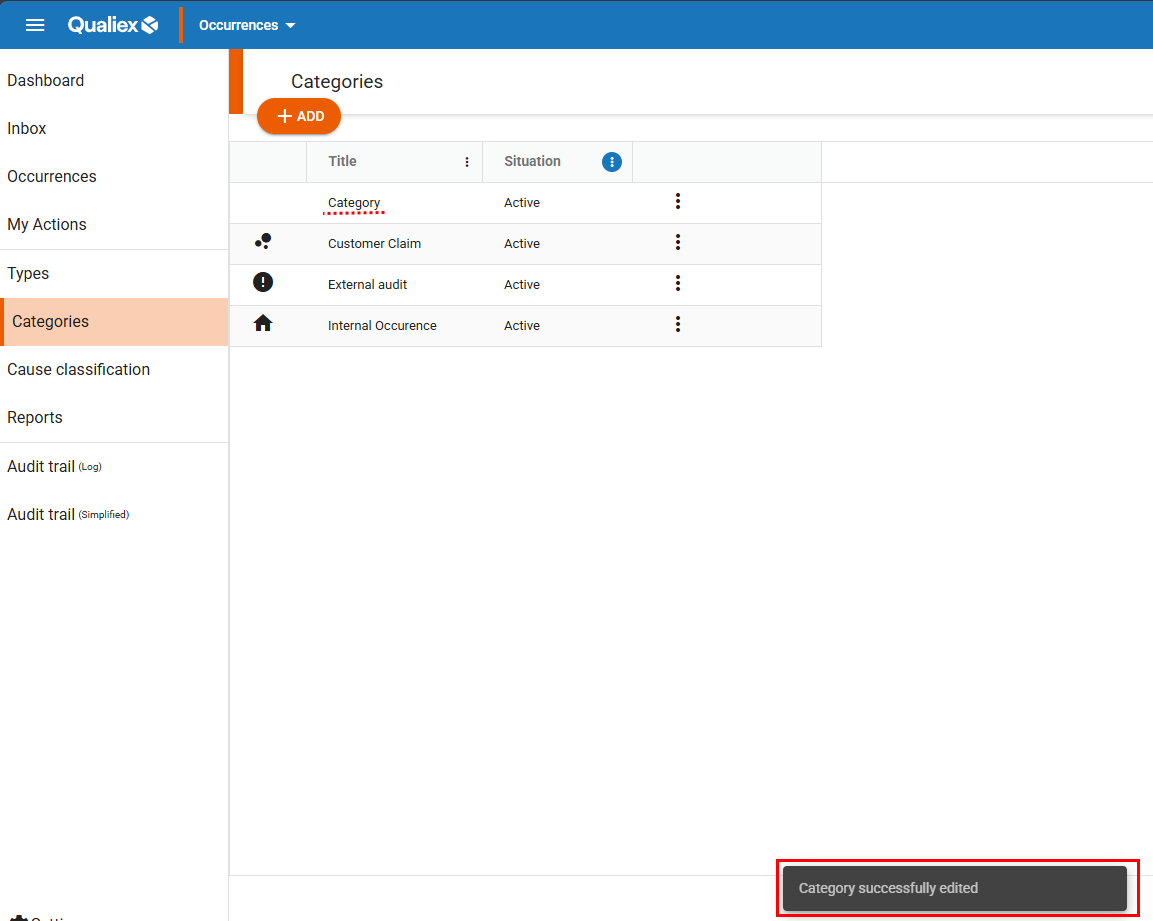
After clicking **“Save”**, the category will be registered and a confirmation message will appear:
- [Occurences](https://qualiex.forlogic.net/en/occurences?hsLang=en#main-content)
- [Treating an occurence guide](https://qualiex.forlogic.net/en/occurences?hsLang=en#treating-an-occurence-guide)
- [Register Occurence](https://qualiex.forlogic.net/en/occurences?hsLang=en#register-occurence)
- [Inbox](https://qualiex.forlogic.net/en/occurences?hsLang=en#inbox)
- [Cause analysis](https://qualiex.forlogic.net/en/occurences?hsLang=en#cause-analysis)
- [Action plan elaboration and execution](https://qualiex.forlogic.net/en/occurences?hsLang=en#action-plan-elaboration-and-execution)
- [Effectiveness check](https://qualiex.forlogic.net/en/occurences?hsLang=en#effectiveness-check)
- [Standardization and disclosure](https://qualiex.forlogic.net/en/occurences?hsLang=en#standardization-and-disclosure)
- [Overview](https://qualiex.forlogic.net/en/occurences?hsLang=en#overview)
- [General information](https://qualiex.forlogic.net/en/occurences?hsLang=en#general-information)
- [My Actions](https://qualiex.forlogic.net/en/occurences?hsLang=en#my-actions)
- [Cause classification](https://qualiex.forlogic.net/en/occurences?hsLang=en#cause-classification)
- [Occurences Categories](https://qualiex.forlogic.net/en/occurences?hsLang=en#occurences-categories)
- [Types of occurrences](https://qualiex.forlogic.net/en/occurences?hsLang=en#types-of-occurrences)
- [Module Configurations](https://qualiex.forlogic.net/en/occurences?hsLang=en#module-configurations)
- [Reports](https://qualiex.forlogic.net/en/occurences?hsLang=en#reports)
[](https://qualiex.com/)
[mailto:contato@forlogic.net](mailto:contato@forlogic.net)
Copyright © 2026