---
title: How to register an anonymous occurrence in Qualiex?
description: How to register an anonymous occurrence in Qualiex?
---
[Skip to content](https://qualiex.forlogic.net/en/how-to-register-an-anonymous-occurrence-in-qualiex#main-content)

Open main navigation
Close main navigation
How can we help you?
- There are no suggestions because the search field is empty.
1. [Qualiex | Knowledge Base](https://qualiex.forlogic.net/en?hsLang=en)
2. [Occurences](https://qualiex.forlogic.net/en/occurences?hsLang=en)
3. [Register Occurence](https://qualiex.forlogic.net/en/occurences?hsLang=en#register-occurence)
# How to register an anonymous occurrence in Qualiex?
### 1. Access the module
Click here to learn how to access the *Occurrences* module in Qualiex.
### **2. Registering the occurrence**
Click the **Occurrences** tab, then click  , and select the option **“Register Anonymously”**, as shown in the image below.
To register occurrences, you must have the **“Register occurrences”** permission assigned to your Role. This is defined under **Roles and Permissions > Settings**. (placeholder)
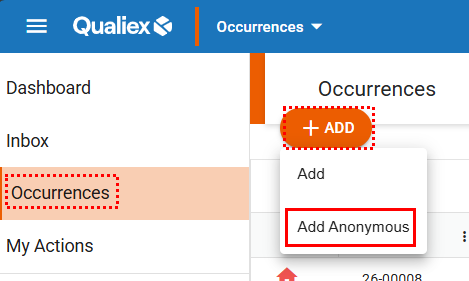
*If the **“allow anonymous registration”** option is enabled, clicking **“register”** will display this option, and it will not be possible to identify the issuer.*
Click here to learn more about the module settings
### 3. Filling in the registration information
When you click **“register,”** the screen for entering the occurrence description fields will open.
#### General Tab
The General tab is the first one displayed, and the following fields must be filled out:
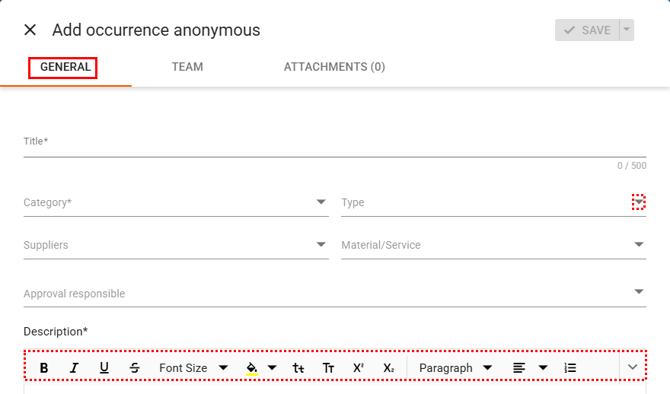
- **Title (required):**
Enter a clear and objective title for the occurrence to facilitate its identification in the list.
- **Category (required):**
Select the category for the occurrence. During the approval stage, the responsible approver may change it if necessary.
To view the available categories, click , then select the desired category.
- **Type (optional):**
Specify the type of the occurrence. This field is not mandatory at the time of registration, as the responsible approver may define the appropriate type during the approval stage.
To view the available types, click , then select the desired type.
- **Customer (optional):**
Select the customer related to the occurrence being registered.
To view the available customers, click , then select the desired customer.
- **Suppliers (optional):**
This field requires the Supplier Management module to be enabled.
This article provides more information about how this process works in the other module.
- **Materials and Services (optional):**
This field also requires the Supplier Management module.
More details can be found in the article specific to that module.
- **Location (optional):**
Indicate the location where the occurrence took place.
To view the available locations, click , then select the desired location.
- **Approver (optional):**
Select the employee responsible for evaluating and approving this occurrence.
To view the employees who can approve, click , then select the desired employee.
**Description (required):**
Provide a detailed description of the situation that led to the creation of this occurrence. Use the formatting toolbar to format the text.

#### **Attachments Tab**
In the **Attachments** tab, you can upload all documents necessary to provide evidence related to the occurrence.
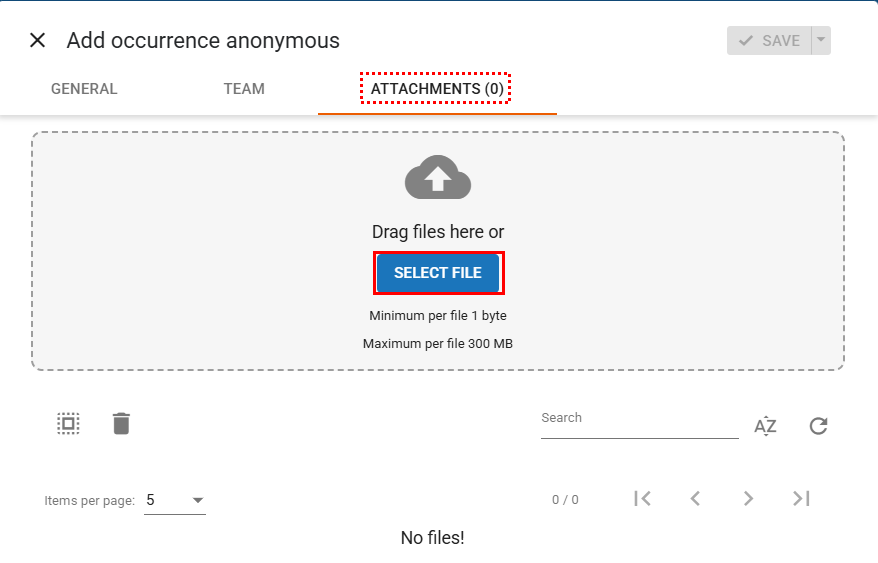
Click on  to open your computer’s file selection window. Select the desired file and then click **‘Open’** to upload it to the system.
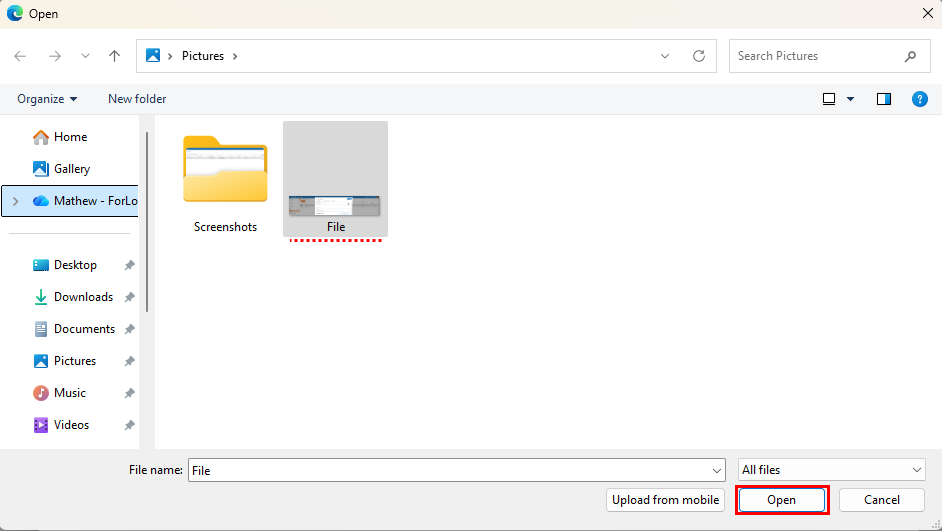
The uploaded file will be listed at the bottom of the screen.
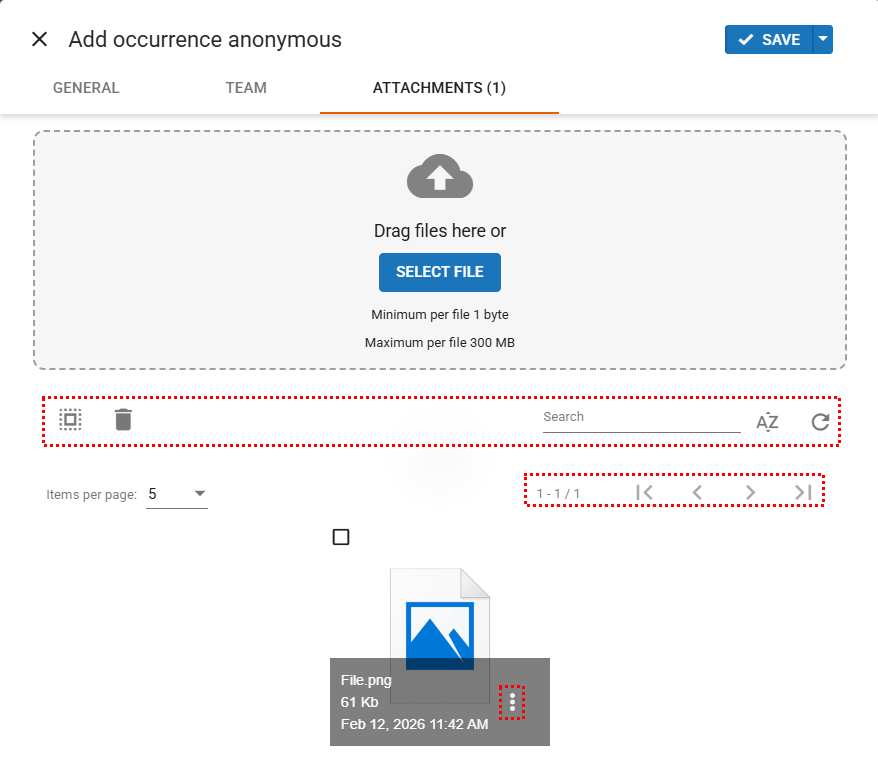
- **Attachment functions:**
Click  to select all files.
Select a file and click  to remove it.
To download the selected files, click .
- **Search:**
Locate a file by name by clicking .
Sort the files alphabetically (A to Z) or by oldest upload.
To refresh the listing, click .
- **Pagination:**
Select how many items will be displayed per page and navigate using the  options.
- **Attachment options:**
By clicking the context menu on an attachment (), you can rename the file, preview it, download it, or remove it.
**4. Saving the registered occurrence**
After filling in all the required information, you will be able to submit the occurrence for approval, where the approver will evaluate whether the handling process should proceed or not.
To move to the next step, click **“Save.”**
**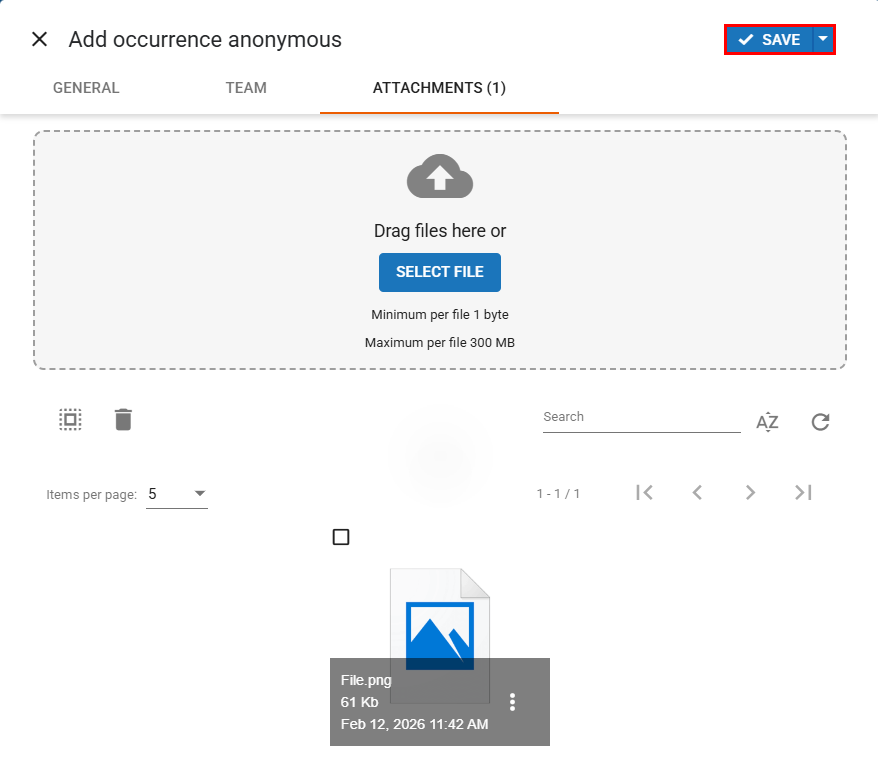**
*The issuer will not be able to make changes after submitting the occurrence for approval.*
- [Occurences](https://qualiex.forlogic.net/en/occurences?hsLang=en#main-content)
- [Treating an occurence guide](https://qualiex.forlogic.net/en/occurences?hsLang=en#treating-an-occurence-guide)
- [Register Occurence](https://qualiex.forlogic.net/en/occurences?hsLang=en#register-occurence)
- [Inbox](https://qualiex.forlogic.net/en/occurences?hsLang=en#inbox)
- [Cause analysis](https://qualiex.forlogic.net/en/occurences?hsLang=en#cause-analysis)
- [Action plan elaboration and execution](https://qualiex.forlogic.net/en/occurences?hsLang=en#action-plan-elaboration-and-execution)
- [Effectiveness check](https://qualiex.forlogic.net/en/occurences?hsLang=en#effectiveness-check)
- [Standardization and disclosure](https://qualiex.forlogic.net/en/occurences?hsLang=en#standardization-and-disclosure)
- [Overview](https://qualiex.forlogic.net/en/occurences?hsLang=en#overview)
- [General information](https://qualiex.forlogic.net/en/occurences?hsLang=en#general-information)
- [My Actions](https://qualiex.forlogic.net/en/occurences?hsLang=en#my-actions)
- [Cause classification](https://qualiex.forlogic.net/en/occurences?hsLang=en#cause-classification)
- [Occurences Categories](https://qualiex.forlogic.net/en/occurences?hsLang=en#occurences-categories)
- [Types of occurrences](https://qualiex.forlogic.net/en/occurences?hsLang=en#types-of-occurrences)
- [Module Configurations](https://qualiex.forlogic.net/en/occurences?hsLang=en#module-configurations)
- [Reports](https://qualiex.forlogic.net/en/occurences?hsLang=en#reports)
[](https://qualiex.com/)
[mailto:contato@forlogic.net](mailto:contato@forlogic.net)
Copyright © 2026