---
title: How to register an action plan?
description: How to register an action plan?
---
[Skip to content](https://qualiex.forlogic.net/en/how-to-register-an-action-plan-unfinished#main-content)

Open main navigation
Close main navigation
How can we help you?
- There are no suggestions because the search field is empty.
1. [Qualiex | Knowledge Base](https://qualiex.forlogic.net/en?hsLang=en)
2. [Occurences](https://qualiex.forlogic.net/en/occurences?hsLang=en)
3. [Action plan elaboration and execution](https://qualiex.forlogic.net/en/occurences?hsLang=en#action-plan-elaboration-and-execution)
# How to register an action plan?
An approved occurrence requires an action plan so that the treatment can be performed and completed effectively. Actions may be registered immediately, without the need for cause analysis, or after the root cause has been identified.
### Accessing the module
Click here to learn how to access the *Occurrences* module in Qualiex.
### **Registering an action**
To register an action, you must be the person responsible for the occurrence, the person responsible for the stage, or have the **“Edit all”** permission.
This permission is defined under **Settings > Roles and Permissions**.
In the *Occurrences* module, go to the **Occurrences** tab and select the occurrence in which you want to register an action

Then navigate to the **Action Plan** tab.
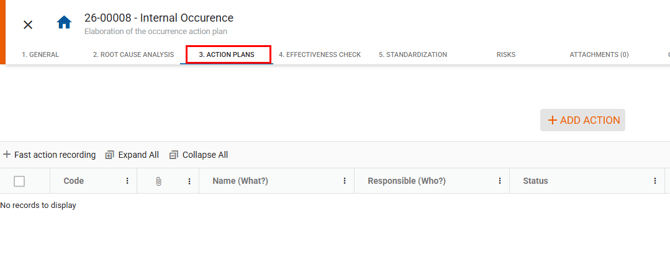
Team members assigned to the action plan can only view the actions. They do not have permission to edit them.
If you intend to register actions before performing the cause analysis, you must enable the option **“Allow action plans before cause analysis”** in the Occurrences module settings.
**🔎 *Click here to learn how to configure action plans and deadlines for occurrences in Qualiex. placeholder***
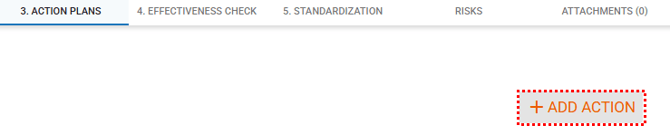
To register a new action, click the **icon** .
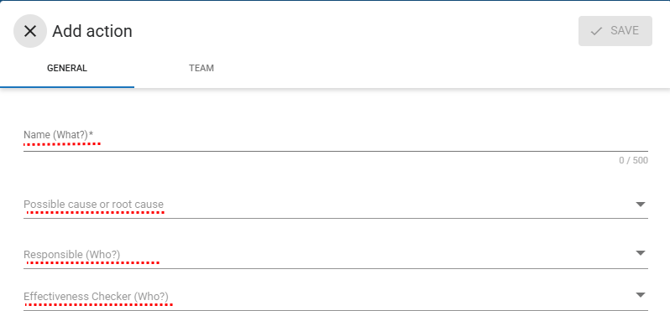
**Action Registration Window – 5W2H Method**
- **Name (What?):**
Enter a title for the action.
- **Responsible (Who?):**
Select the user responsible for executing the action.
- **Verifier (Who?):**
Select the user who will verify the effectiveness of the action.
- - If the configuration **“Allow the responsible and the verifier to be the same user”** is disabled, you cannot select the same employee for both roles.
**Location (Where?):**
Choose the location previously registered in Qualiex and related to the action.
**Location (Where?):**
Choose the location previously registered in Qualiex and related to the action.
### **Plan Type:**
Allows strategic categorization of the action to support prioritization and analysis, such as:
- **Immediate:** quick and urgent action to contain or minimize the effects of the problem.
- **Preventive:** intended to prevent the problem from occurring again.
- **Corrective:** addresses the identified root cause.
- **Improvement opportunity:** aims to enhance processes even if no specific failure occurred.
### **Priority:**
Defines the urgency level (low, medium, high).
---
#### **Deadline (When?)**
- **Start date:** Inform the date when execution begins.
- **Duration in days:** Indicate the estimated time for completion.
- **End date:** Automatically calculated based on duration, or manually entered.
---
#### **Estimated cost (How much?):**
Enter the cost, if applicable.
#### **Description (How?):**
Detail how the action will be carried out.
#### **Justification (Why?):**
Explain the purpose of the action.
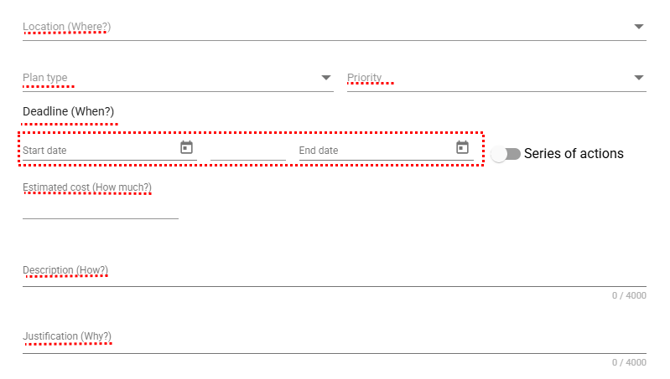
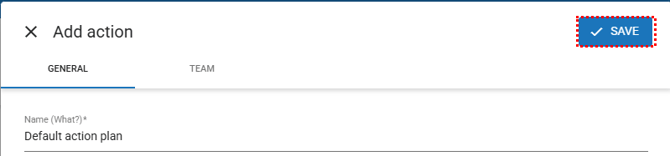
Fields marked with **\*** are mandatory.
Click **Save** to register the action.
### **Enabling Action Series**
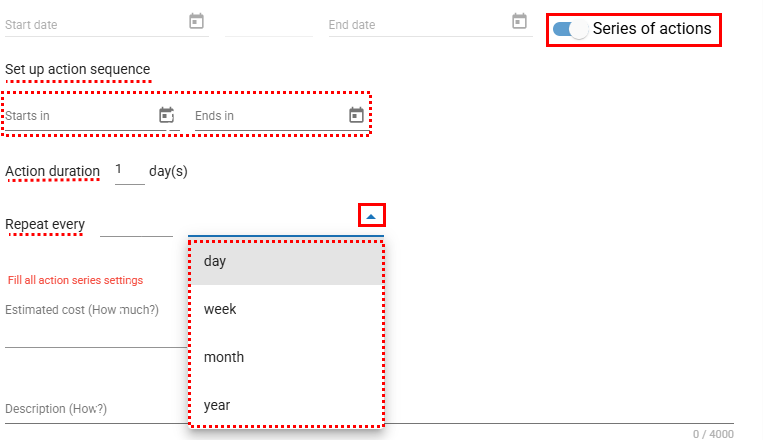
You can activate the **Action Series** option to configure recurring actions — ideal for tasks that need to be repeated periodically.
In the action registration window, locate **Action Series** and enable it.
A configuration block will appear with the following options:
### **Series Configuration:**
- **Starts on:** date of the first action in the series.
- **Ends on:** date when the series should stop.
- **Action duration (in days):** number of days each action lasts.
### **Repetition Frequency:**
- **Daily:** specify the number of days between actions; the system creates spaced actions within the start/end dates.
- **Weekly:** specify the number of weeks between actions (e.g., biweekly).
- **Monthly:** specify the number of months between actions and choose:
- *Monthly on day 1 (or another day)*
- *Monthly on the first Monday (or another weekday)*
- **Annual:** specify the number of years between actions; the system schedules them on the same initial date every cycle.
After registering the first action, you can create **dependent actions**. When adding a new action, the field **“Belongs to”** will be enabled. Select the main (parent) action to which the new action will be linked.
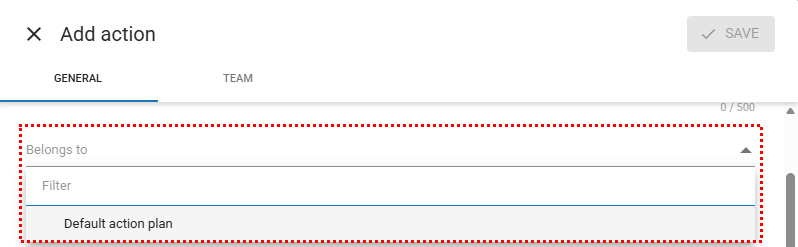
Actions will be displayed in a hierarchical structure.

🔎 *Click here to learn how to change the status of an occurrence action in Qualiex.*
- [Occurences](https://qualiex.forlogic.net/en/occurences?hsLang=en#main-content)
- [Treating an occurence guide](https://qualiex.forlogic.net/en/occurences?hsLang=en#treating-an-occurence-guide)
- [Register Occurence](https://qualiex.forlogic.net/en/occurences?hsLang=en#register-occurence)
- [Inbox](https://qualiex.forlogic.net/en/occurences?hsLang=en#inbox)
- [Cause analysis](https://qualiex.forlogic.net/en/occurences?hsLang=en#cause-analysis)
- [Action plan elaboration and execution](https://qualiex.forlogic.net/en/occurences?hsLang=en#action-plan-elaboration-and-execution)
- [Effectiveness check](https://qualiex.forlogic.net/en/occurences?hsLang=en#effectiveness-check)
- [Standardization and disclosure](https://qualiex.forlogic.net/en/occurences?hsLang=en#standardization-and-disclosure)
- [Overview](https://qualiex.forlogic.net/en/occurences?hsLang=en#overview)
- [General information](https://qualiex.forlogic.net/en/occurences?hsLang=en#general-information)
- [My Actions](https://qualiex.forlogic.net/en/occurences?hsLang=en#my-actions)
- [Cause classification](https://qualiex.forlogic.net/en/occurences?hsLang=en#cause-classification)
- [Occurences Categories](https://qualiex.forlogic.net/en/occurences?hsLang=en#occurences-categories)
- [Types of occurrences](https://qualiex.forlogic.net/en/occurences?hsLang=en#types-of-occurrences)
- [Module Configurations](https://qualiex.forlogic.net/en/occurences?hsLang=en#module-configurations)
- [Reports](https://qualiex.forlogic.net/en/occurences?hsLang=en#reports)
[](https://qualiex.com/)
[mailto:contato@forlogic.net](mailto:contato@forlogic.net)
Copyright © 2026