The treatment steps of occurrences already include standard system fields based on the PDCA methodology.
However, in some cases, the process may require additional information that is not covered by these default fields.
To meet such needs, Qualiex allows the creation of custom forms, which function as extra fields to be filled out during each step.
This makes it possible to record specific and relevant information according to the process being carried out.
This configuration is done directly in the Categories tab, allowing each category to have its own form linked to its treatment steps, depending on the category’s particularities.
1. Access the Module
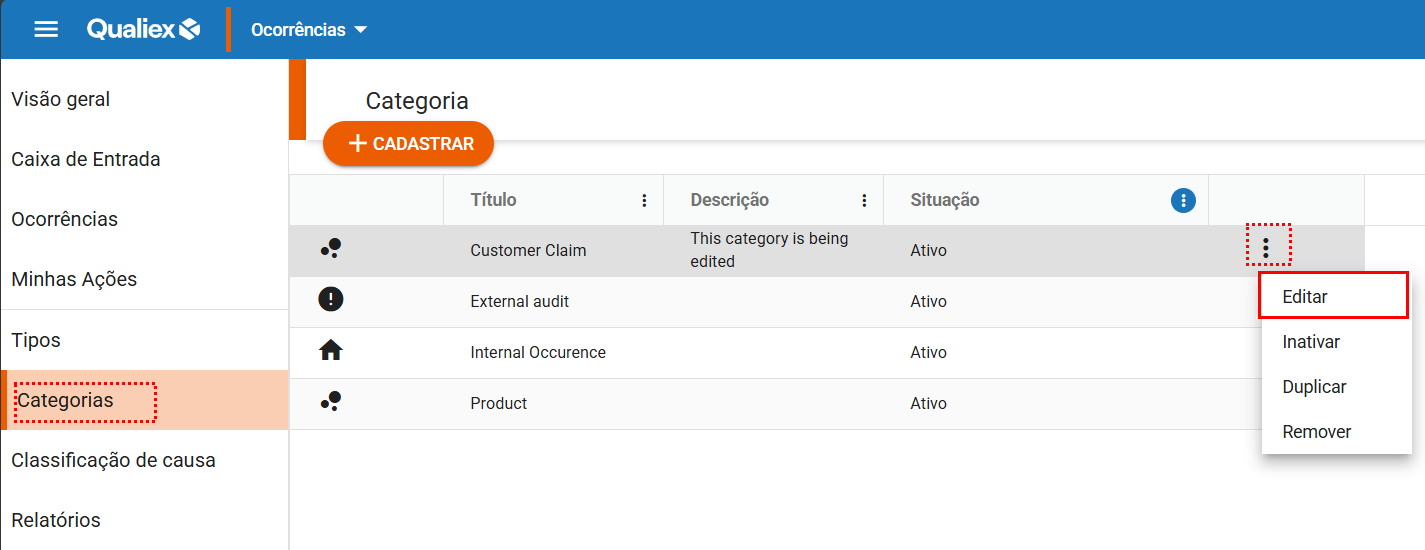
2. Linking the Form to the Treatment Step
 and select “Edit.”
To link forms, you must have the Manage types, categories, and cause classifications permission, defined under Configurations > Roles and Permissions.
Click here to learn how to configure permissions for the Occurrences module.
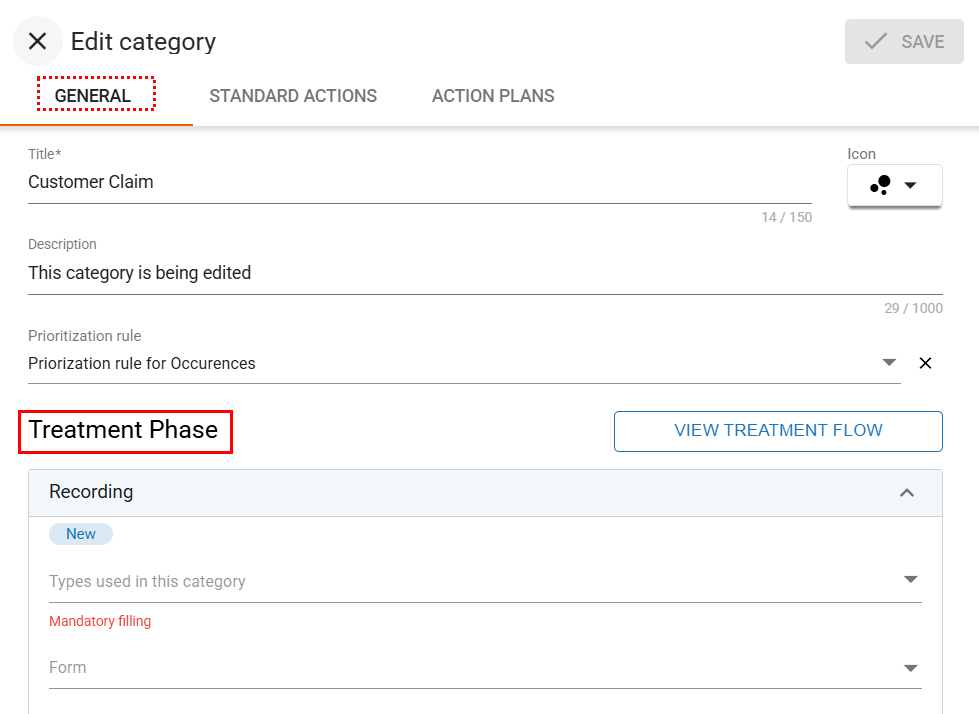
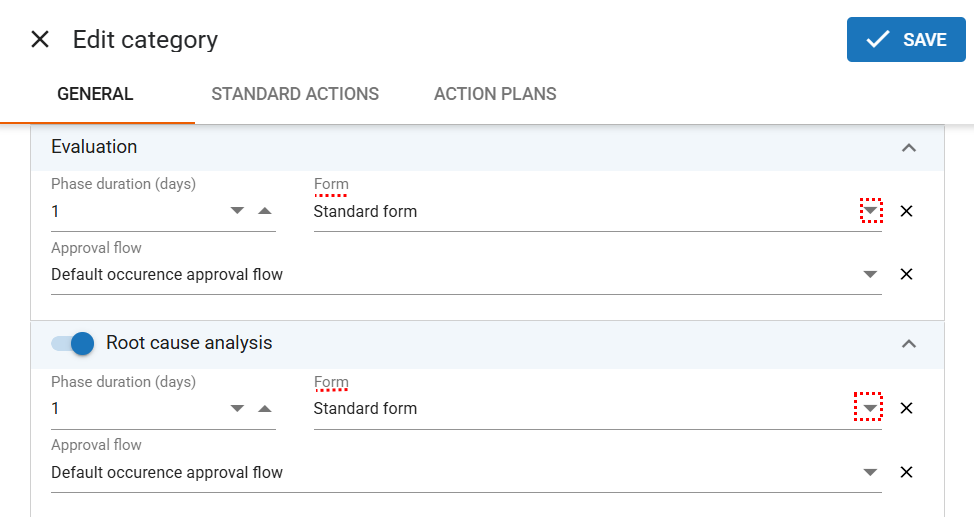
To link a form, choose the step, click the Form field icon  , and select the desired form.
To remove a selection, click the “X”.
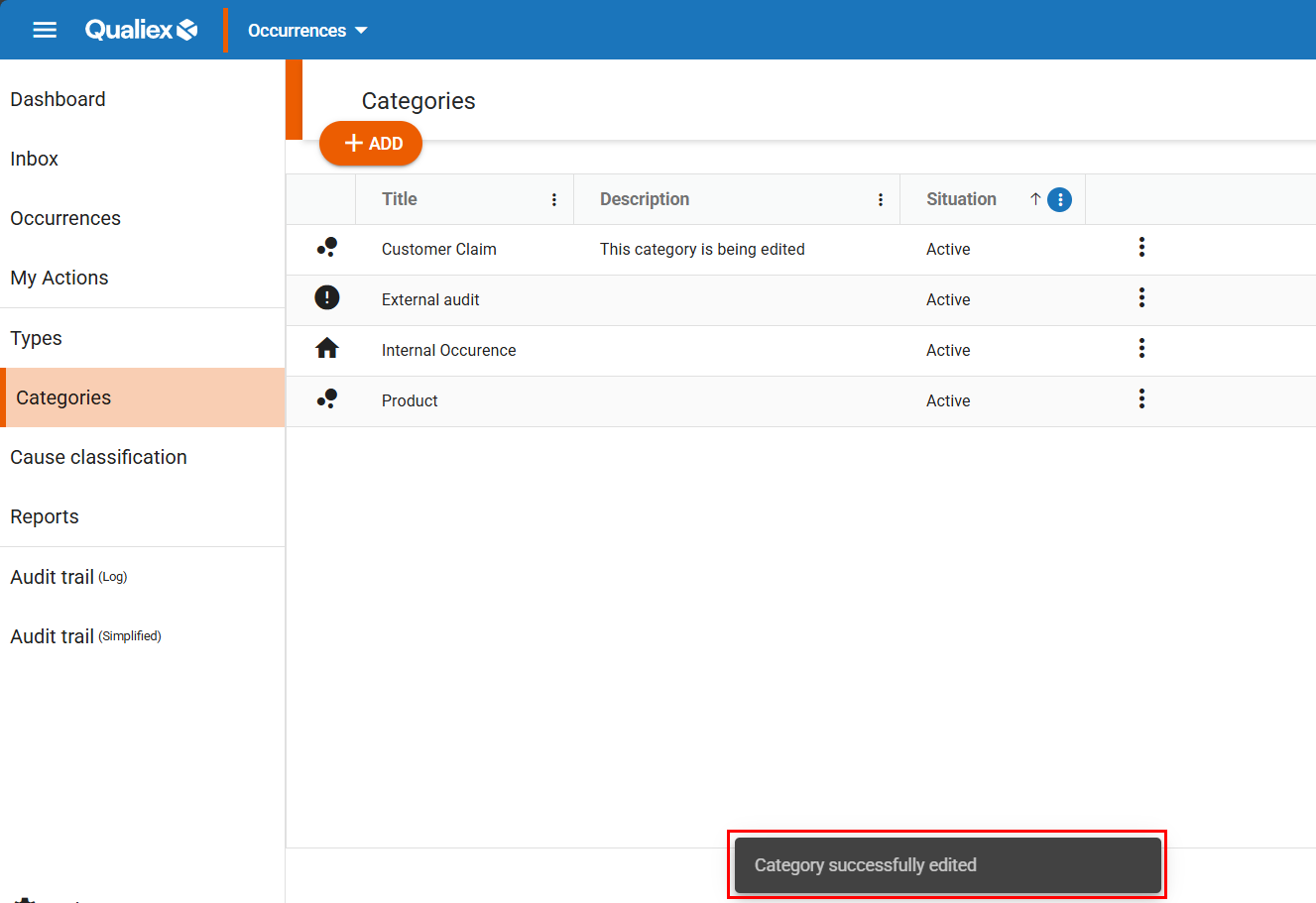
After linking the forms to the steps, click “Save.”
3. Unlinking the Form from the Treatment Phase
When editing the category, go to the “General” tab and locate the “Treatment Phase.”
Open the desired step and click the “X” in the “Form” field to remove the link.
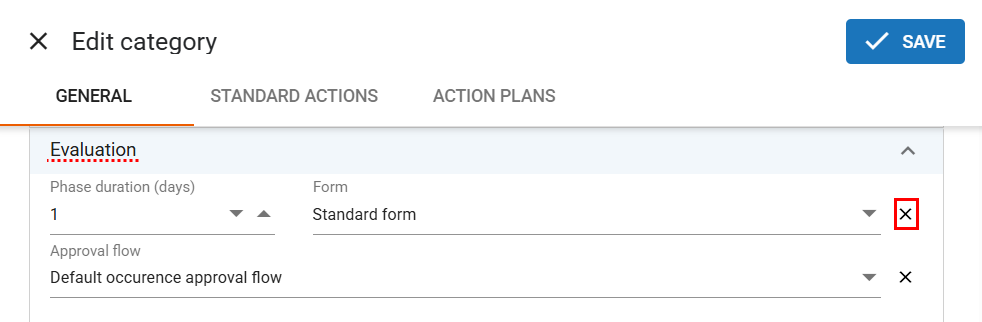
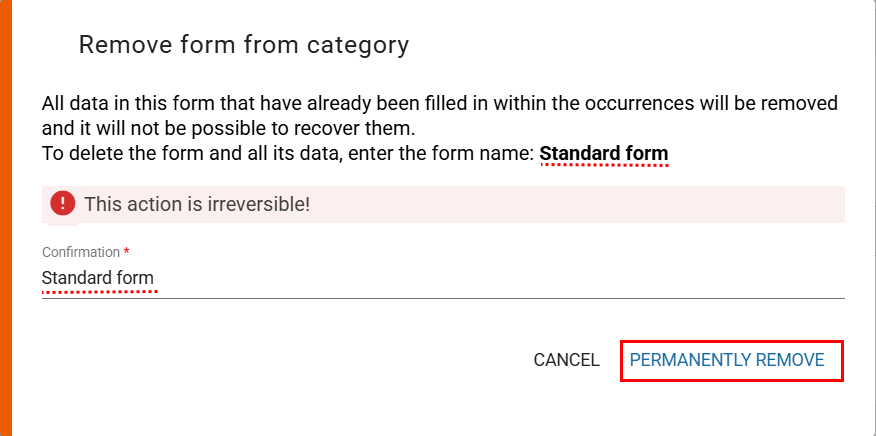
When clicking the “X,” a confirmation window will appear asking you to confirm the removal of the link.
To confirm and acknowledge that all records entered in the form fields will be permanently deleted (with no possibility of recovery), you must type the form name in the “Confirmation” field (as shown in the image below).
To complete the unlinking process, click “Permanently remove”