---
title: How to Link and Unlink a Type to a Category of Occurrences in Qualiex?
description: How to Link and Unlink a Type to a Category of Occurrences in Qualiex?
---
[Skip to content](https://qualiex.forlogic.net/en/how-to-link-and-unlink-a-type-to-a-category-of-occurrences-in-qualiex#main-content)

Open main navigation
Close main navigation
How can we help you?
- There are no suggestions because the search field is empty.
1. [Qualiex | Knowledge Base](https://qualiex.forlogic.net/en?hsLang=en)
2. [Occurences](https://qualiex.forlogic.net/en/occurences?hsLang=en)
3. [Occurences Categories](https://qualiex.forlogic.net/en/occurences?hsLang=en#occurences-categories)
# How to Link and Unlink a Type to a Category of Occurrences in Qualiex?
When registering a new occurrence, after selecting the **Category**, the **Type** field (also in the occurrence creation form) will display only the types that are directly linked to that selected category.
This configuration is done directly in the **Categories** tab, allowing each category to have the appropriate types according to its characteristics.
### 1. Access the Module
Click here to learn how to access the **Occurrences** module in Qualiex.
### 2. Linking the Type to the Occurrence Registration Step
Click the **“Categories”** tab, then right‑click the desired category or open the **context menu  ** and select **“Edit.”**
To perform the linking, you must have the **Manage types, categories, and cause classifications** permission, defined under **Configurations > Roles and Permissions**.
Click here to learn how to configure permissions for the Occurrences module.
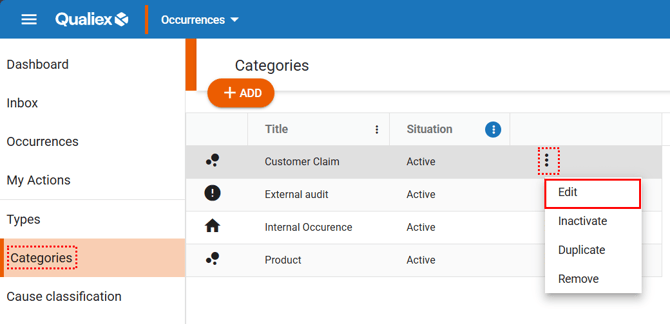
When you select the “Edit” option, a window will open allowing you to make changes to the category. In the “General” tab, locate the “Treatment Phase.”
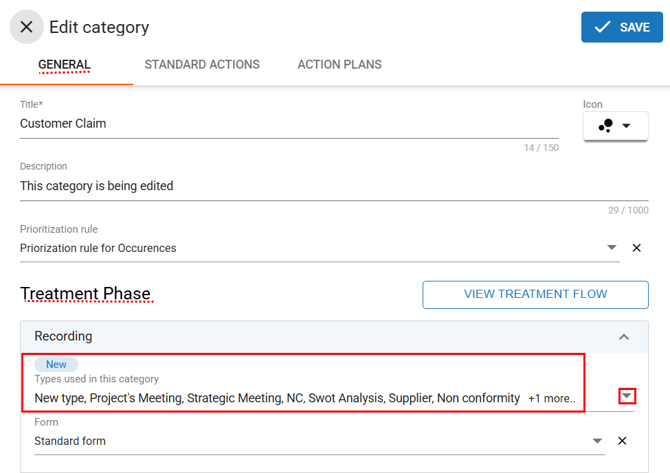
In the “Registration” step, you will find the field used to link the “Types that can be used in this category.” To view the list of types, click the button  .
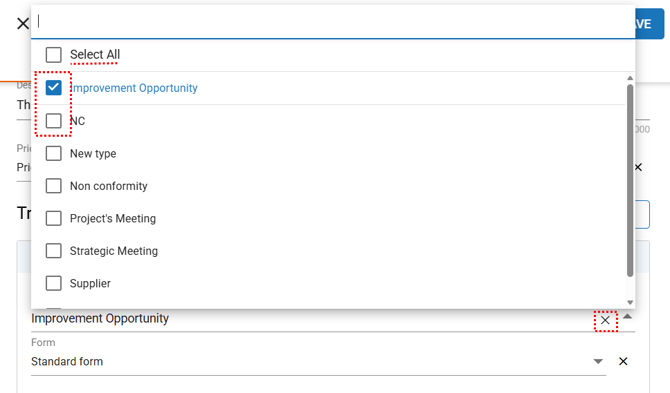
Select the desired type by clicking the checkbox (it turns blue when selected). You can also use the “Select all” option.
To uncheck a type, click the checkbox again  , or click **“X”** to remove all selections.
After linking the types to the category, click **“Save.”**
**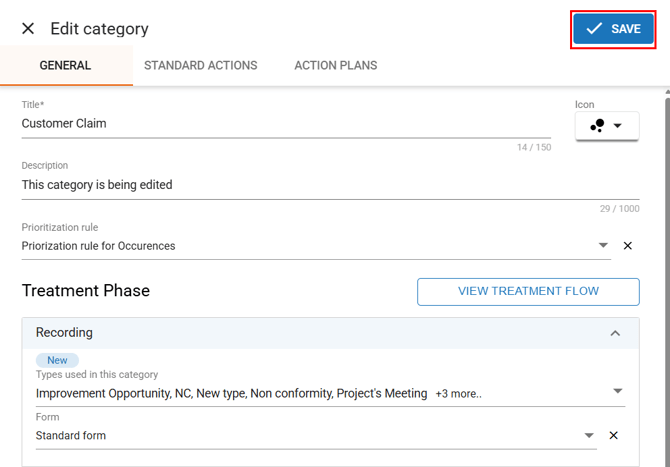**
After clicking “Save,” the category will be updated and a confirmation message will appear:
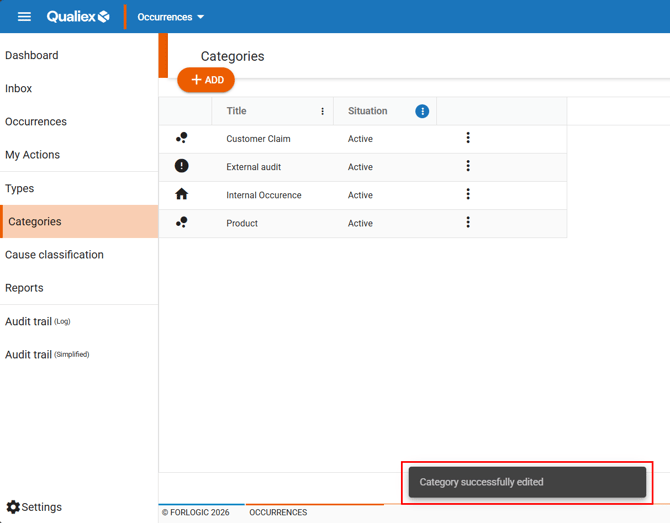
The type can be selected in new occurrences and in occurrences that are already open.
- [Occurences](https://qualiex.forlogic.net/en/occurences?hsLang=en#main-content)
- [Treating an occurence guide](https://qualiex.forlogic.net/en/occurences?hsLang=en#treating-an-occurence-guide)
- [Register Occurence](https://qualiex.forlogic.net/en/occurences?hsLang=en#register-occurence)
- [Inbox](https://qualiex.forlogic.net/en/occurences?hsLang=en#inbox)
- [Cause analysis](https://qualiex.forlogic.net/en/occurences?hsLang=en#cause-analysis)
- [Action plan elaboration and execution](https://qualiex.forlogic.net/en/occurences?hsLang=en#action-plan-elaboration-and-execution)
- [Effectiveness check](https://qualiex.forlogic.net/en/occurences?hsLang=en#effectiveness-check)
- [Standardization and disclosure](https://qualiex.forlogic.net/en/occurences?hsLang=en#standardization-and-disclosure)
- [Overview](https://qualiex.forlogic.net/en/occurences?hsLang=en#overview)
- [General information](https://qualiex.forlogic.net/en/occurences?hsLang=en#general-information)
- [My Actions](https://qualiex.forlogic.net/en/occurences?hsLang=en#my-actions)
- [Cause classification](https://qualiex.forlogic.net/en/occurences?hsLang=en#cause-classification)
- [Occurences Categories](https://qualiex.forlogic.net/en/occurences?hsLang=en#occurences-categories)
- [Types of occurrences](https://qualiex.forlogic.net/en/occurences?hsLang=en#types-of-occurrences)
- [Module Configurations](https://qualiex.forlogic.net/en/occurences?hsLang=en#module-configurations)
- [Reports](https://qualiex.forlogic.net/en/occurences?hsLang=en#reports)
[](https://qualiex.com/)
[mailto:contato@forlogic.net](mailto:contato@forlogic.net)
Copyright © 2026