---
title: How to deactivate and activate a Cause Classification in Qualiex?
description: How to deactivate and activate a Cause Classification in Qualiex?
---
[Skip to content](https://qualiex.forlogic.net/en/how-to-deactivate-and-activate-a-cause-classification-in-qualiex#main-content)

Open main navigation
Close main navigation
How can we help you?
- There are no suggestions because the search field is empty.
1. [Qualiex | Knowledge Base](https://qualiex.forlogic.net/en?hsLang=en)
2. [Occurences](https://qualiex.forlogic.net/en/occurences?hsLang=en)
3. [Cause classification](https://qualiex.forlogic.net/en/occurences?hsLang=en#cause-classification)
# How to deactivate and activate a Cause Classification in Qualiex?
In some cases, a cause classification previously registered and used in the *Occurrences* module may no longer be appropriate due to updates or process changes within the organization.
In such situations, the ideal practice is to **deactivate** the classification, preventing it from being selected in new occurrences.
This approach keeps the system more organized and up to date, while preserving information traceability — since an inactive classification remains recorded in the historical data but no longer appears as an option when classifying the root cause of a new occurrence.
### 1. Access the module
Click here to learn how to access the *Occurrences* module in Qualiex.
### 2. Deactivating the classification
Click the **Cause Classification** tab, then right‑click the desired classification, or open the context menu  and select **“Deactivate.”**
To deactivate or activate a classification, the user must have the permission **“Manage types, categories, and cause classifications”**, defined under
**Settings > Roles and Permissions**.
Click here to learn how to configure this permission for the Occurrences module.
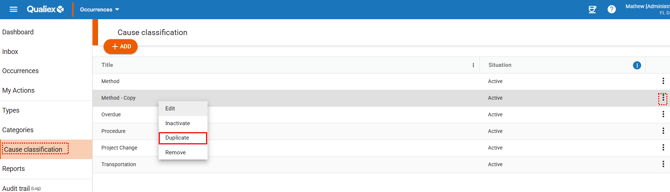
When clicking **“Deactivate,”** the classification will no longer be displayed, and a confirmation message will appear at the bottom of the screen.
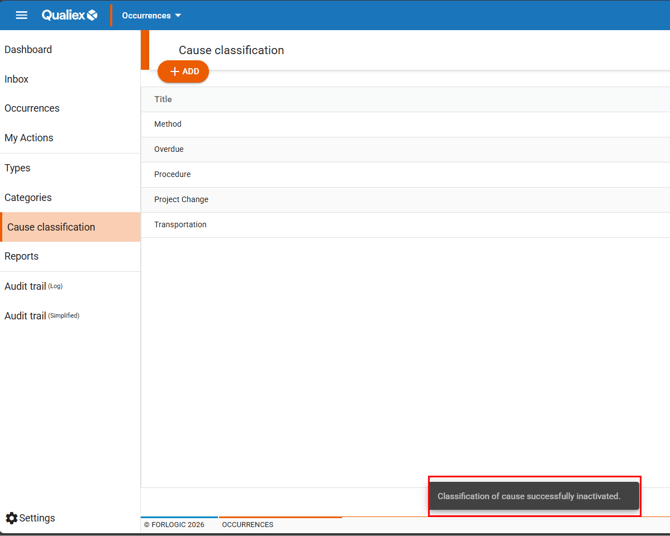
Once deactivated, the classification cannot be selected for new causes found, but it will continue to be displayed in occurrences where it was previously selected.
### **3. How to view inactive classifications?**
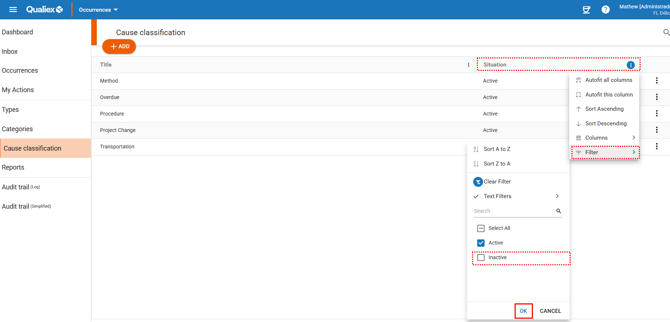
To view inactive classifications, you must adjust the default filter in the **“Status”** column.
Open the column’s context menu  , go to **“Filter,”** select **“Inactive,”** and click **“Apply.”**
****
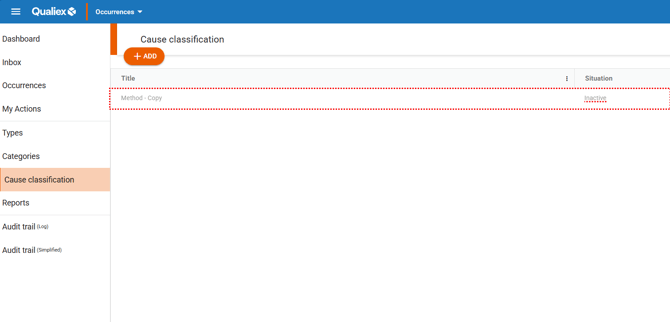
After applying the filter, inactive classifications will be displayed in a light grey tone to differentiate them from active ones.
### 4. Activating an inactive classification
Right‑click the inactive classification you want to reactivate, or open the context menu and select **“Activate.”**
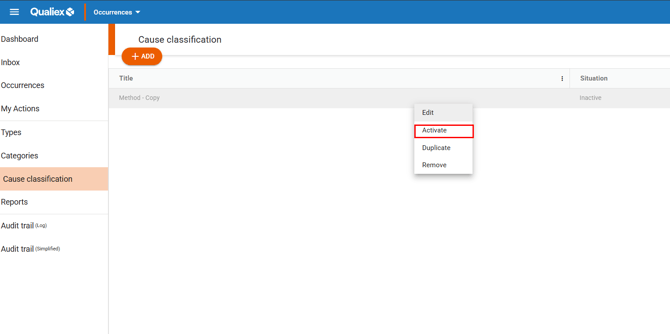
When clicking **“Activate,”** the classification will once again be displayed normally and a confirmation message will appear at the bottom of the screen.
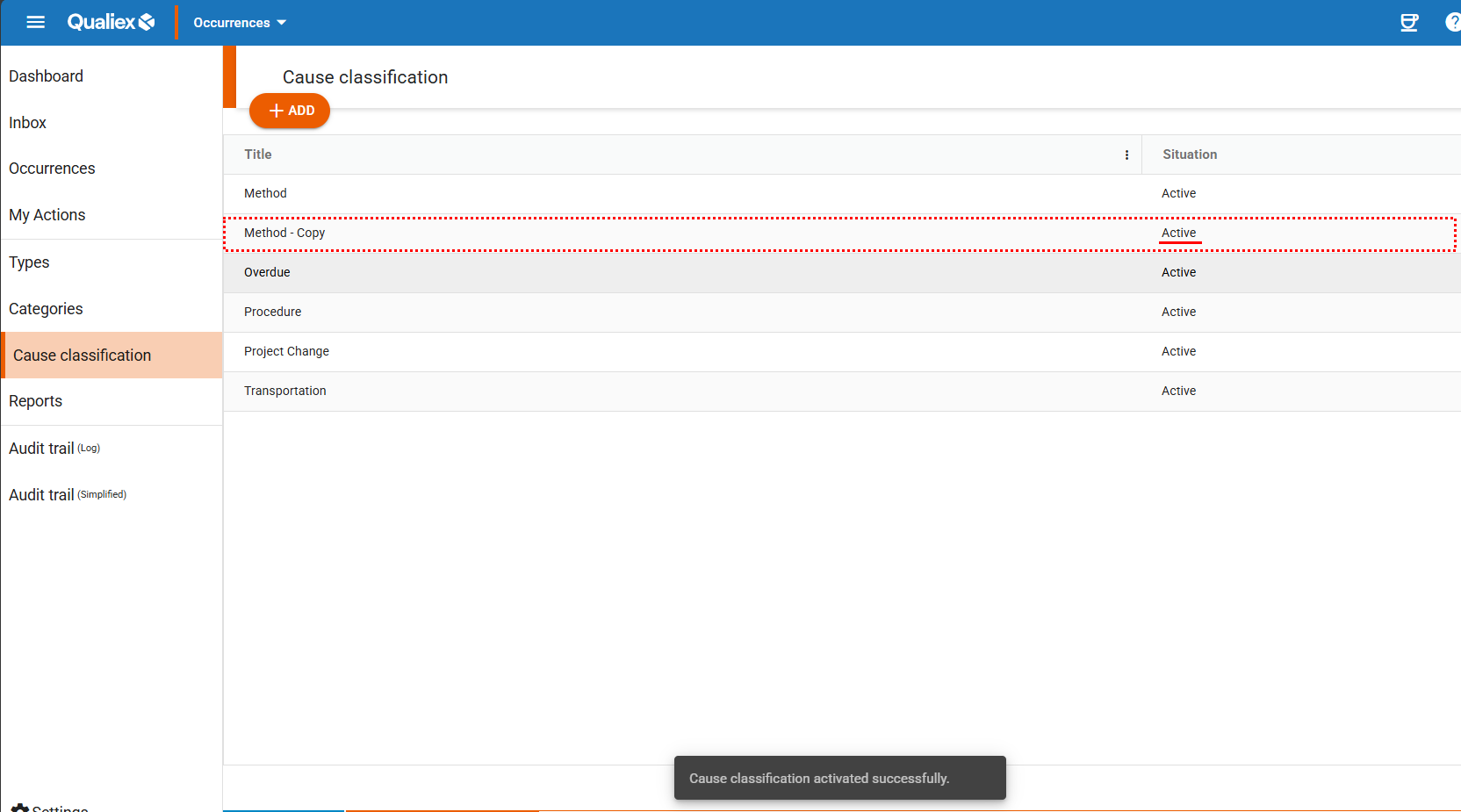
Once activated, the classification becomes available again for classifying causes in new occurrences.
### **See also:**
- How to register a cause classification?
- How to edit a cause classification?
- How to remove a cause classification?
- How to duplicate a cause classification?
- [Occurences](https://qualiex.forlogic.net/en/occurences?hsLang=en#main-content)
- [Treating an occurence guide](https://qualiex.forlogic.net/en/occurences?hsLang=en#treating-an-occurence-guide)
- [Register Occurence](https://qualiex.forlogic.net/en/occurences?hsLang=en#register-occurence)
- [Inbox](https://qualiex.forlogic.net/en/occurences?hsLang=en#inbox)
- [Cause analysis](https://qualiex.forlogic.net/en/occurences?hsLang=en#cause-analysis)
- [Action plan elaboration and execution](https://qualiex.forlogic.net/en/occurences?hsLang=en#action-plan-elaboration-and-execution)
- [Effectiveness check](https://qualiex.forlogic.net/en/occurences?hsLang=en#effectiveness-check)
- [Standardization and disclosure](https://qualiex.forlogic.net/en/occurences?hsLang=en#standardization-and-disclosure)
- [Overview](https://qualiex.forlogic.net/en/occurences?hsLang=en#overview)
- [General information](https://qualiex.forlogic.net/en/occurences?hsLang=en#general-information)
- [My Actions](https://qualiex.forlogic.net/en/occurences?hsLang=en#my-actions)
- [Cause classification](https://qualiex.forlogic.net/en/occurences?hsLang=en#cause-classification)
- [Occurences Categories](https://qualiex.forlogic.net/en/occurences?hsLang=en#occurences-categories)
- [Types of occurrences](https://qualiex.forlogic.net/en/occurences?hsLang=en#types-of-occurrences)
- [Module Configurations](https://qualiex.forlogic.net/en/occurences?hsLang=en#module-configurations)
- [Reports](https://qualiex.forlogic.net/en/occurences?hsLang=en#reports)
[](https://qualiex.com/)
[mailto:contato@forlogic.net](mailto:contato@forlogic.net)
Copyright © 2026