Action plans in Qualiex come preconfigured with standard fields based on the 5W2H methodology. However, we understand that each process may have its own specific needs: in some cases, certain fields may not be necessary; in others, specific fields may need to be mandatory.
To address these needs, Qualiex Occurrences allows customization of action plan fields through Categories, providing flexibility for each organization to adapt the system to its reality while maintaining consistency in the information recorded.
1. Access the Module
2. Customizing the Standard Action Fields
 and select “Edit.”
Click here to learn how to configure permissions for the Occurrences module.
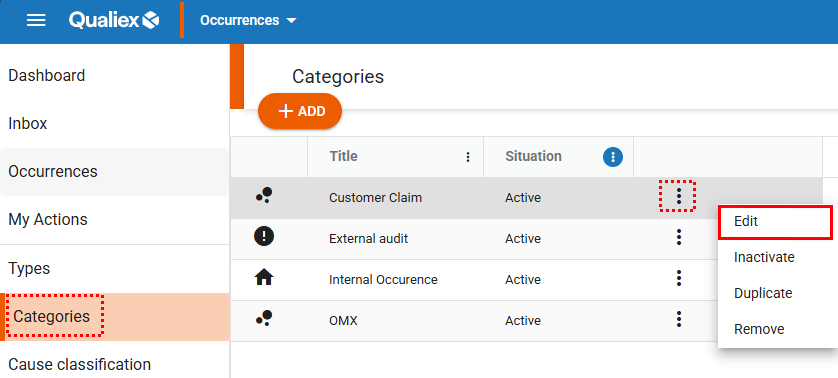
When selecting the “Edit” option, a window will open allowing you to make changes to the category.
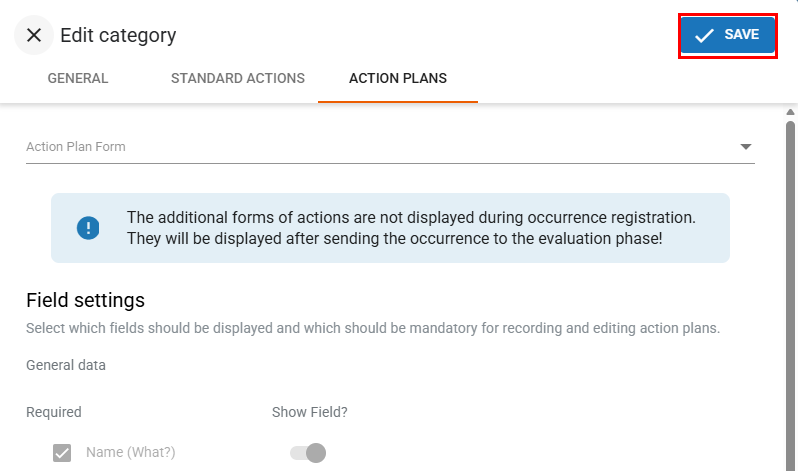
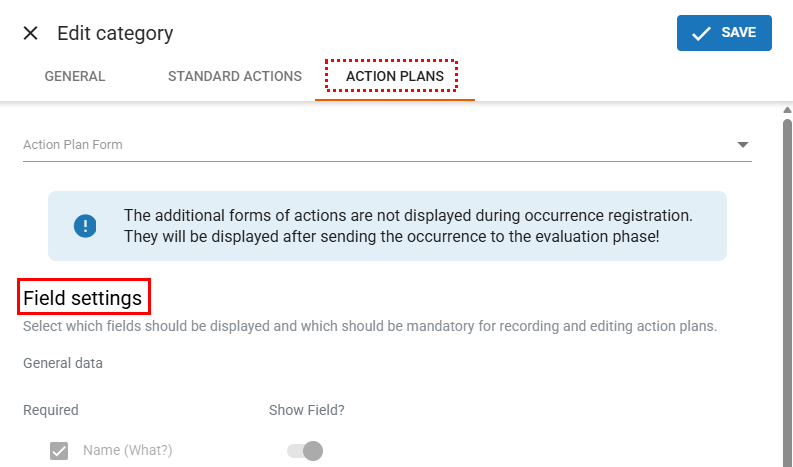
Click the “Action Plans” tab and locate the “Field Settings” section.
3. General Data
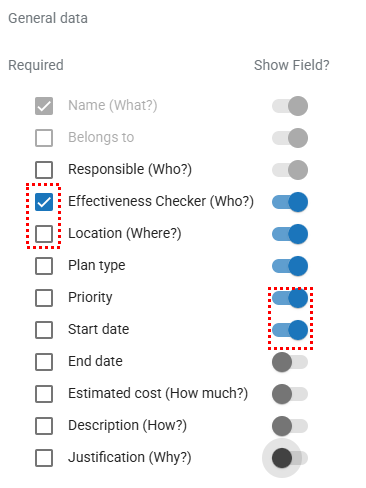
In the “General Data” section, you can define whether the field is mandatory or not.
If the field is not mandatory, you may choose to hide it so that it is not used.
-
To make a field mandatory, click the checkbox
 when selected, it will turn blue, indicating that the field is required.
To remove the requirement, simply click the checkbox
 again.
 -
To hide (or display) a field, click the toggle button
 when it turns gray, it indicates that the field has been set to hidden.
To display the field again, click the toggle button
 once more.
4. Progress and Cost Reporting
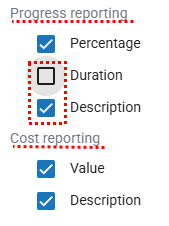
It is possible to define which fields will be mandatory in the progress reporting and cost reporting sections of an action.
-
To make a field mandatory, click the checkbox
 when selected, it will turn blue, indicating that the field is required.
To remove the requirement, simply click the checkbox
 again.