What Are They and What Are They Used For?
Standard actions are predefined tasks, procedures, or steps that are part of your organization’s workflow. They help standardize and streamline the management of occurrences, as they are automatically displayed whenever an occurrence is registered under a specific category.
These actions are linked to categories, allowing each type of occurrence to have specific activities registered according to its context.
For example, in the category “Customer Claim” a standard action might be “Contact the customer,” ensuring that this step is always performed.
The use of standard actions supports more organized, agile, and consistent management, helping ensure that all necessary steps are completed and reducing the risk of process failures.
1. Access the Module
2. Accessing the Standard Actions Registration Screen
 and select “Edit.”
Click here to learn how to configure permissions for the Occurrences module.
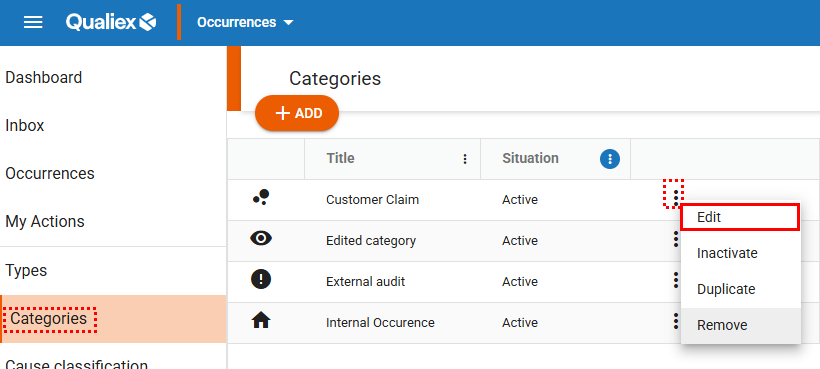
When selecting the “Edit” option, a window will open allowing you to make changes to the category.
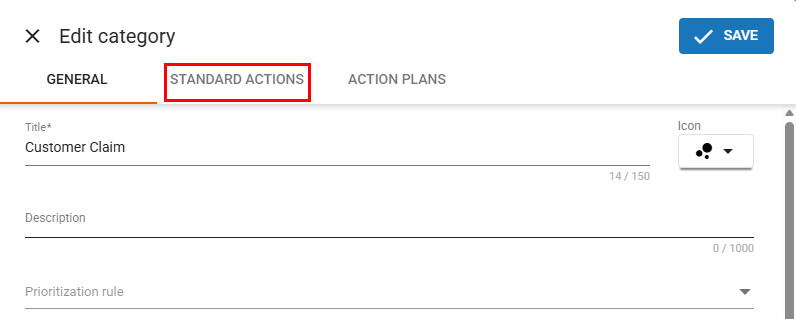
Click the “Standard Actions” option to open the tab for managing the standard actions of the selected category.
3. Registering Standard Actions
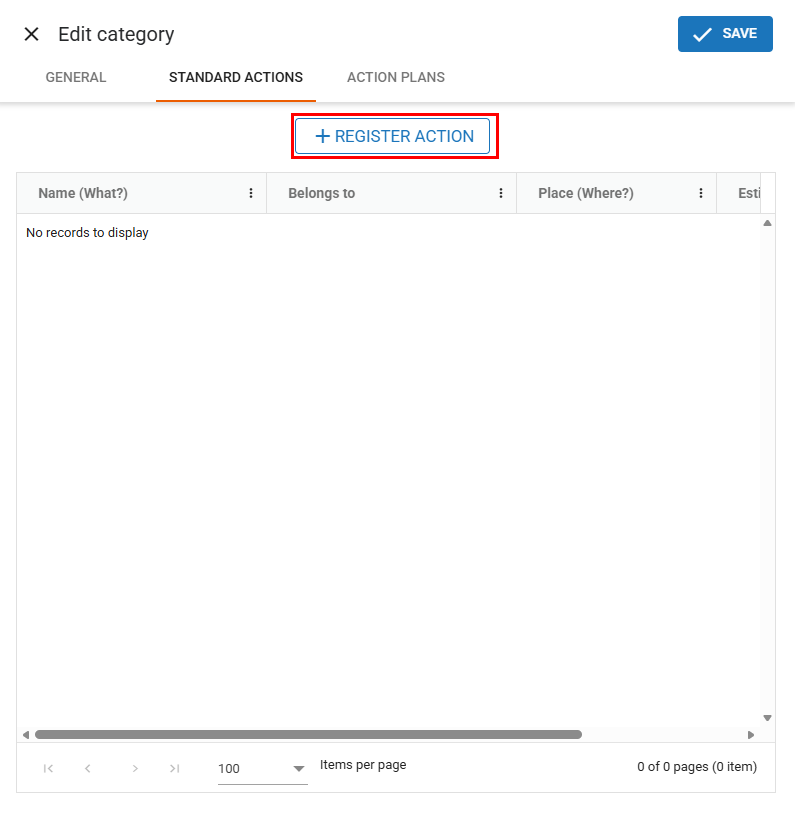
When you click the “Standard Actions” tab, you will be able to view existing actions and register new ones.
To proceed with the registration, click the  button.
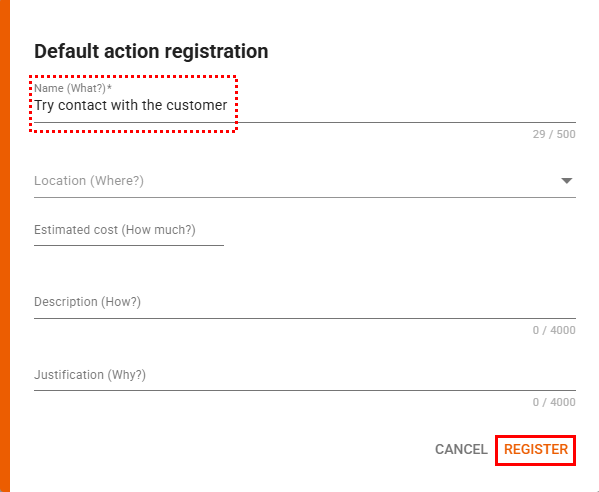
After clicking the button, a registration window will appear where you must fill in the necessary fields to ensure that the action is complete and well documented. At this stage, it is essential to create an objective, clear, and comprehensive action to guarantee effective and consistent results.
The fields are:
-
Name (What?):
Fill in this mandatory field with a clear and objective title describing the action to be performed. This ensures that the person responsible can execute it accurately and effectively. -
Location (Where?):
If there is a specific location where the action must be performed, it can be provided in this field. -
Estimated Cost (How much?):
If the action involves any cost, this information can be recorded here. -
Description (How?):
Provide details on how the action should be carried out. Include all relevant information needed for proper execution. -
Justification (Why?):
Explain the reason and motivation for performing the action, providing context and clarity for those involved.
After completing all fields, click “Register”.
4. Defining Action Hierarchy, When Necessary
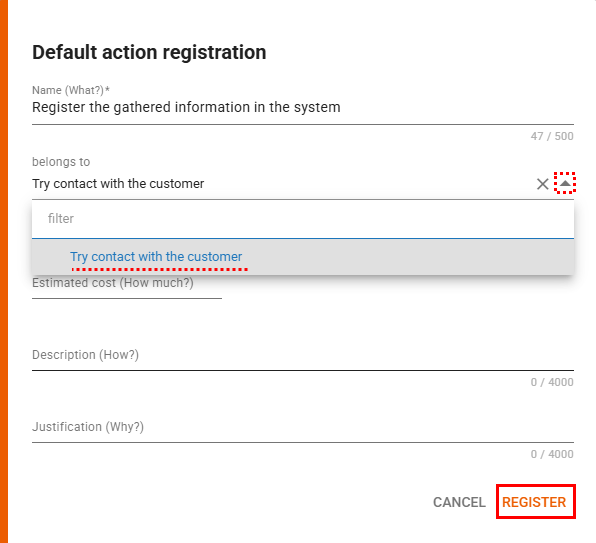
If a standard action has already been registered, the registration window for new actions will display the “Belongs to” field, allowing you to indicate that the new action is related to an existing one.
In the registration window for a new action, click the button  in the “Belongs to” field to view the actions that have already been registered.
Click the desired action, and then click “Register.”
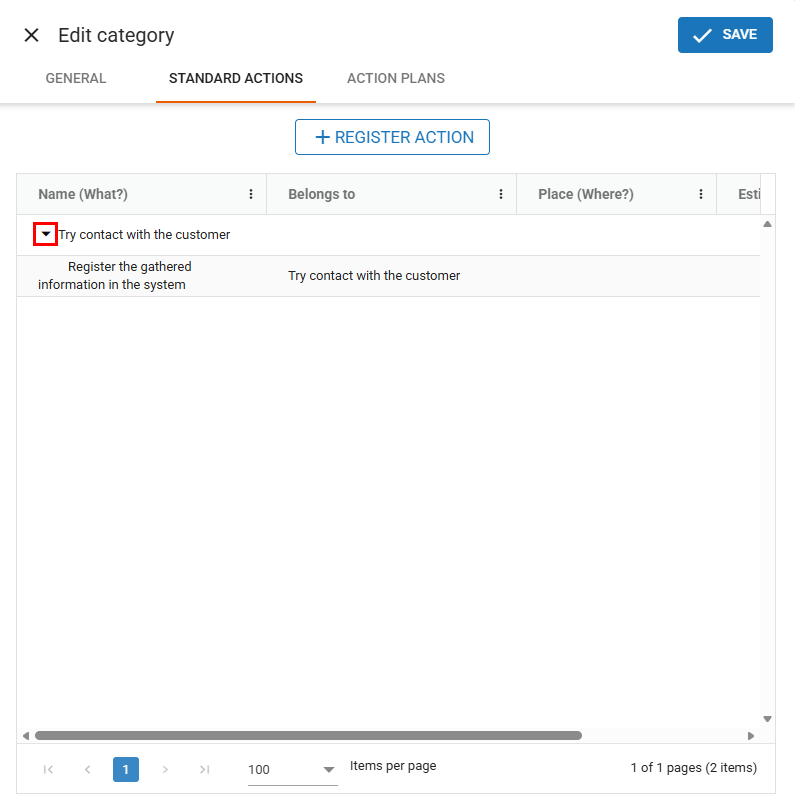
By clicking this icon, you can expand the view and access the corresponding child action: