---
title: How to create an action plan for an occurrence in Qualiex?
description: How to approve an occurrence in Qualiex?
---
[Skip to content](https://qualiex.forlogic.net/en/how-to-create-an-action-plan-for-an-occurrence-in-qualiex#main-content)

Open main navigation
Close main navigation
How can we help you?
- There are no suggestions because the search field is empty.
1. [Qualiex | Knowledge Base](https://qualiex.forlogic.net/en?hsLang=en)
2. [Occurences](https://qualiex.forlogic.net/en/occurences?hsLang=en)
3. [Action plan elaboration and execution](https://qualiex.forlogic.net/en/occurences?hsLang=en#action-plan-elaboration-and-execution)
# How to create an action plan for an occurrence in Qualiex?
An approved occurrence with the root cause identified requires an action plan so that the treatment can be carried out and completed effectively.
To add actions, open the occurrence.
### 1. Access the module
Click here to learn how to access the *Occurrences* module in Qualiex.
### 2. Locating the occurrence
Click the **Occurrences** tab, locate the desired occurrence, then right‑click it or open the context menu  and select **“View.”**
To view the occurrence, you must be responsible for one of the stages or be part of the involved team.

When clicking **View**, the system opens the current phase: **“Action Plan Elaboration”**
### 3. Reviewing previous stages
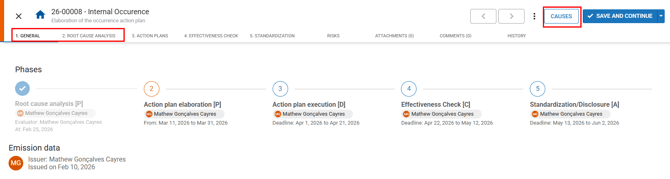
To develop an action plan, you must review:
- **General tab:** registration and approval
- **Cause Analysis tab:** analysis details and identified root cause
- **Causes section:** where all root causes and possible causes are centralized
### 4. Creating the action plan
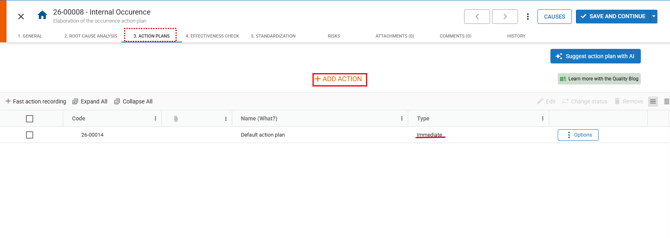
After reviewing the previous stages, go to the **Action Plans** tab.
This tab lists all actions for the treatment, including **immediate actions**, which must contain or neutralize the problem until it is corrected and prevented.
To register a new action, click **“Add action.”**
****
### 5. Registering an action
When clicking **“Add action,”** the 5W2H‑based form will open:
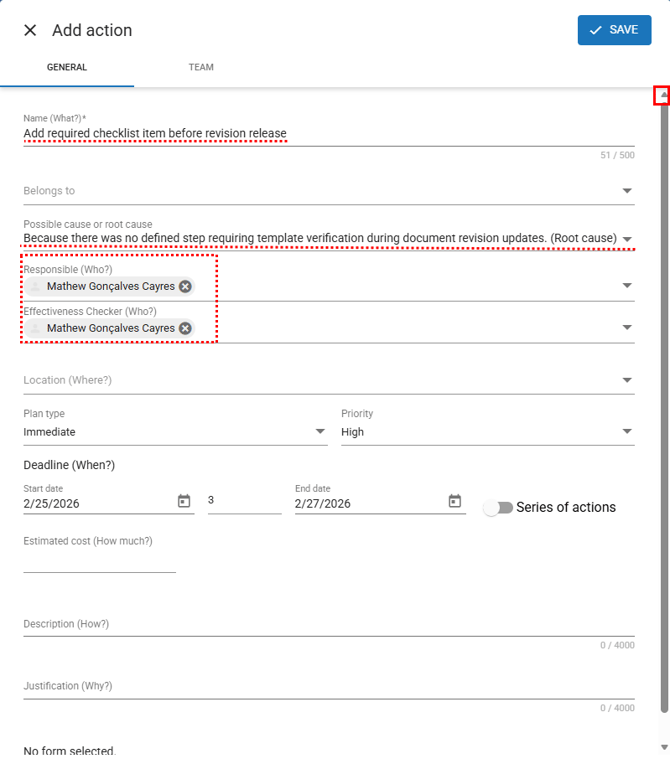
Use the scroll bar on the right to view the entire form.
### **Name (required):**
*What will be done?* Define clearly what action will be performed.
### **Belongs to (optional):**
Select the parent action (root action) to which this action is linked.
To view available actions, click  and choose the desired one.
### **Possible cause or root cause (optional):**
Link the cause the action directly addresses.
To view available causes, click  and select one.
### **Responsible (optional):**
*Who will do it?* Select the collaborator responsible for execution.
Click  to view and select a collaborator.
### **Effectiveness checker (optional):**
Select the collaborator who will verify the effectiveness of the action.
Only collaborators with access to the Occurrences module can be assigned as responsible and/or verifier.
### **Location (optional):**
*Where will it be done?* Define the physical area, department, or sector.
Click  to view available locations.
The location must be previously configured in Qualiex.
Click here to learn how to register your company’s locations.
**Plan type (optional):** To view the available types, click and select an option:
- **Immediate:** action applied immediately after identifying the occurrence, with the goal of quickly containing or neutralizing the effects of the problem.
- **Corrective:** actions taken to eliminate the root cause of a nonconformity that has already occurred, ensuring the problem does not recur.
- **Preventive:** actions planned to avoid potential failures in the future, even if they have not yet occurred.
- **Improvement opportunity:** actions that not only address the issue but also improve processes, increase efficiency, or add value to the organization.
**Priority (optional):** To view the available priorities, click and select an option:
- **Low:** continuous‑improvement or support actions with no urgency, which can be implemented in the medium/long term without immediate risk to the process.
- **Medium:** actions that should be executed in the short term, as they do not cause immediate impact but may lead to recurring failures or reduce process efficiency.
- **High:** actions that must be executed immediately because they address serious risks or direct impacts on safety, product/service quality, or legal/regulatory compliance.
**Deadline (optional):** Define the deadline for executing the action plan.
- **Start date:** enter the date when execution will begin.
- **Duration (days):** enter the estimated duration of the action.
- **End date:** can be entered manually or calculated automatically based on the duration.
**Action series (optional):** When this option is enabled, multiple actions are created at once, each with different start and end dates.
Click here to learn how to create an action series.(placeholder)
**Cost (optional):** Enter the estimated cost required to execute the action.
**Description (optional):** Describe how the action should be carried out.
**Justification (optional):** Explain why the action needs to be executed.
If a complementary form has been configured for the action registration, it will appear below the **Justification** field.
The required fields and the fields displayed in the action registration form may vary depending on the module configuration.
**Click here to learn more. (placeholder)**
### 6. Defining the action team
After completing the general information, you can select the team members who will be notified about the progress of the action, under the **Team** tab.
The selected collaborators will have access to the occurrence information without being active participants in its treatment.
Click **“Select”** to locate the collaborators.
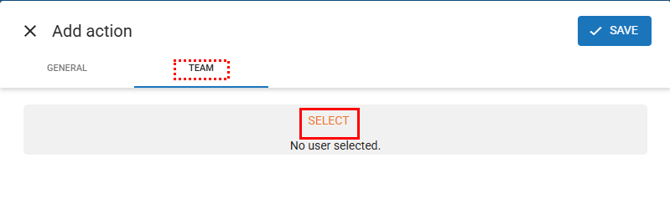
The following options will be displayed: **user groups** and **search**.
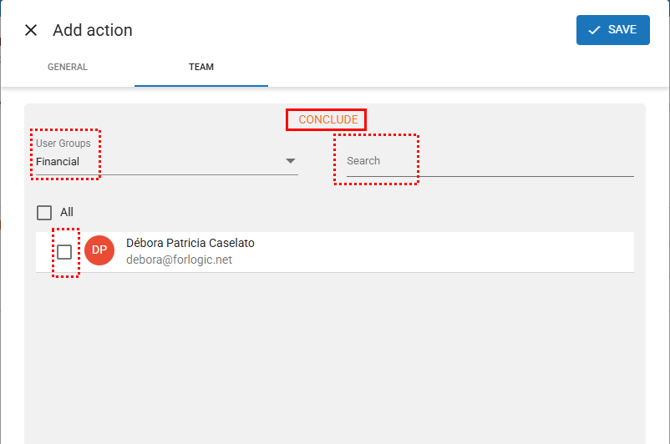
- **User groups:** when selecting a group, the collaborators who belong to that group will be displayed below.
To select a collaborator, click the checkbox , when selected it will show an orange checkmark.
- **Search:** type the name of a specific collaborator and the system will locate them.
To select the collaborator, click the checkbox , when selected it will show an orange checkmark.
- If necessary, use the **“ALL”** option to select all collaborators listed on the screen.
Click **“Conclude”** to complete the selection.
Only collaborators with access to the Occurrences module will be listed.
After completing all relevant information, click **“Save.”**
**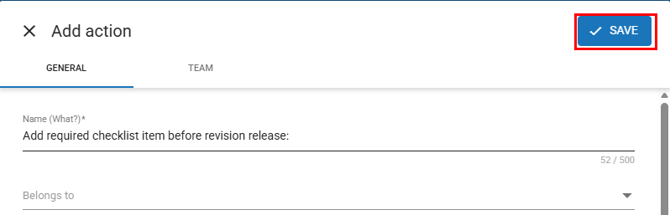**
The action will be registered, and you may repeat the process as many times as necessary.
### 7. Moving to the next stage
After completing the registration of all actions required for the treatment of the occurrence, you can proceed to the next stage.
To do so, click **“Save and Continue.”**
**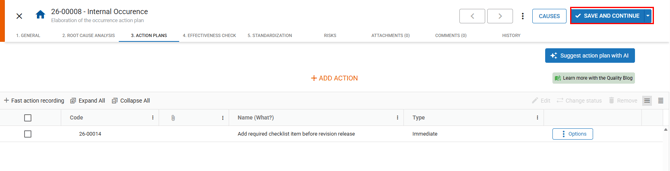**
When you advance to the next stage, the system will notify the next responsible collaborator that there are activities to be performed.
#### **Save without moving to the next stage**
If you prefer to save the information entered so far **without advancing the occurrence to the next stage**, that is also possible.
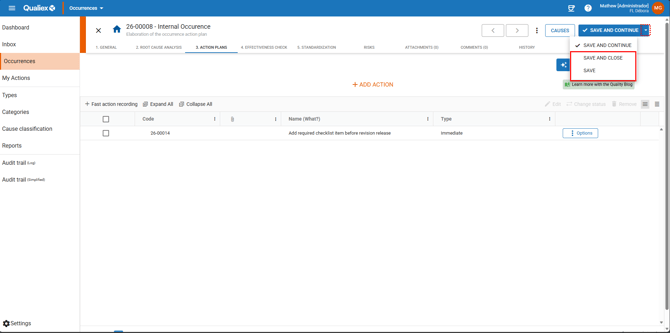
Click  , next to the **Save and Continue** button, to access the following options:
- **Save and Close:**Use this option to save and close the occurrence screen, returning to the main list of occurrences.
- **Save:**Use this option to save and keep the occurrence screen open, preserving the information entered so far.
In both cases, the occurrence remains in the **“Elaboration of the occurrence action plan”** stage under the responsibility of the same collaborator.
- [Occurences](https://qualiex.forlogic.net/en/occurences?hsLang=en#main-content)
- [Treating an occurence guide](https://qualiex.forlogic.net/en/occurences?hsLang=en#treating-an-occurence-guide)
- [Register Occurence](https://qualiex.forlogic.net/en/occurences?hsLang=en#register-occurence)
- [Inbox](https://qualiex.forlogic.net/en/occurences?hsLang=en#inbox)
- [Cause analysis](https://qualiex.forlogic.net/en/occurences?hsLang=en#cause-analysis)
- [Action plan elaboration and execution](https://qualiex.forlogic.net/en/occurences?hsLang=en#action-plan-elaboration-and-execution)
- [Effectiveness check](https://qualiex.forlogic.net/en/occurences?hsLang=en#effectiveness-check)
- [Standardization and disclosure](https://qualiex.forlogic.net/en/occurences?hsLang=en#standardization-and-disclosure)
- [Overview](https://qualiex.forlogic.net/en/occurences?hsLang=en#overview)
- [General information](https://qualiex.forlogic.net/en/occurences?hsLang=en#general-information)
- [My Actions](https://qualiex.forlogic.net/en/occurences?hsLang=en#my-actions)
- [Cause classification](https://qualiex.forlogic.net/en/occurences?hsLang=en#cause-classification)
- [Occurences Categories](https://qualiex.forlogic.net/en/occurences?hsLang=en#occurences-categories)
- [Types of occurrences](https://qualiex.forlogic.net/en/occurences?hsLang=en#types-of-occurrences)
- [Module Configurations](https://qualiex.forlogic.net/en/occurences?hsLang=en#module-configurations)
- [Reports](https://qualiex.forlogic.net/en/occurences?hsLang=en#reports)
[](https://qualiex.com/)
[mailto:contato@forlogic.net](mailto:contato@forlogic.net)
Copyright © 2026