
1. Access the module
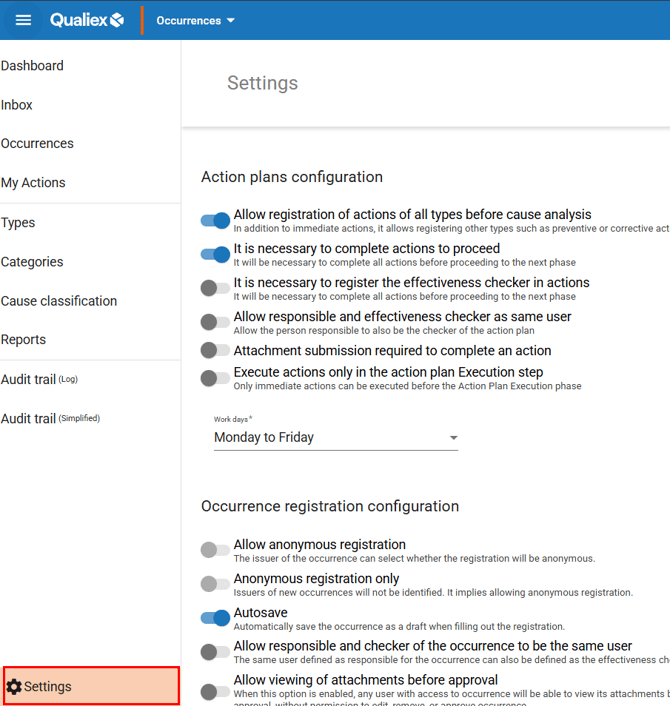
2. Locating the Occurrences module settings
3. Understanding the occurrence registration settings
This group of settings refers to specific definitions related to the process of registering an occurrence.
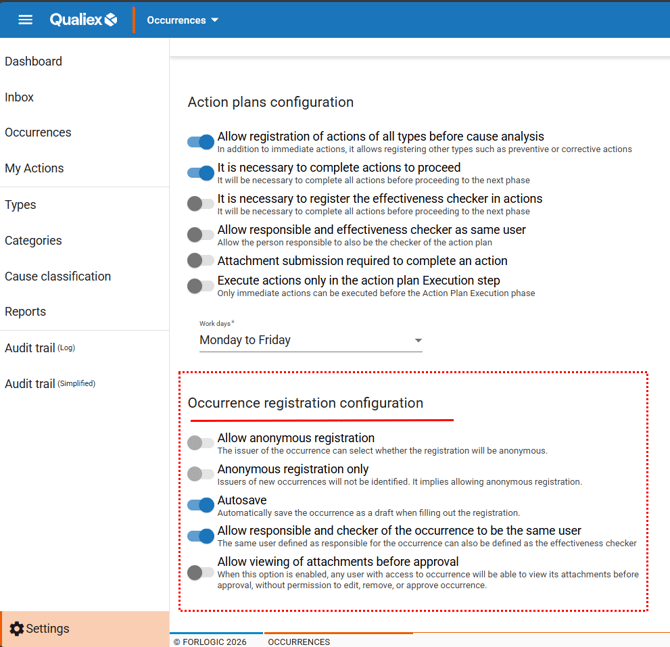
The button  indicates that the setting is enabled; those identified with
  are disabled. To enable or disable an option, simply click the buttons.
-
Allow anonymous registration: when this option is enabled, users will be able to register occurrences anonymously in your occurrence management process. This means the issuer of the occurrence will remain anonymous.
- Only anonymous registration: when this option is enabled, all new occurrences will have an anonymous issuer, with no exceptions. This is recommended for processes where all occurrences must be registered anonymously.
- Auto‑save: while the user is registering an occurrence, the record is automatically saved, allowing completion at a later time. The occurrence will remain pending completion and submission for approval, and during this period it will appear with the status “In creation.”
- Allow the responsible person and the verifier to be the same user: When this option is enabled, the person responsible for the occurrence can also be the verifier. In many cases, this setting remains disabled, since the person executing the action is typically not the same person who will evaluate the effectiveness of the action. However, when enabled, it becomes possible to assign the same user as both responsible and verifier if this scenario is appropriate for the organization.
- Allow attachment viewing before approval: When this option is enabled, collaborators involved in handling the occurrence may view attachments even before it is approved. When it is disabled, attachments will only be visible after the occurrence has been approved.
4. Understanding the default occurrence registration form
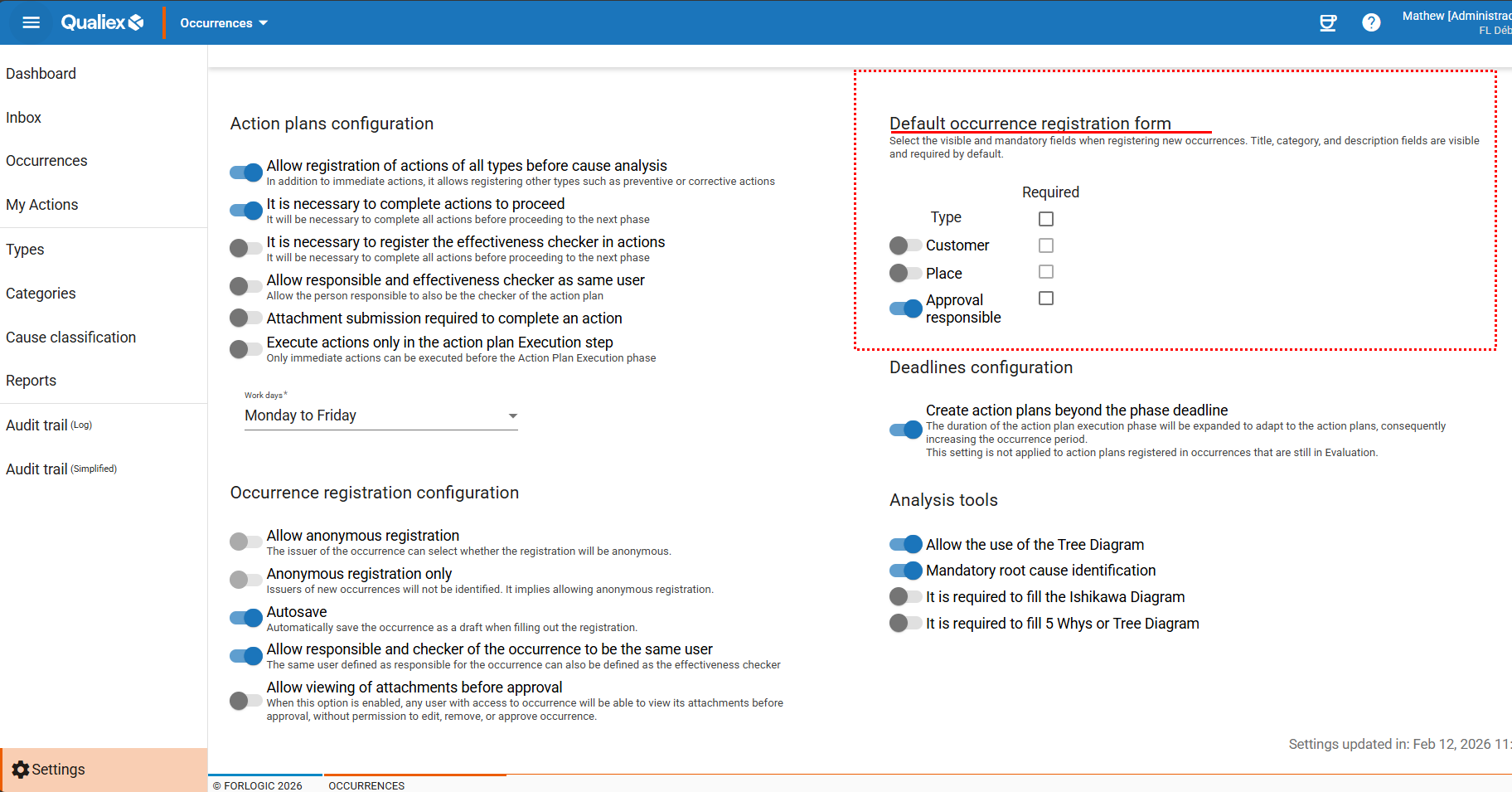
Items marked with  are visible for completion, while those marked with
  are hidden.
Items marked with  are not mandatory, and those marked
  with are required fields.
To change any of these settings, simply click the corresponding buttons.
Now let’s understand the purpose of each configuration:
-
Type: this is a selection field that will always be visible (it is a system default and cannot be customized) in the occurrence registration form. However, you may define whether the field is mandatory or not.
-
Customer: this is a selection field used to link the customer to the occurrence at the time of registration. You may define whether this field is visible and whether completing it is mandatory.
-
Location: this is a selection field used to indicate where the occurrence took place. You may define whether this field is visible and whether completing it is mandatory.
Example: view occurrences only from my location.
- Approver: this is a selection field used to define the employee responsible for approving the occurrence. If selecting an approver is not necessary for your process, this field can be disabled, and it will no longer appear when registering new occurrences.
 .
.