
The approval flow feature in the occurrence treatment process has been enhanced to provide much more flexibility and control.
It is now possible to:
- configure multiple users or groups per step,
- define approvers later using the “To be defined” option,
- require approval from all assigned approvers before moving forward,
- create distinct steps within the same flow (such as review and verification performed by different teams),
- and configure automatic notifications at the start of each step.
All of this makes approval management simpler while ensuring greater security and efficiency in your processes.
Accessing the Module
Click here to learn how to access the Occurrences module in Qualiex.
Configuring a New Approval Flow
To configure a new flow, you must have the “Manage approval flows” permission.
This permission is defined under Configurations > Roles and Permissions.
This permission is defined under Configurations > Roles and Permissions.
🔎 Click here to learn more about “How to create an approval flow in Qualiex.”
After accessing the Occurrences module, you will see the Categories tab in the left‑hand column.
Open this tab and select a category to edit it.
Open this tab and select a category to edit it.
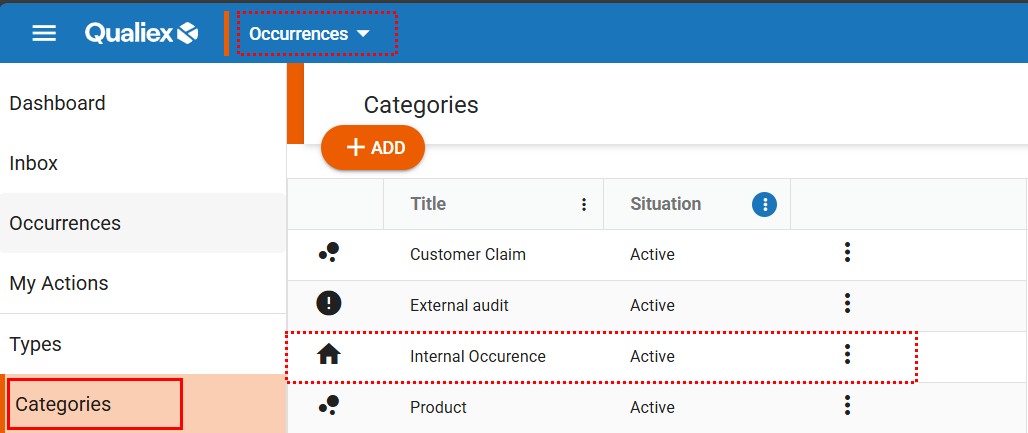
After selecting the category, an editing window will be displayed. Inside it, access the “Treatment Steps” tab, locate the “Approval flow” option, choose the flow previously created, and link it to the desired category.
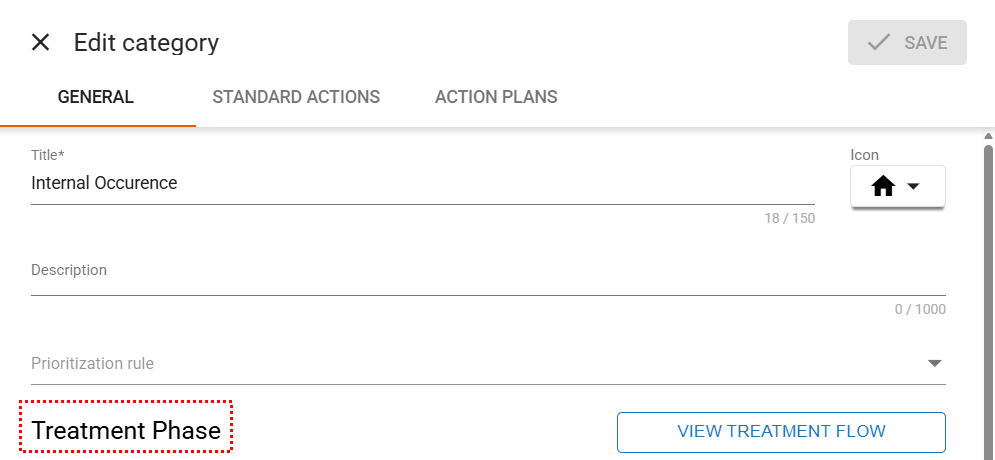
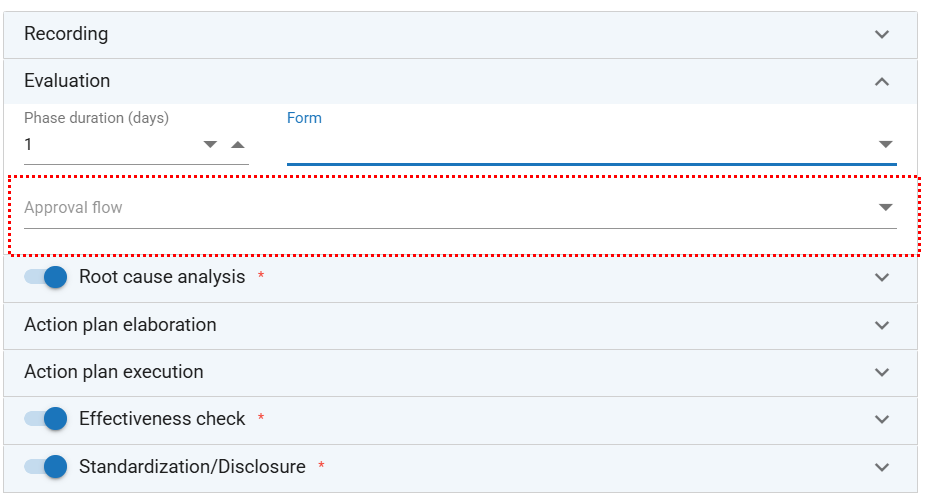
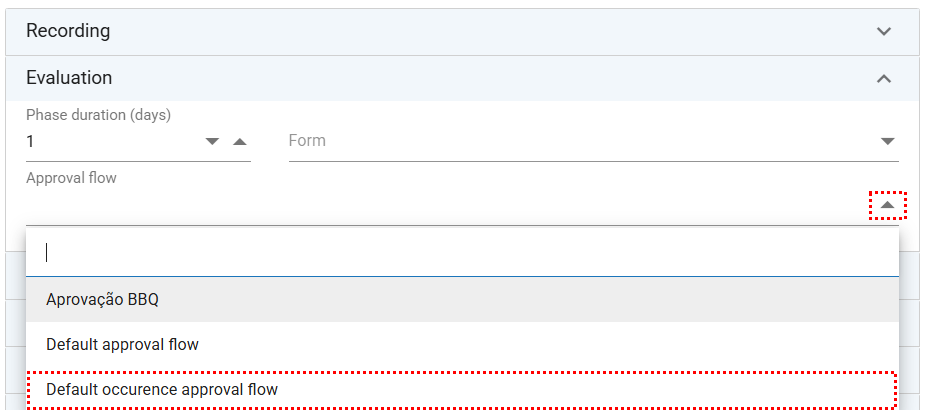
You can customize the approval flow for each treatment step as needed, creating different workflows or using a single flow for all approval stages. After adjusting the desired settings, simply click “Save.”
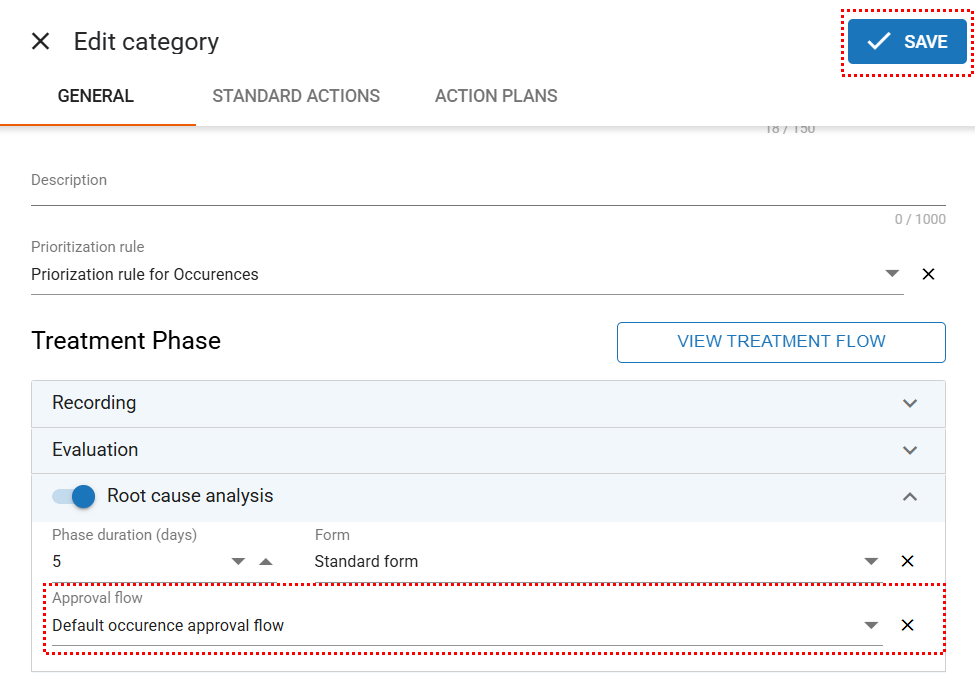
When you save the changes, all new occurrences created with that category will follow the configured approval flow in the selected steps. If any step does not have a flow linked to it, the process will continue normally, without going through an approval flow in that specific step.
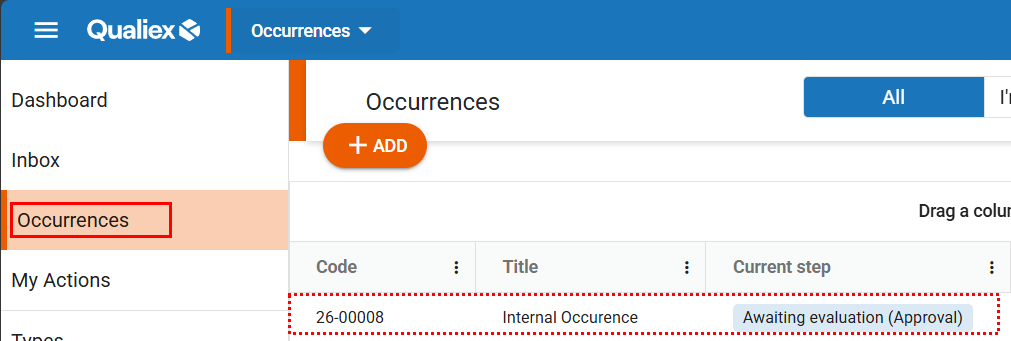
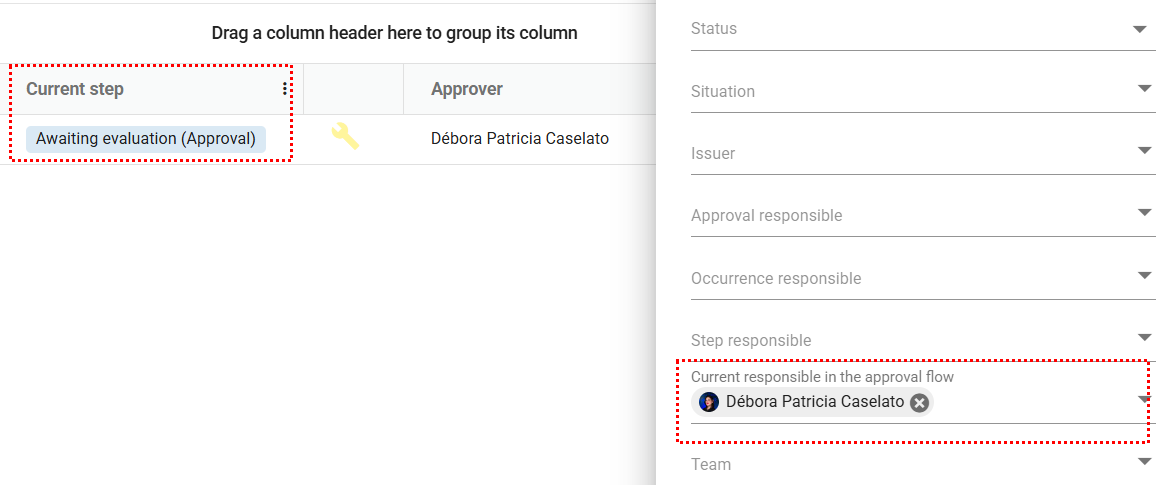
New occurrences created with that category and an approval flow configured will appear in the Occurrences tab with the current step marked as “Awaiting Evaluation (Approval).”
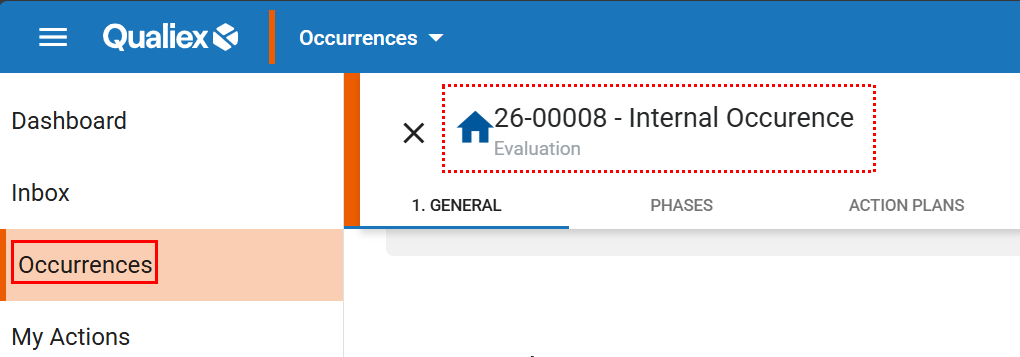
When accessing the occurrence, this information will be available right below the title and on the right side of the screen.
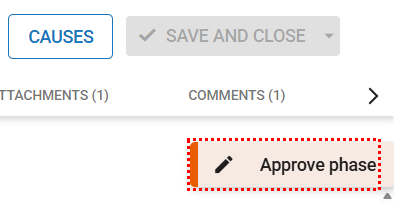
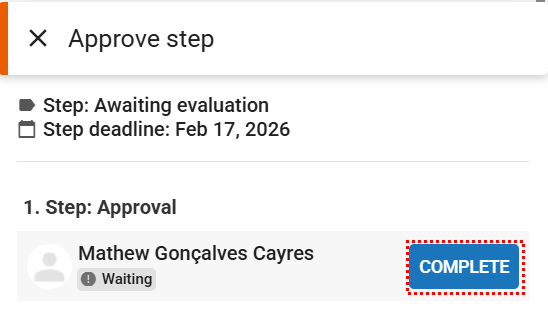
When clicking “Approve step,” a window will open for the user to approve or reject the step.
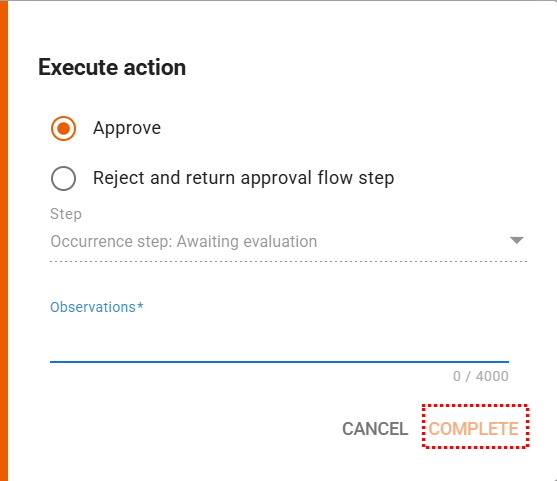
At this stage, it is possible to approve the step, reject it, or return it to a previous phase — either within the same approval flow or to any other step of the occurrence. You must also record your feedback, which is mandatory, providing even more flexibility and control in the management of occurrences.
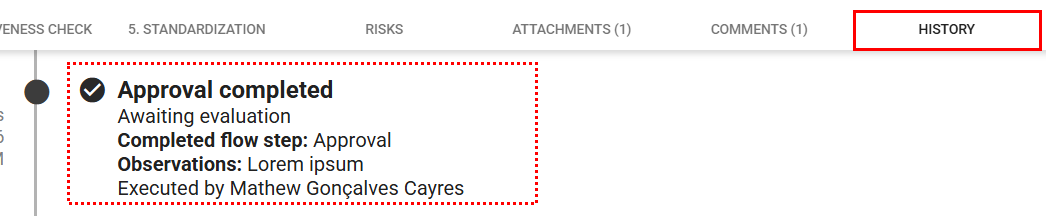
Whenever a step in the approval flow is approved or rejected, this information is recorded in the occurrence’s history, allowing for easy consultation.
You can now also quickly locate occurrences using the advanced filter, as illustrated in the image below.
🔎 Click here to learn How to use the advanced filter to locate an Occurrence.
Previously completed occurrences remain unchanged, without any impact — we know that completed records are inviolable!
Likewise, steps that have already been completed in ongoing occurrences are also not altered.
Likewise, steps that have already been completed in ongoing occurrences are also not altered.