---
title: How to change the status of an occurrence action in Qualiex?
description: How to change the status of an occurrence action in Qualiex?
---
[Skip to content](https://qualiex.forlogic.net/en/how-to-change-the-status-of-an-occurrence-action-in-qualiex#main-content)

Open main navigation
Close main navigation
How can we help you?
- There are no suggestions because the search field is empty.
1. [Qualiex | Knowledge Base](https://qualiex.forlogic.net/en?hsLang=en)
2. [Occurences](https://qualiex.forlogic.net/en/occurences?hsLang=en)
3. [Action plan elaboration and execution](https://qualiex.forlogic.net/en/occurences?hsLang=en#action-plan-elaboration-and-execution)
# How to change the status of an occurrence action in Qualiex?
### 1. Access the module
Click here to learn how to access the *Occurrences* module in Qualiex.
### **2. Locating the occurrence**
Click the **Occurrences** tab, locate the desired occurrence, then right‑click it or open the context menu and select **“View.”**
To view the occurrence, you must be responsible for one of the stages or be involved in the team managing the occurrence.

When clicking **View**, the system opens the current stage, **“Execution of the Action Plan.”**
The system will display a screen containing all actions that must be executed in the treatment of the occurrence.
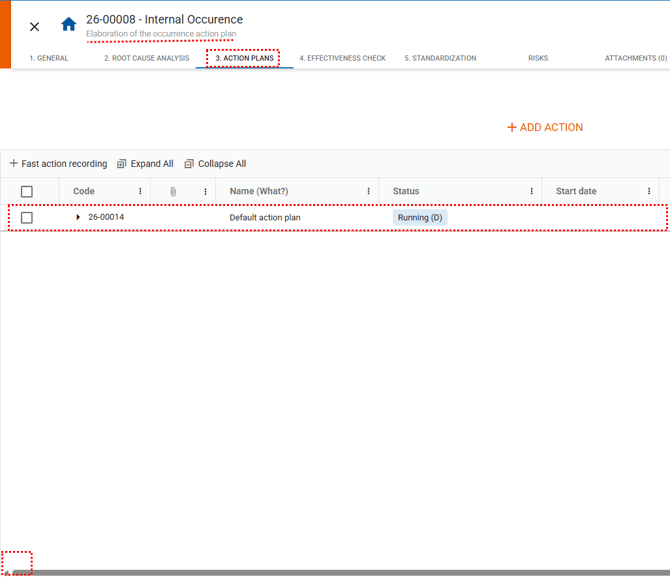
Use the scroll bar at the bottom of the screen to view all information related to the actions.
### **3. Changing the status of an action**
You can update the action status as the execution progresses.
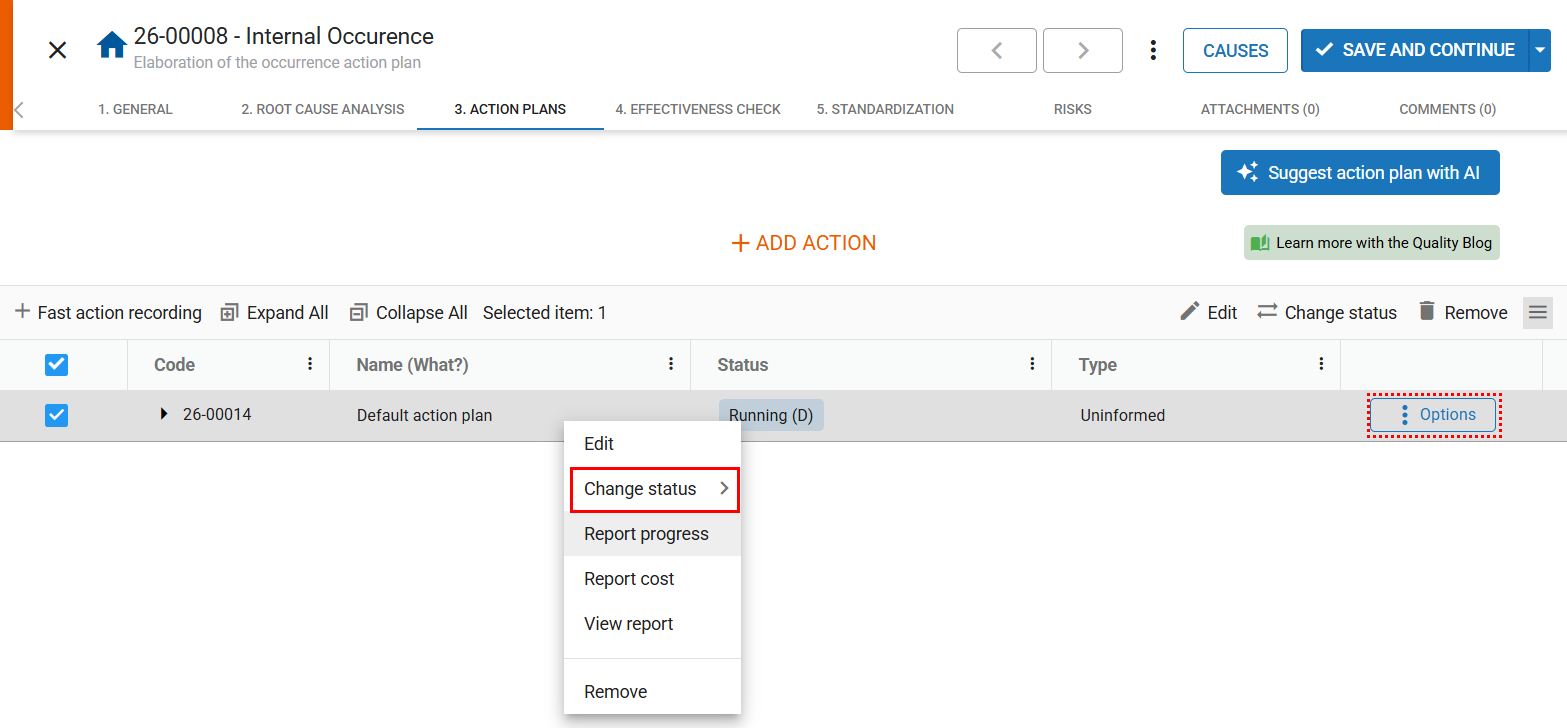
To do so, locate the action you are responsible for and click  , or right‑click the desired action.
Then, select **“Change status.”**
****
The available status options are:
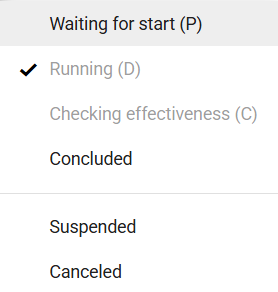
- **Awaiting start (P):** Initial status when an action is first created.
- **In progress (D):** Select when the action is currently being carried out.
- **Verifying effectiveness (C):** Once the execution is completed, use this status to indicate that the effectiveness analysis is underway.
- **Completed:** Use this option when the action has been fully finalized.
- **Suspended:** Use this status if the action is paused due to some impediment.
- **Canceled:** If the action is no longer necessary and will not be executed, you may cancel it.
After selecting the appropriate status, the action is updated immediately.
To change the status, the action must have a responsible person assigned to it.
The **“Verifying effectiveness”** status will only be available if the action has a verifier assigned.
- [Occurences](https://qualiex.forlogic.net/en/occurences?hsLang=en#main-content)
- [Treating an occurence guide](https://qualiex.forlogic.net/en/occurences?hsLang=en#treating-an-occurence-guide)
- [Register Occurence](https://qualiex.forlogic.net/en/occurences?hsLang=en#register-occurence)
- [Inbox](https://qualiex.forlogic.net/en/occurences?hsLang=en#inbox)
- [Cause analysis](https://qualiex.forlogic.net/en/occurences?hsLang=en#cause-analysis)
- [Action plan elaboration and execution](https://qualiex.forlogic.net/en/occurences?hsLang=en#action-plan-elaboration-and-execution)
- [Effectiveness check](https://qualiex.forlogic.net/en/occurences?hsLang=en#effectiveness-check)
- [Standardization and disclosure](https://qualiex.forlogic.net/en/occurences?hsLang=en#standardization-and-disclosure)
- [Overview](https://qualiex.forlogic.net/en/occurences?hsLang=en#overview)
- [General information](https://qualiex.forlogic.net/en/occurences?hsLang=en#general-information)
- [My Actions](https://qualiex.forlogic.net/en/occurences?hsLang=en#my-actions)
- [Cause classification](https://qualiex.forlogic.net/en/occurences?hsLang=en#cause-classification)
- [Occurences Categories](https://qualiex.forlogic.net/en/occurences?hsLang=en#occurences-categories)
- [Types of occurrences](https://qualiex.forlogic.net/en/occurences?hsLang=en#types-of-occurrences)
- [Module Configurations](https://qualiex.forlogic.net/en/occurences?hsLang=en#module-configurations)
- [Reports](https://qualiex.forlogic.net/en/occurences?hsLang=en#reports)
[](https://qualiex.com/)
[mailto:contato@forlogic.net](mailto:contato@forlogic.net)
Copyright © 2026