
An approved occurrence, with the root cause identified and the action plans defined, requires the execution of the plan in order to be effectively completed.
1. Access the module
Click here to learn how to access the Occurrences module in Qualiex.
2. Locating the occurrence
Click the Occurrences tab, locate the desired occurrence, then right‑click it or open the context menu  and select “View.”
and select “View.”To view the occurrence, you must be responsible for one of the stages or be part of the involved team.
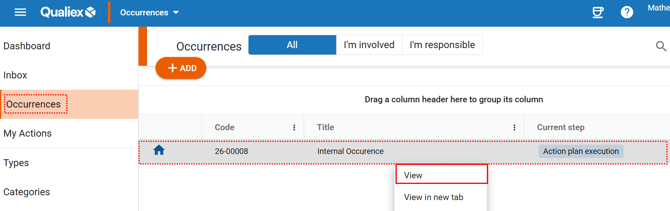
When you click View, the system will open the stage that displays the information for the current step: “Execution of the occurrence action plan.”
The system will then display a screen containing all the actions that must be executed as part of the treatment.
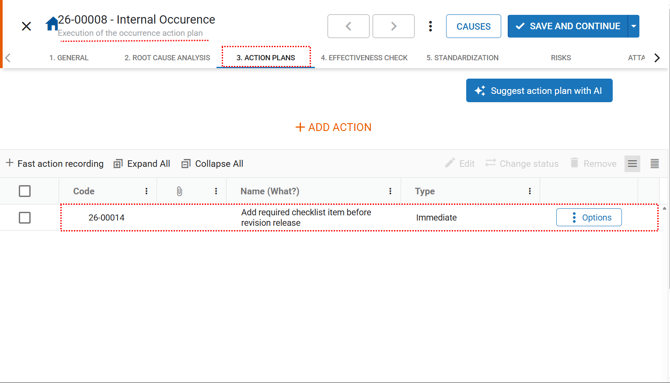
Use the scroll bar at the bottom of the screen to view all information related to the actions.
3. Uploading an attachment
You can upload attachments as evidence of the action’s execution. To do this, locate the action you are responsible for and double‑click it.
The screen with the general information about the action will open. Locate the Attachments tab in the upper‑right corner.
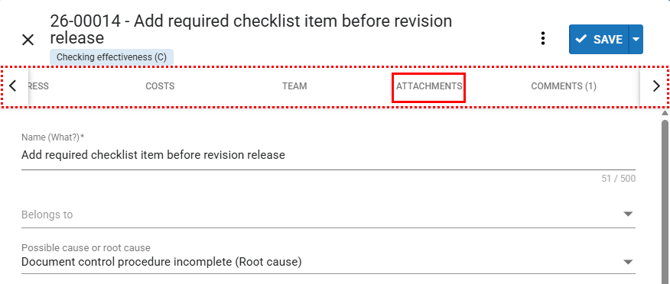
In the Attachments tab, you can upload all the documents necessary to provide evidence related to the occurrence.
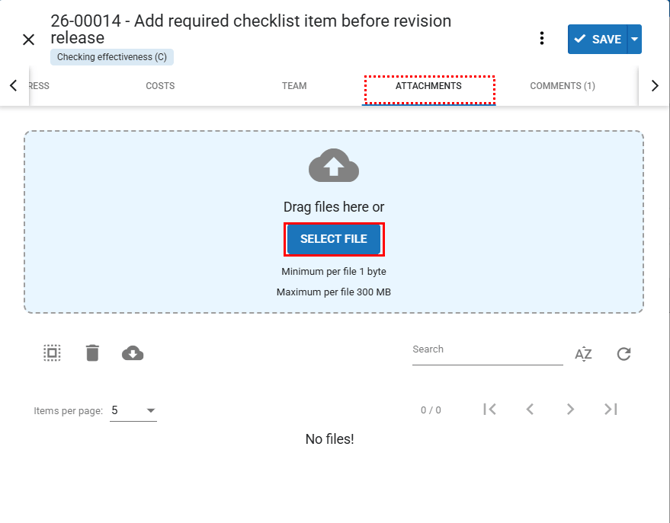
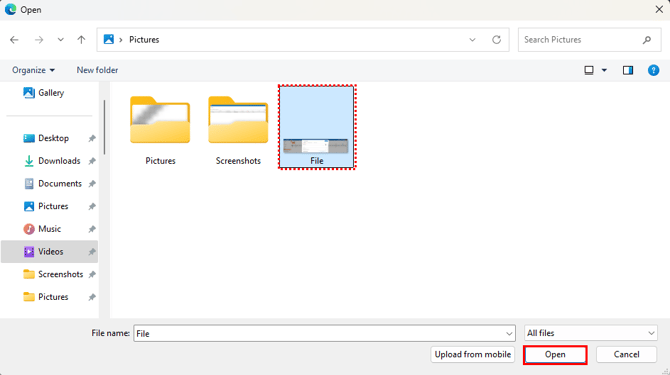
Click  to open your computer’s file selection window.
Select the desired file and then click “Open” to upload it to the system.
to open your computer’s file selection window.Select the desired file and then click “Open” to upload it to the system.
The uploaded file will be listed at the bottom of the screen.
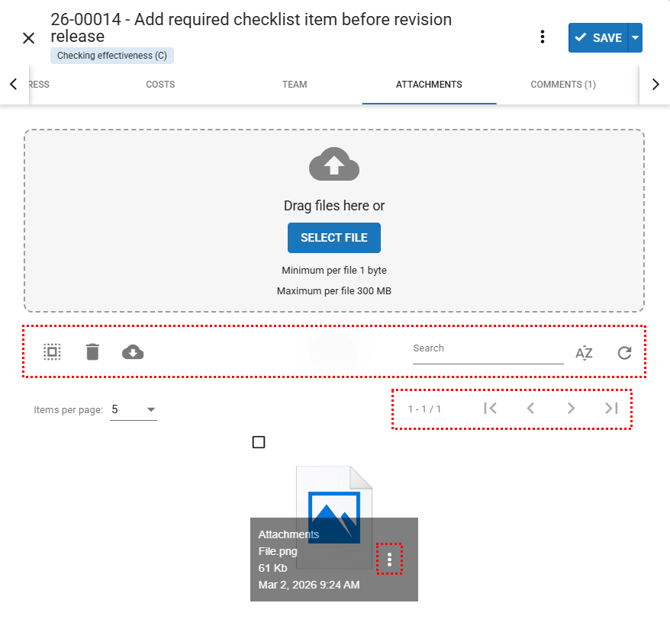
Attachment functions: Click  to select all files. Select a file and click
  to remove it.
To download the selected files, click .
.
to select all files. Select a file and click to remove it.To download the selected files, click
.Search: Locate a file by name by clicking  , sort files alphabetically (A to Z) or by oldest upload.
To refresh the list, click .
.
, sort files alphabetically (A to Z) or by oldest upload.To refresh the list, click
.Pagination: Choose how many items to display per page and navigate using the  options.
options.Attachment options: By clicking the context menu  on the attachment, you can rename the file, preview it, download it, or remove it.
on the attachment, you can rename the file, preview it, download it, or remove it.Various file extensions can be uploaded. Images will appear fully displayed in the reports.