1. Access the module
2. Inbox
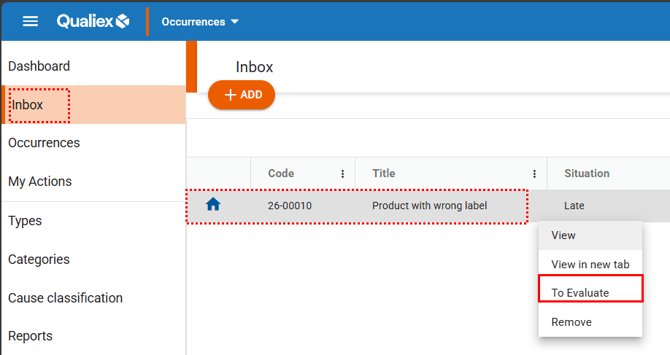
The Inbox is where all occurrences awaiting evaluation are centralized.
Click on the “Inbox” tab. Next, right-click on the desired occurrence, or click on the context menu and select “Evaluate”.
To approve an occurrence, you must have one of the following permissions assigned to your Role: Approve all (Inbox), or Approve from my location only(Inbox)
These permissions are configured under Configurations > Roles and Permissions.
3. Evaluating the occurrence
To perform the evaluation, it is necessary to review the registration information and define the treatment of the occurrence that will be approved.
GENERAL TAB
When opening the occurrence for evaluation, you will have access to the General tab, which contains the occurrence issuance details, treatment information, and the involved team.
Issuance data
The first step is to review the issuance information and define whether the occurrence is confidential and whether it should be restricted to a specific group of employees.
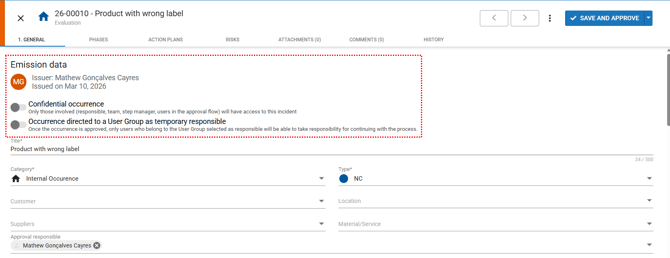
- Confidential occurrence (optional): You can define whether access to the information of this occurrence is restricted to the employees involved in the treatment.
To mark the occurrence as confidential, click the toggle button . Once activated, the button will turn blue
 , indicating that the occurrence is confidential.
-
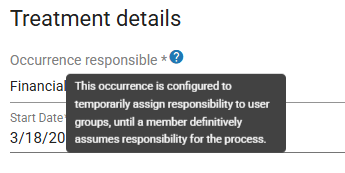
Occurrence assigned to a user group as temporary responsible (optional): When this option is enabled, it will be possible to select a user group that will be temporarily responsible for defining the specific employee who will lead the occurrence treatment.
-
The approver may review and edit the information entered in the occurrence description, including the following fields: title, category, type, customer, location, suppliers, material/service, approval responsible, and description.
Treatment details
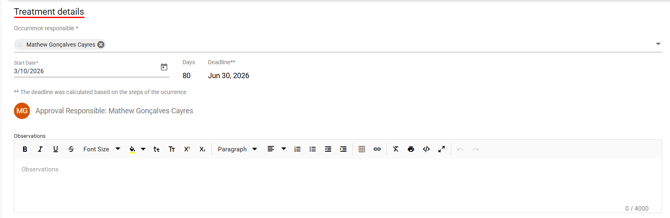
The second step is to initiate the definition of the occurrence treatment:
-
Occurrence responsible(mandatory): This is the employee responsible for ensuring the overall management and treatment of the occurrence.
To view the available employees, click the icon
 and select the desired employee.
 -
Start date (mandatory): Define the start date of the treatment. Based on this date, the completion deadline will be automatically calculated according to the configuration of the category linked to the occurrence.
-
Approval responsible (auto-filled): The employee who is currently evaluating the occurrence.
-
Observations (optional): Describe your evaluation in a clear and objective manner so that all users with access can understand it and so that it can serve as objective evidence within the system.
Regarding the occurrence owner, if at the beginning it was defined that the occurrence will be assigned to a user group as a temporary responsible, then in the Approval Responsible field it will be possible to select the group instead of an individual user.
Team
Select the employees who should have access to the occurrence without needing to be actively involved in the treatment process.
Click “Select” to search for and choose the employees.

-
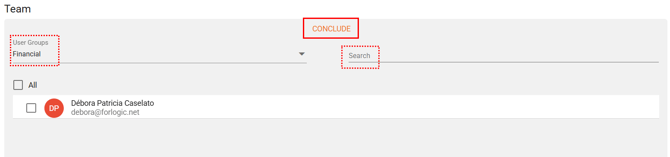
User groups: When selecting a group, the employees who belong to that group will be displayed below.
To select an employee, click the checkbox
 . Once selected, it will be marked with an orange check.
 -
Search: Enter the name of a specific employee and the system will locate them.
To select the employee, click the checkbox
 . Once selected, it will be marked with an orange check.
 -
If necessary, use the “ALL” option to select all employees listed on the screen.
After completing the selection, click “Finish”.
Only employees with access to the Occurrences module will be listed.
ATTACHMENTS TAB
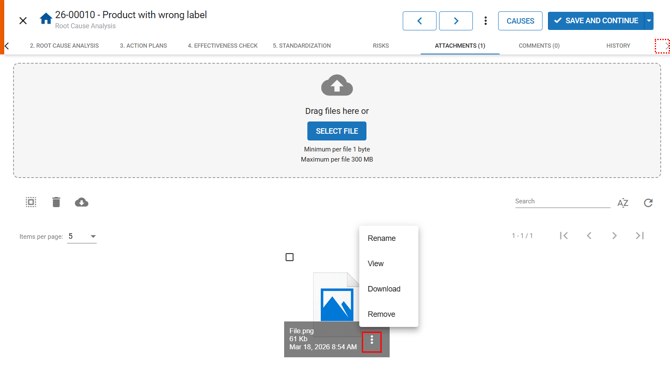
To locate the Attachments tab, use the arrow in the upper-right corner  of the screen.
PHASES TAB
In this section, the responsible parties and deadlines for each stage of the occurrence treatment are defined, including:
- Root cause analysis
- Action plan elaboration
- Execution of occurrence action plan
- Effectiveness check
- Standardization / disclosure
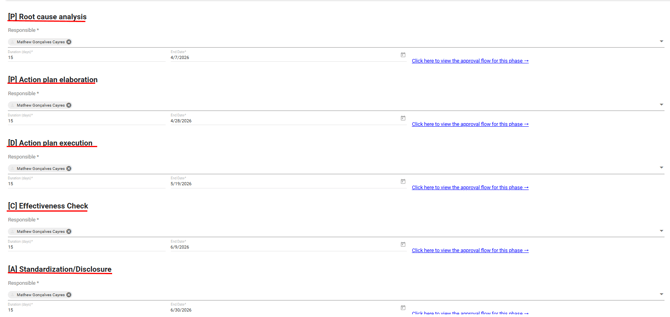
Phase responsible(mandatory): When the overall occurrence owner is defined on the General tab, the phase responsible fields are automatically populated with the same responsible person. However, it is possible to customize and assign a different owner for each phase.
To define a specific employee, click the  icon and select the desired employee.
Duration (mandatory): This is the number of days allocated to complete the phase, which is pre-filled according to the category configuration. This information directly impacts the phase end date and the overall occurrence completion deadline.
To change the duration, click on the field and enter a new number of days.
End date (mandatory): This date is calculated based on the treatment start date (defined on the General tab), the phase duration in days, and the end date of the previous phase.
To change it, click on the field and select a new date. This adjustment will automatically update the phase duration.
4. Approving the occurrence
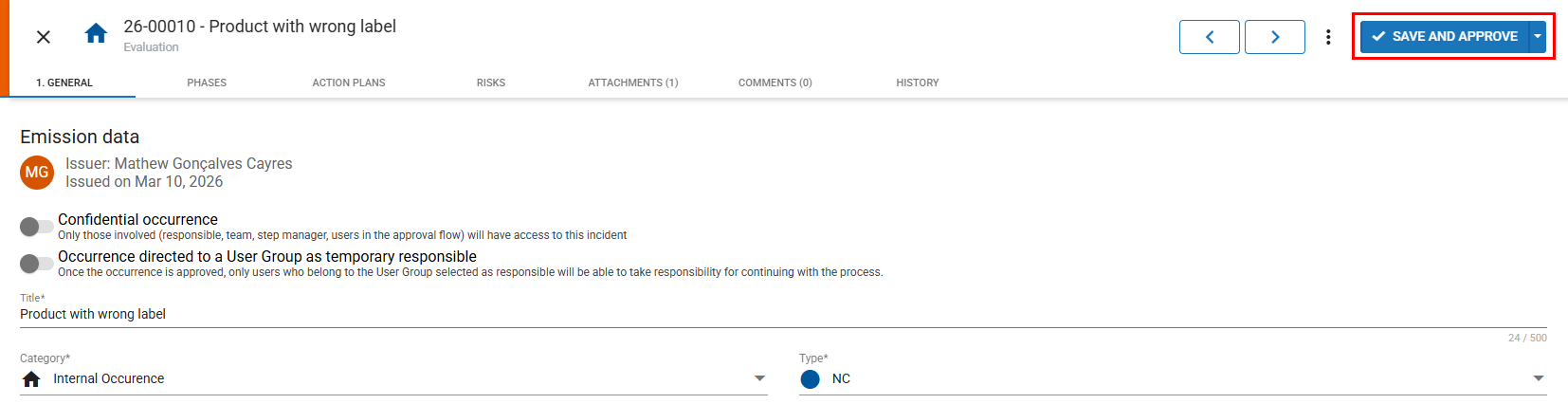
After completing the evaluation and defining all required information, you must approve the occurrence to proceed with the treatment process.
To do so, click “SAVE AND APPROVE”.