
This layout organizes occurrences in an intuitive way, enabling faster analysis and a complete understanding of each record.
Accessing the Module
Removing and Adding Columns
When you open the Occurrences tab within the module, you will see the following default columns:
-
Icon:
Untitled field displaying the icon related to the occurrence’s category, making visual identification easier. -
Code:
Shows the unique code assigned to each occurrence. -
Title:
Displays the title registered for the occurrence. -
Status:
Indicates the occurrence’s status, such as on time, overdue, closed on time, or closed overdue, always based on the deadlines defined in each step. -
Approver:
Shows the name of the user responsible for approving that occurrence. -
Current Step:
Indicates the current step in the occurrence workflow (e.g., Cause Analysis). -
Occurrence Responsible:
Displays the user designated as responsible for the occurrence. -
Phase Owner:
Shows the name of the person responsible for the step currently in progress. -
Category:
Displays the category associated with the occurrence (e.g., Internal Audit). -
Type:
Shows the type linked to the occurrence (e.g., Nonconformity).
You can adjust the columns according to your needs, keeping only those that truly help in your daily work.
To add a new column, simply click the context menu  of any column within the Occurrences tab and select “Columns.”
A complete list of available columns will appear for you to choose from and insert, as shown in the example below.
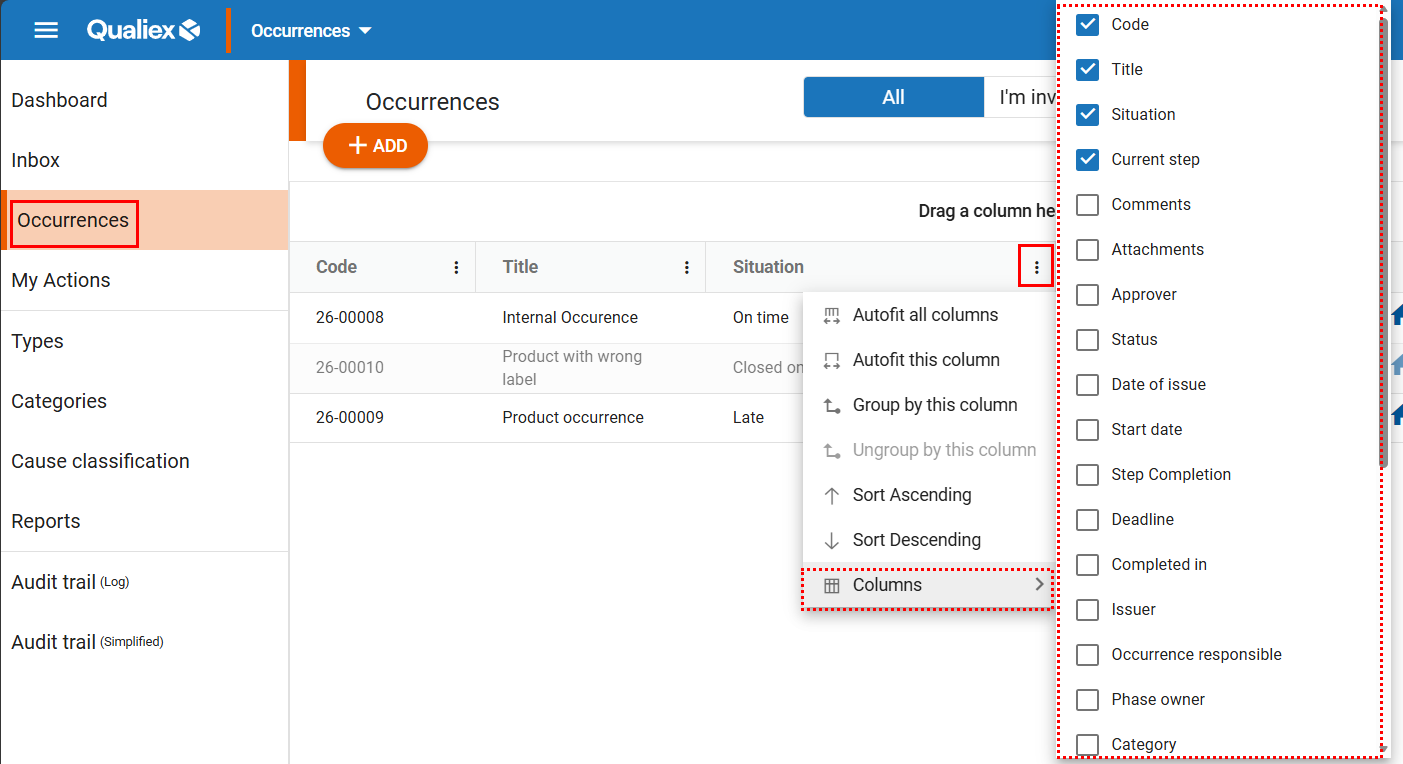
Columns with a blue check mark are already visible in your view. To display additional columns, simply select the desired options — one or multiple — and they will automatically appear in the Occurrences tab.
After selecting, click outside the menu to close the context menu.
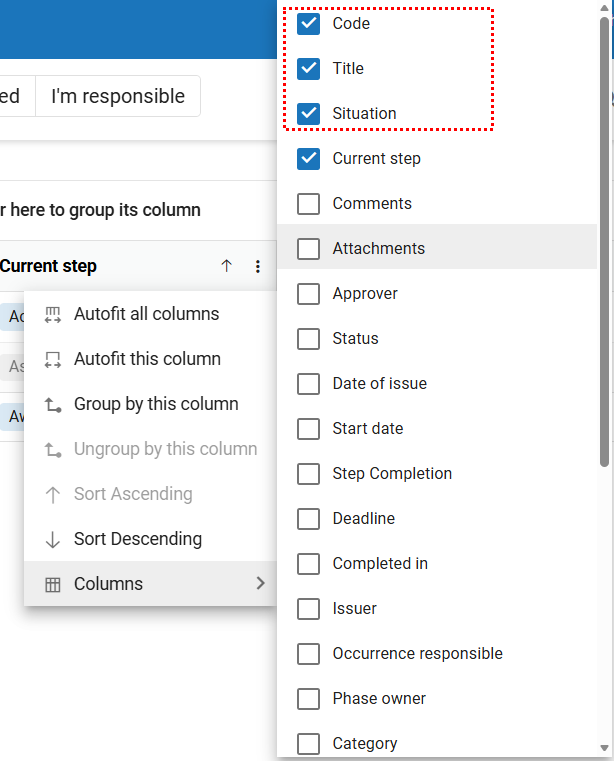
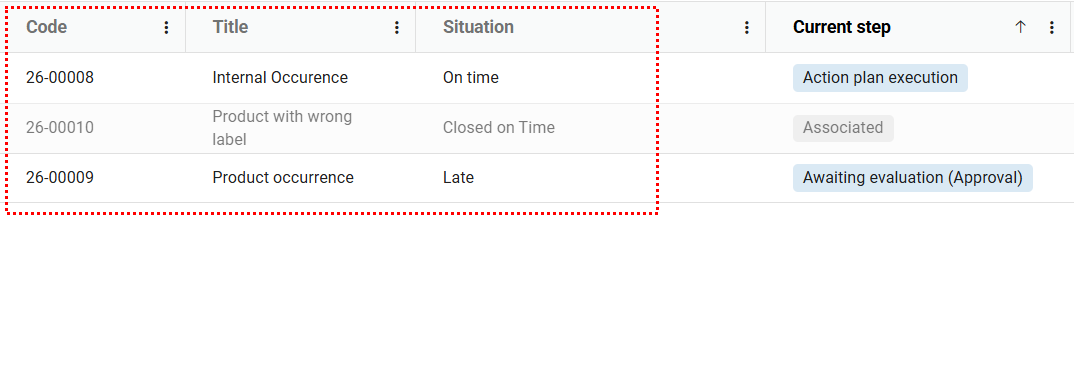
If you prefer to hide columns that are no longer relevant to you, simply open the context menu  of any column in the “Occurrences” tab and select “Columns.”
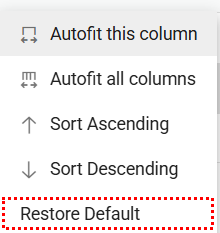
Then, uncheck the box of the column you want to remove, and it will automatically stop being displayed. If you want to return to the original configuration, just click the three dots on any column and select “Restore default.”
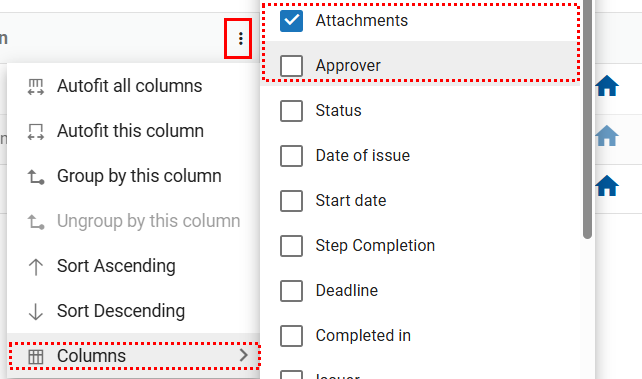
It’s important to remember that these adjustments are saved in the browser’s cache.
Therefore, when switching to another browser or accessing in incognito/private mode, the displayed columns will return to the system’s default layout.